On this page
About the sandbox's limits — read this first1. Setup: the DHS Integration wizard2. Before and after: what a branch NPHIES code unlocks3. Eligibility: the "Fill Missing Fields" pre-flight4. The Approvals tab5. Submitting a pre-authorization6. Configuration surfaces7. One route that isn't finishedFeature Tour (screenshots)
Every screenshot below was captured from the branch sandbox built from this PR (maysara-dhs-integration.sandbox.anastawfik.com, commit 5226604), signed in as the owner roster user on the seeded Sandbox Dental clinic.
About the sandbox's limits — read this first
The sandbox has no valid DHS client secret, because DHS credentials are issued per real provider and cannot be minted for a test environment. That has two consequences for this tour:
- Anything that requires the exchange to answer — a real coverage list, a real
eligibility verdict, a live approval number — could not be produced. Those flows are documented from the code in the In depth pages.
- Everything up to the outbound call was exercised, including the real error paths.
Those are shown here, because they are exactly what a clinic sees on a bad credential.
To reach the patient-side screens at all, one setup step was completed through the app's own updateBranchesNphiesCodes mutation: the Riyadh Clinic branch was given the NPHIES code SANDBOX-PR-001. Without it every patient-side DHS control stays hidden — see below.
1. Setup: the DHS Integration wizard
Settings → Integrations → DHS Integration. The tab only exists when the feature flag is on for the company and the user holds View DHS Integration.
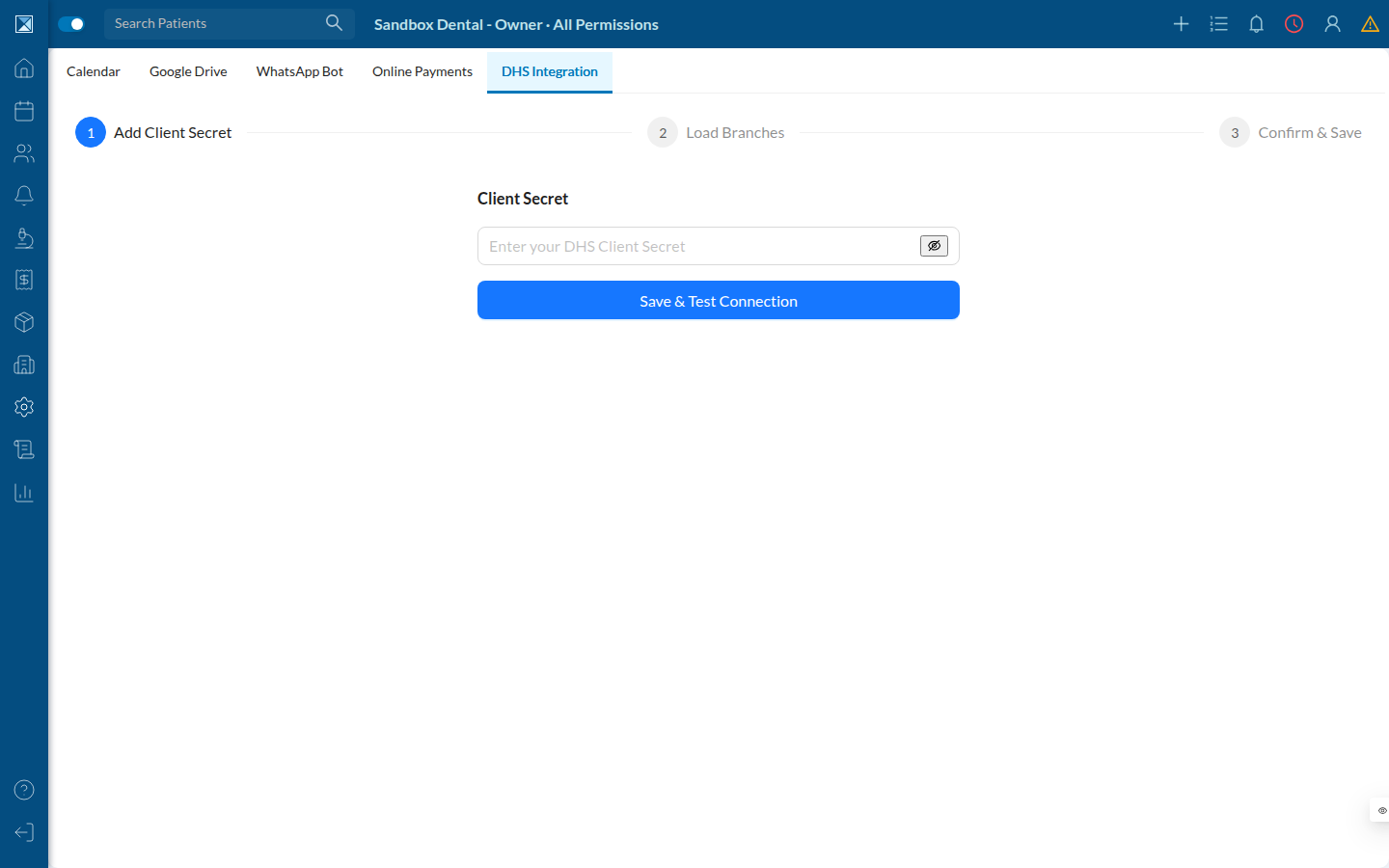
Steps 2 and 3 are greyed out — they stay locked until a secret has been saved (DHSIntegrationSettings.tsx:54-58,69-70).
The bad-credential path
Entering an invalid secret and pressing Save & Test Connection leaves the wizard exactly where it was:
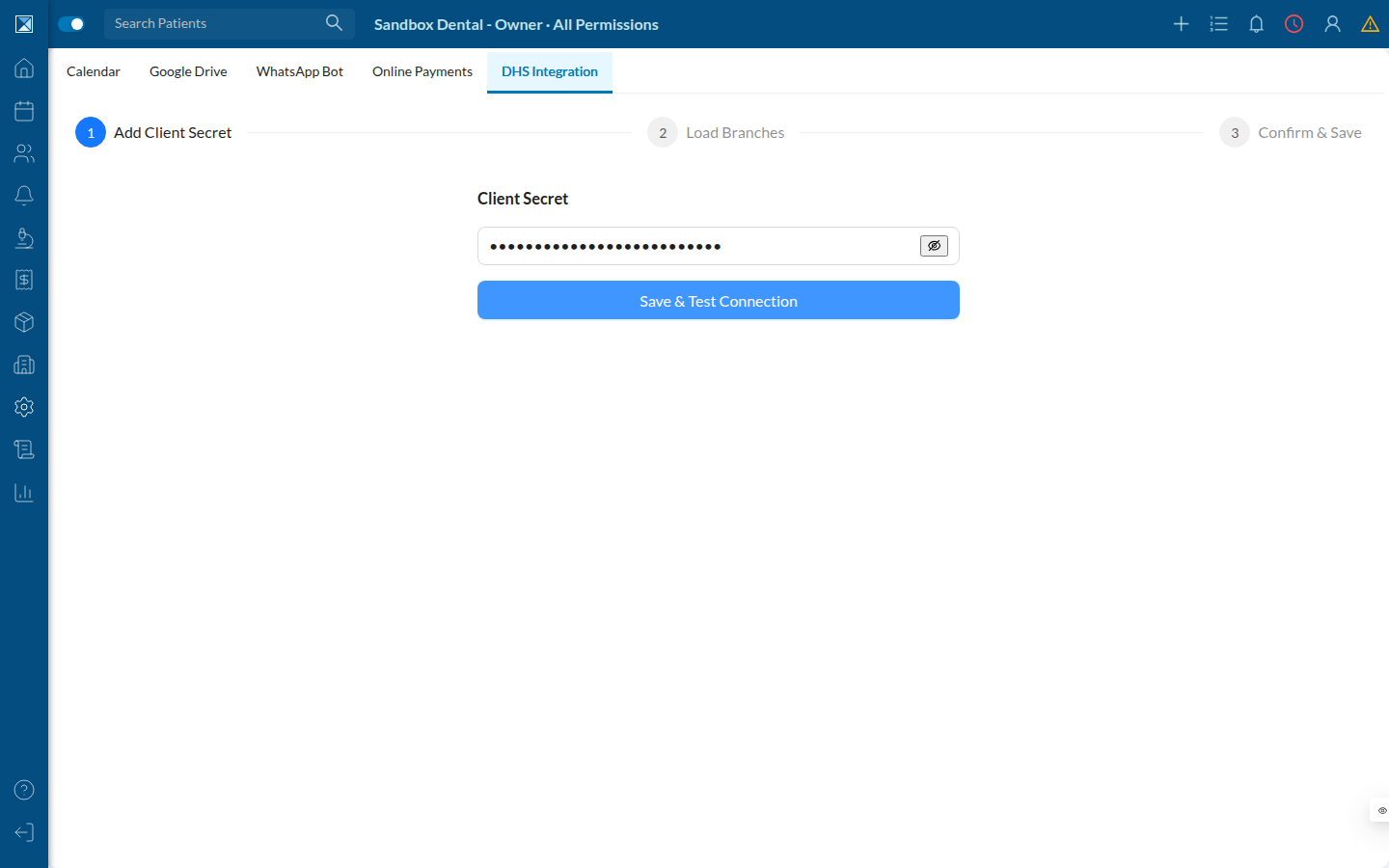
The server did respond, and its message is precise. Captured from the GraphQL response:
{
  "saveDHSIntegration": {
    "success": false,
    "message": "Authentication failed: client secret rejected by DHS (HTTP 204)"
  }
}
That wording comes from dhsErrorUtils.js:37-42, which special-cases an empty upstream body with HTTP 204/401/403 into a "client secret rejected" message rather than a bare fallback. Nothing was written to the database — saveDHSIntegration validates before it persists.
Support note: the message is delivered as a transient antd toast. It is easy to miss, and it had already dismissed itself by the time this frame was captured. If a clinic reports "nothing happens when I save the secret", the connection test is almost certainly failing.
2. Before and after: what a branch NPHIES code unlocks
This is the single most useful thing to understand about the feature's visibility rules.
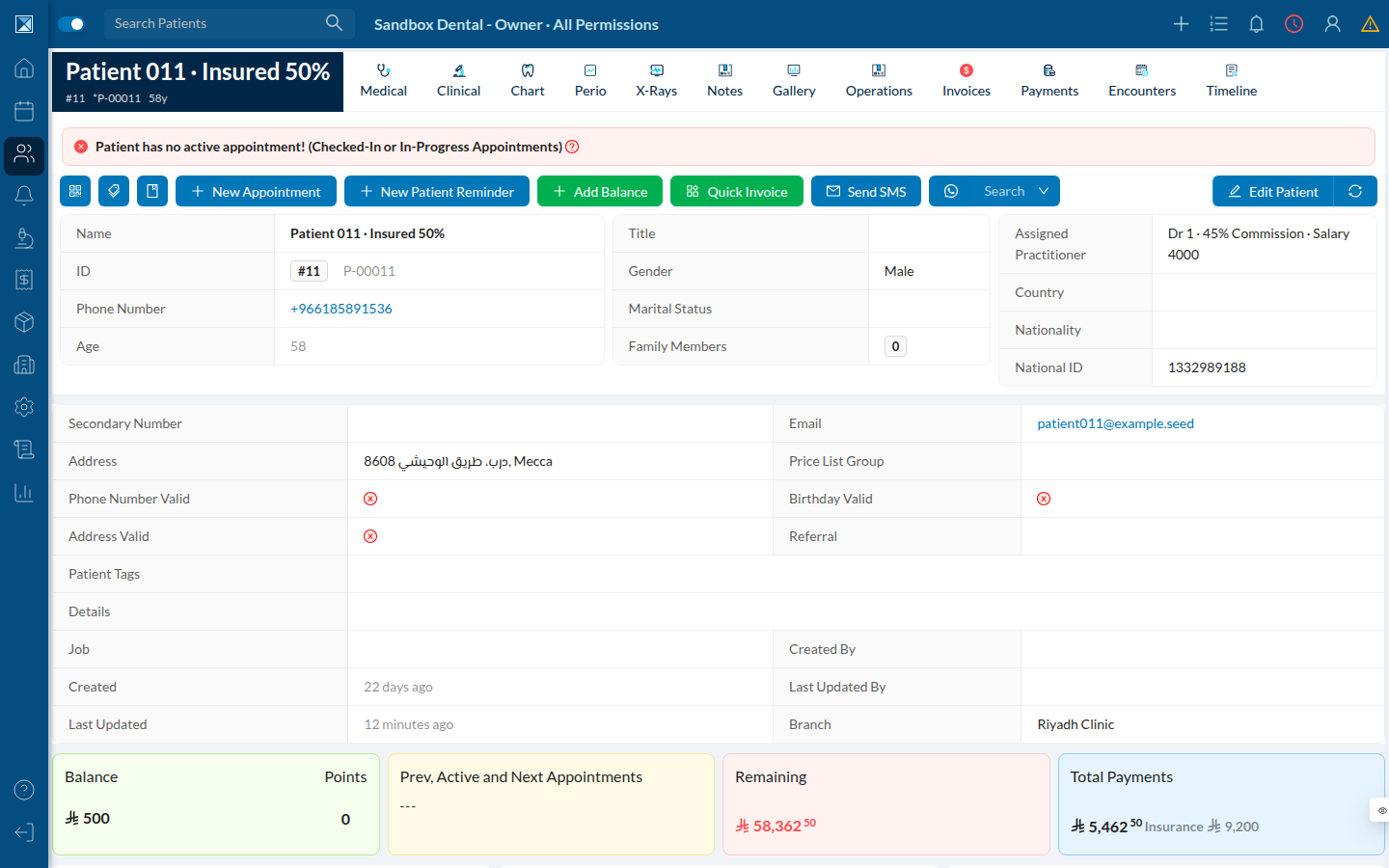
Before — the branch has no NPHIES code. The patient profile shows the new National ID field, but no DHS controls at all:
After — the same screen once the branch has an NPHIES code. Two new buttons appear on their own row:
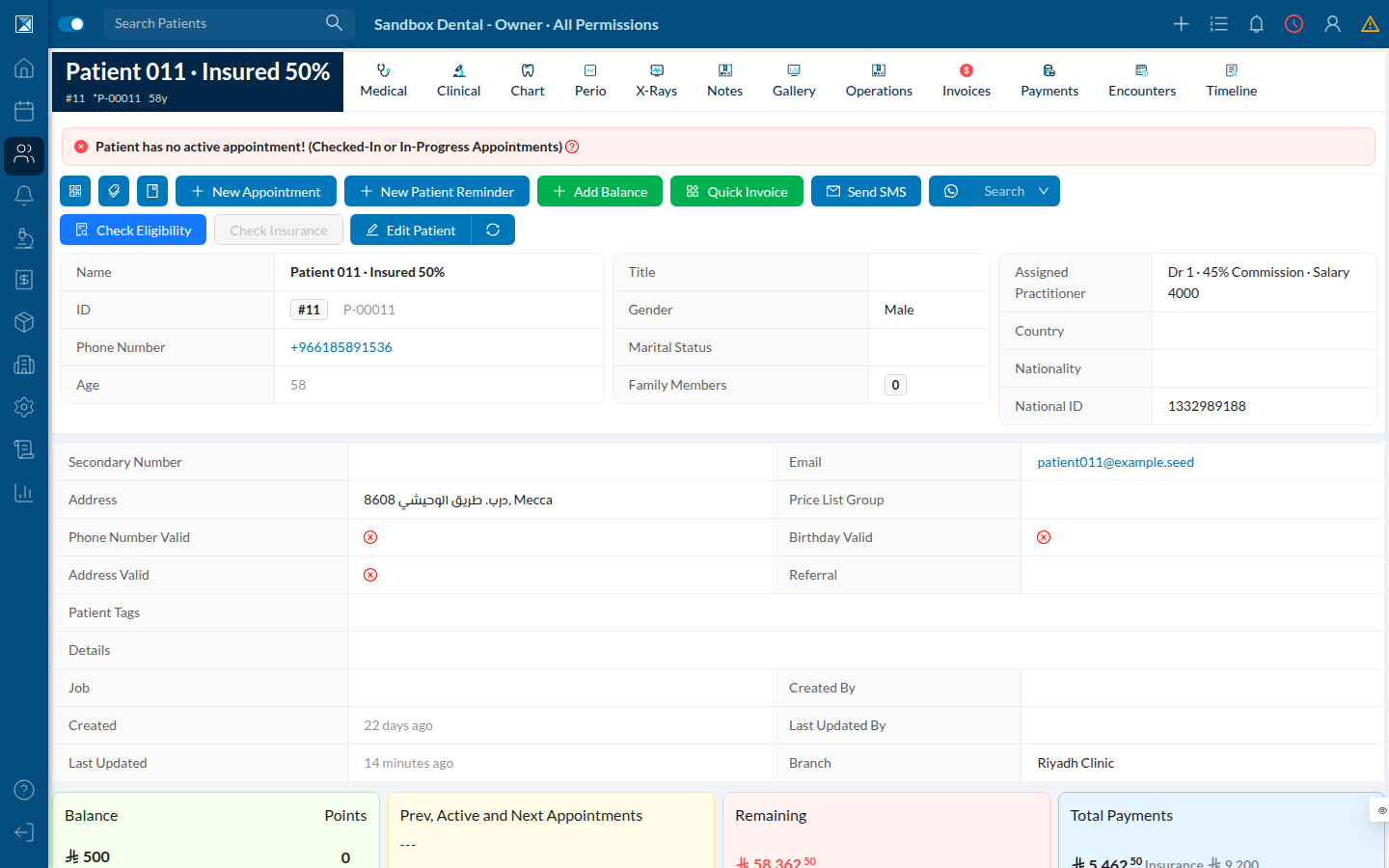
The gate is hasDhsFeature && branchData?.branchDetails?.nphiesCode (PatientProfile.js:147), repeated on six other surfaces. Check Insurance is greyed here because the patient's identifier type was not yet set — the tooltip explains it (DHSCheckInsurance.tsx:63-68).
3. Eligibility: the "Fill Missing Fields" pre-flight
Pressing Check Eligibility on a patient with gaps in their record opens this before it calls anything:
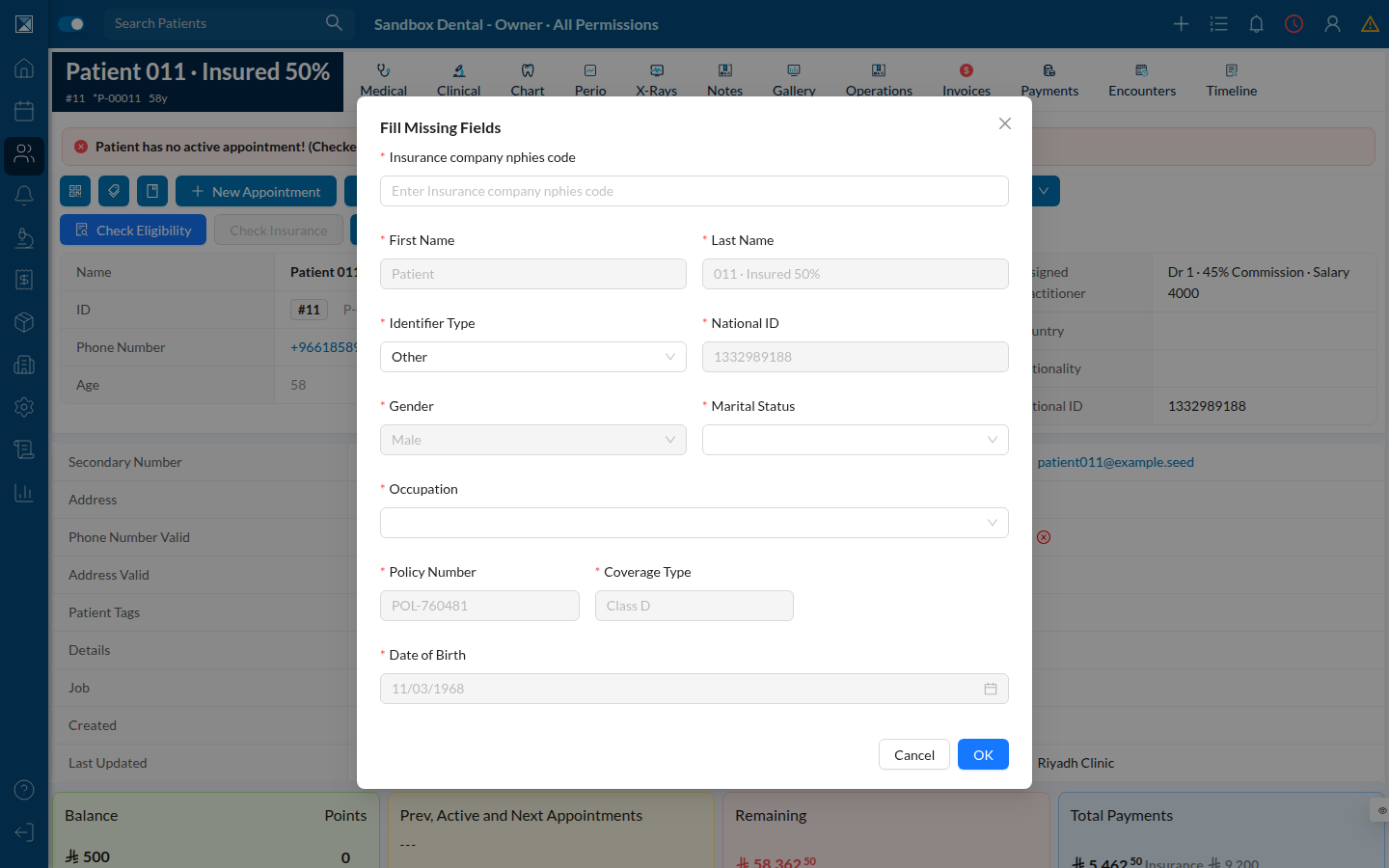
Everything the patient record already holds is disabled and shown for confirmation only (DHSCheckEligibility.utils.ts:125-127). Here only three fields are editable: the insurer's NPHIES code, Marital Status and Occupation.
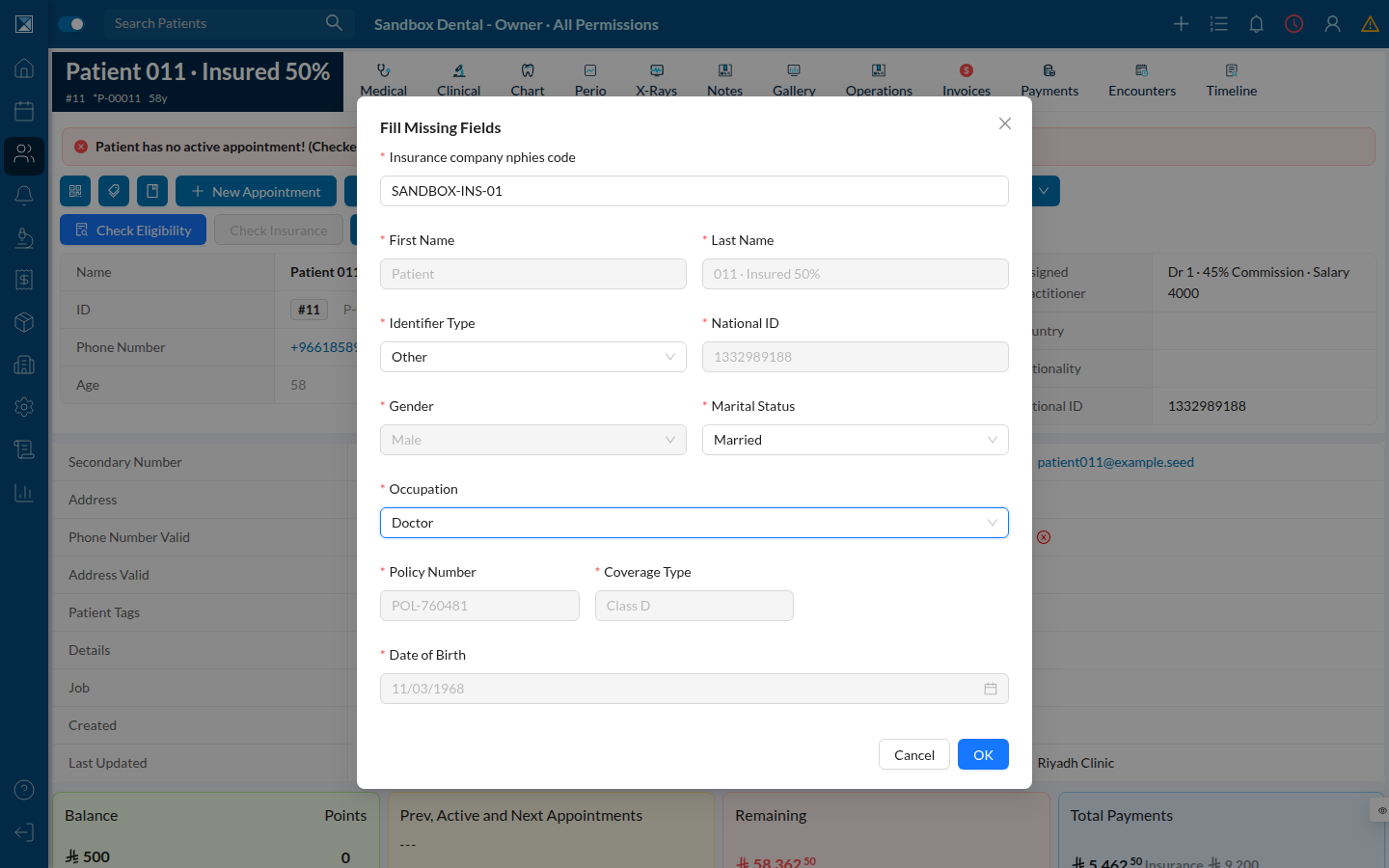
Filled in:
The important consequence
Pressing OK runs updatePatientDetails first and the eligibility check second. The eligibility call failed here (no client secret), but the patient record was still updated — Marital Status now reads Married and Job reads Doctor:
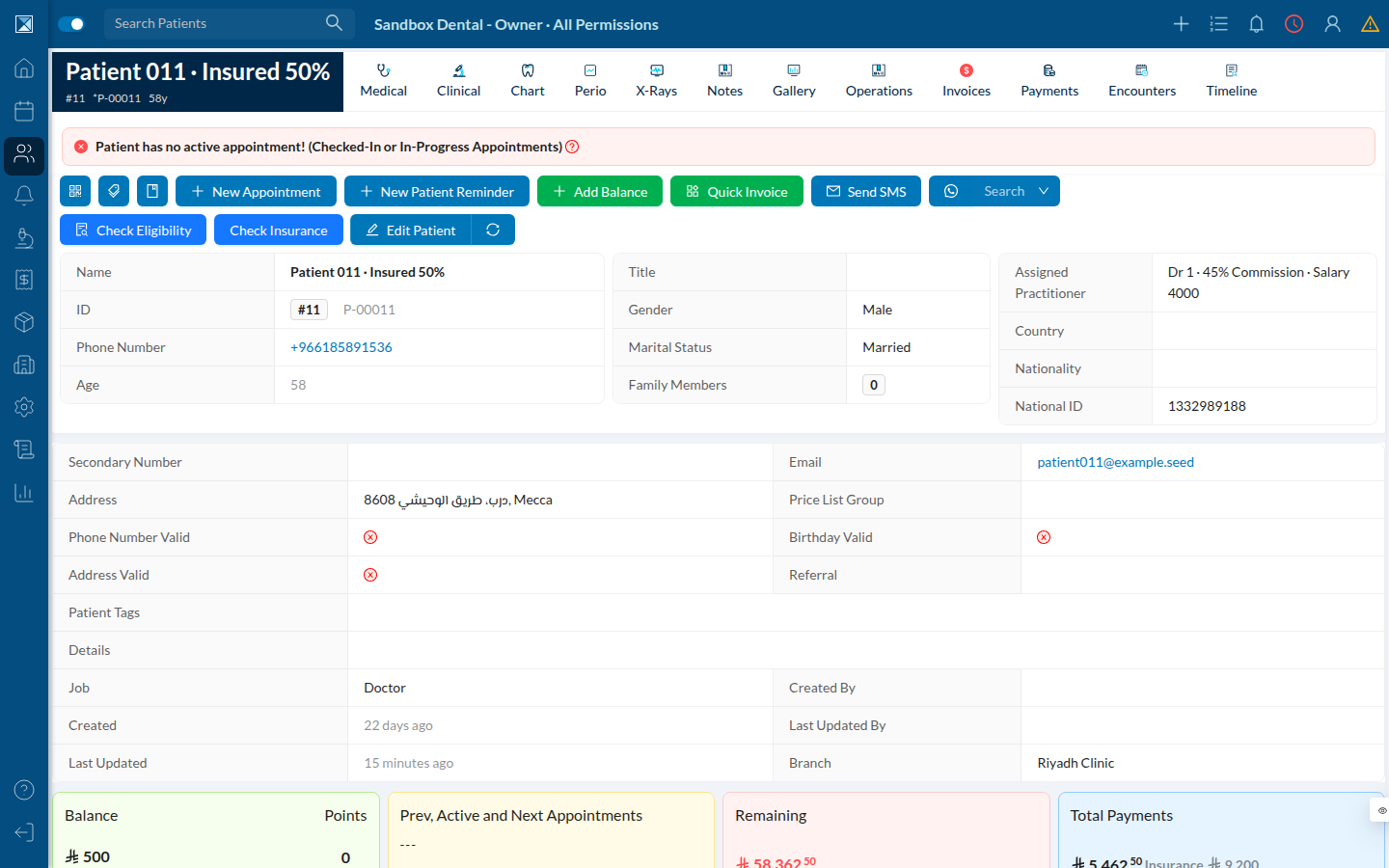
No eligibility tag appeared, because no DHSEligibilityCheck row was created. This is the documented sequence in useDHSCheckEligibility.ts:281-307 — the clinic keeps the data-quality improvement even when the exchange is unreachable. Trainers and support agents should state this explicitly; it surprises people.
The error itself does surface correctly. Captured from the live DOM while the toast was on screen:
DHS Integration not configured or secret missingThat string originates at dhsAuthentication.js:31-33.
4. The Approvals tab
Patient → Chart → Approvals. Empty on the sandbox, but the structure is the real one:
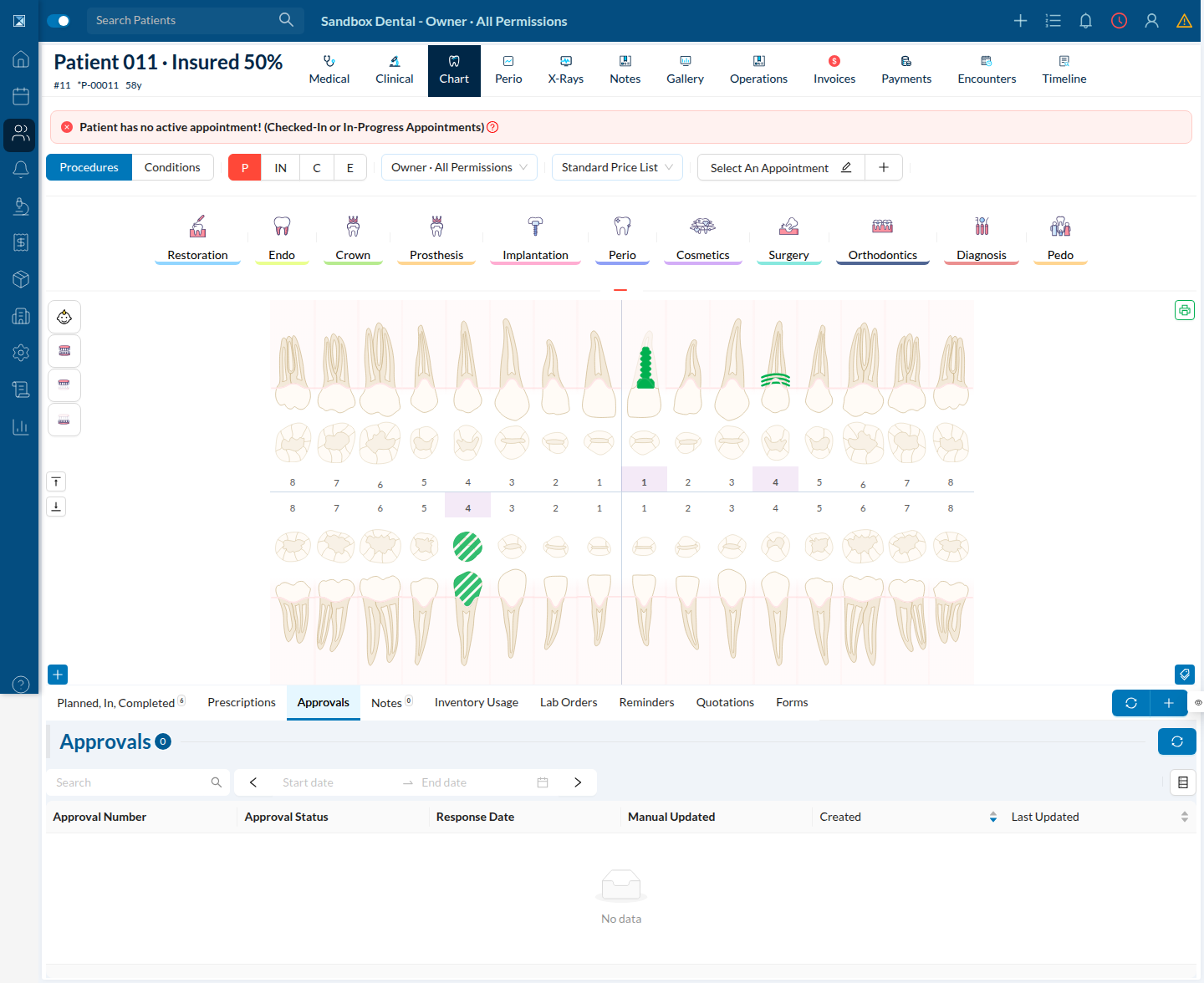
Six columns, exactly as defined in Approvals.js:133-181. The table is read-only by construction — hasEdit={false}, newButton={null}, DrawerForm={null} (:188-203). The only controls are the search box (which searches approval numbers) and the date range.
Row actions live in the hover popover on the status tag, not in the table.
5. Submitting a pre-authorization
The entry point is in the chart's operations footer. Note the count in the button label:

Tester's trap: every operation seeded into the sandbox already had an invoice, andselectedForDHSrequires!op.invoice(ChartTable.js:264-280). GET Approval was disabled on every patient until a fresh, un-invoiced procedure was added to the chart.
Step 1 — Patient Info
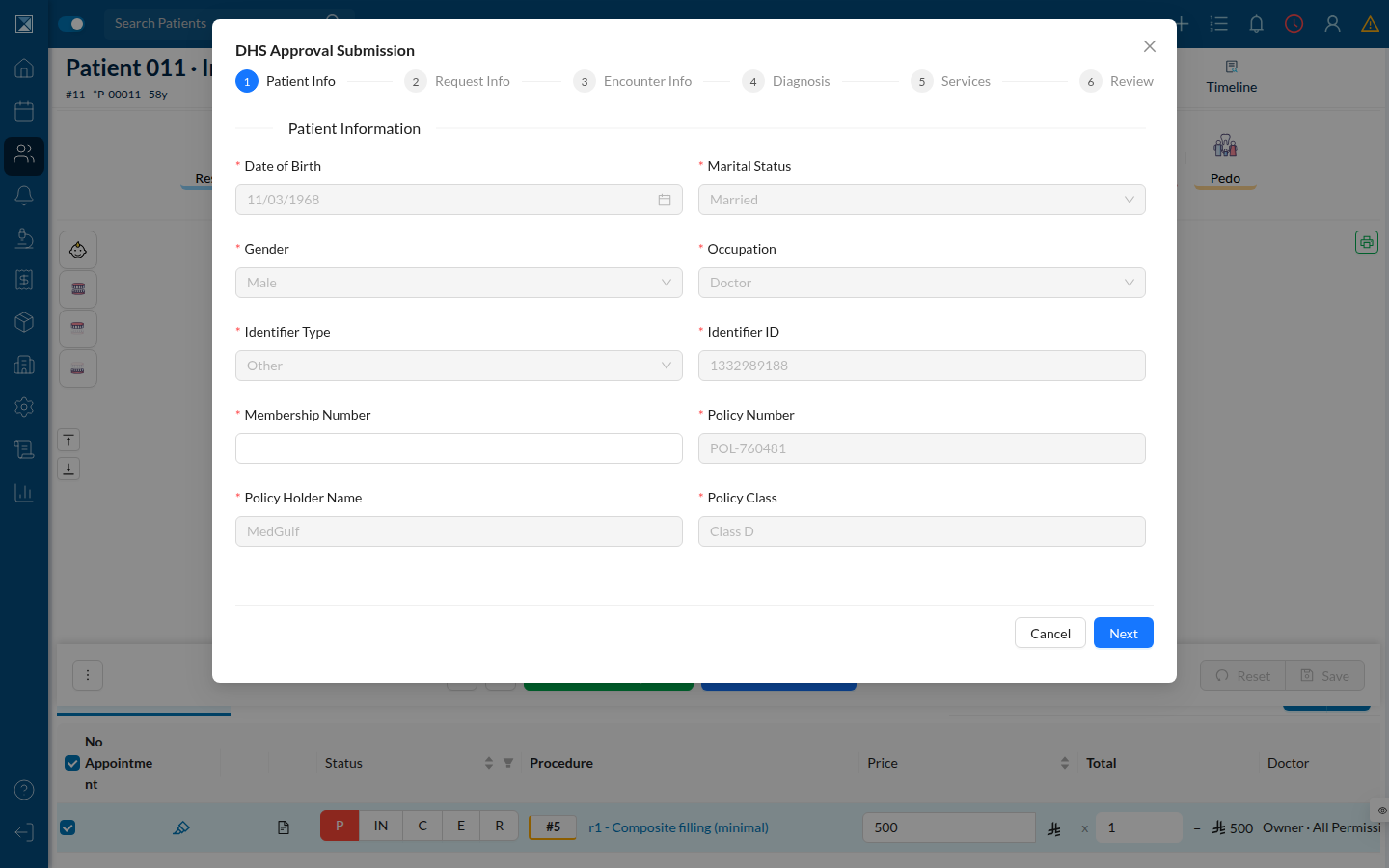
Six steps, not seven — the Attachments step only appears when the selected operations carry files (DHSApprovalSubmissionModal.tsx:168-173). Note how much is pre-filled and locked; only Membership Number needed input.
Step 2 — Request Info
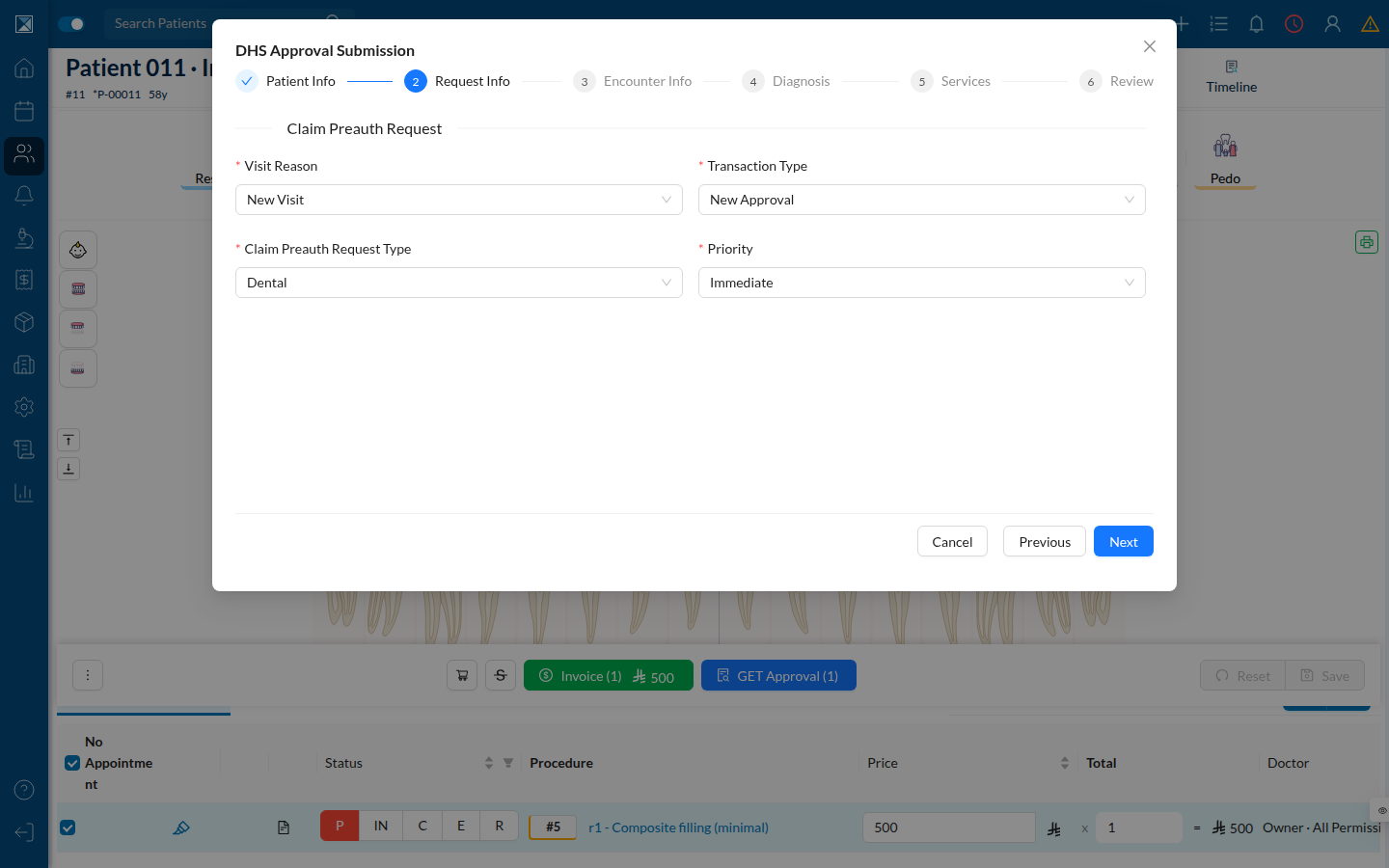
Several of these lists are deliberately trimmed to a single option, with the rest commented out in DHSApprovalSubmission.utils.ts:4-25 "until their flows are implemented" — Transaction Type offers only New Approval, Request Type only Dental.
Step 3 — Encounter Info and Practitioner
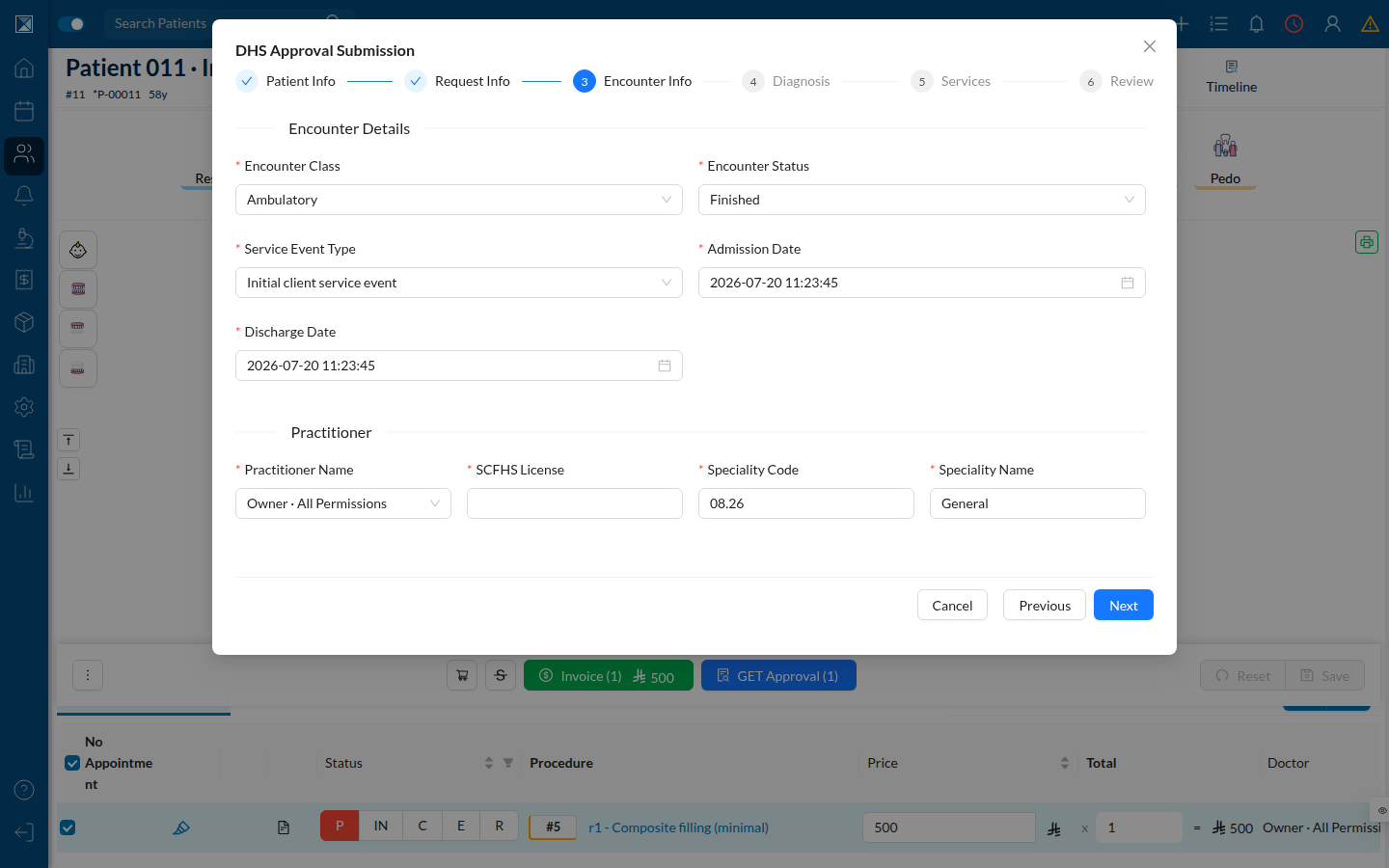
The practitioner picker is a server-searched select filtered to doctors, which auto-fills the SCFHS licence and speciality on selection (EncounterInfoStep.tsx:161-171). Speciality defaults to 08.26 / General. Admission and discharge dates cross-validate against the service dates (:86-116).
Step 4 — Diagnosis
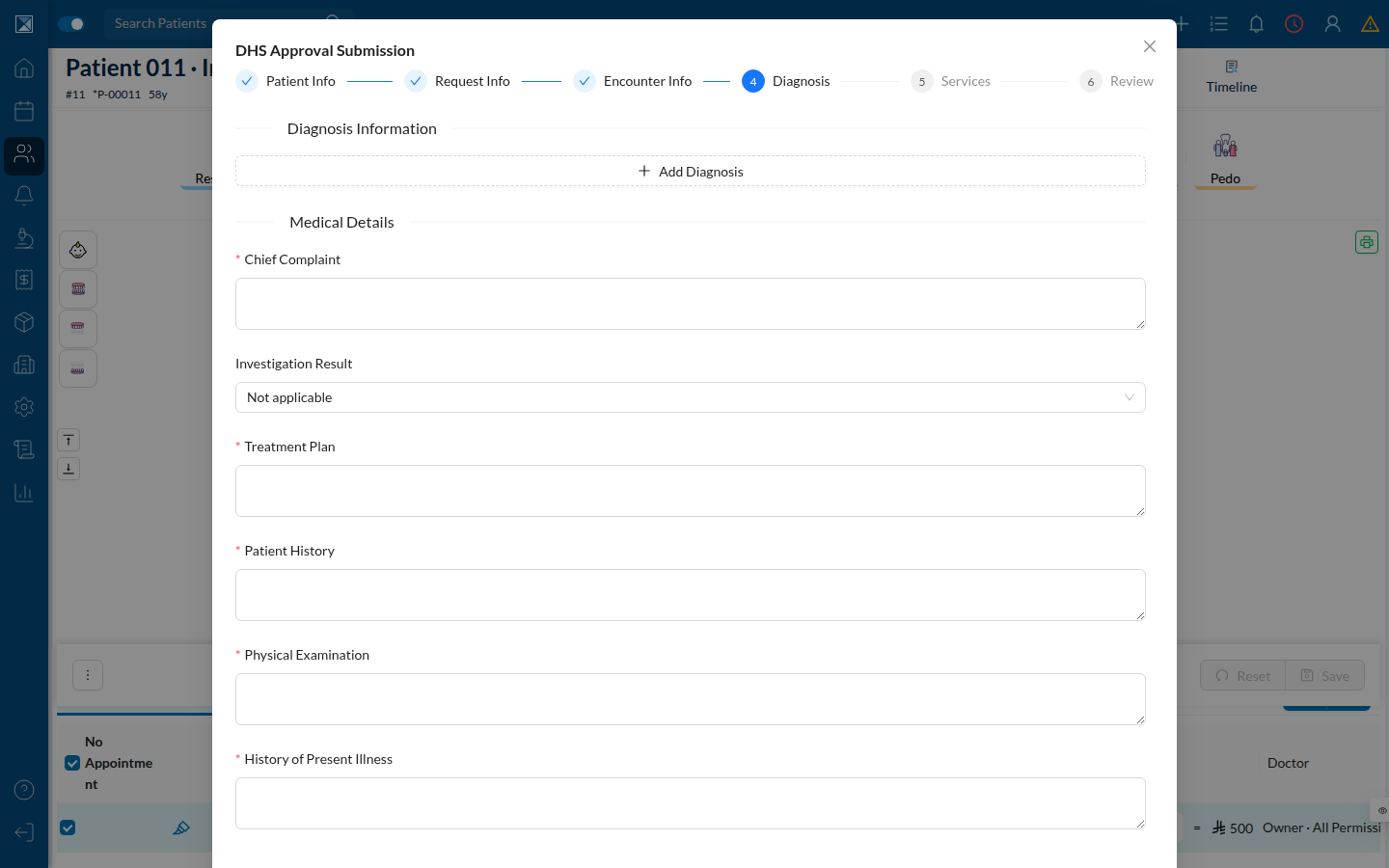
Adding a diagnosis reveals a Code / Type / Description row:
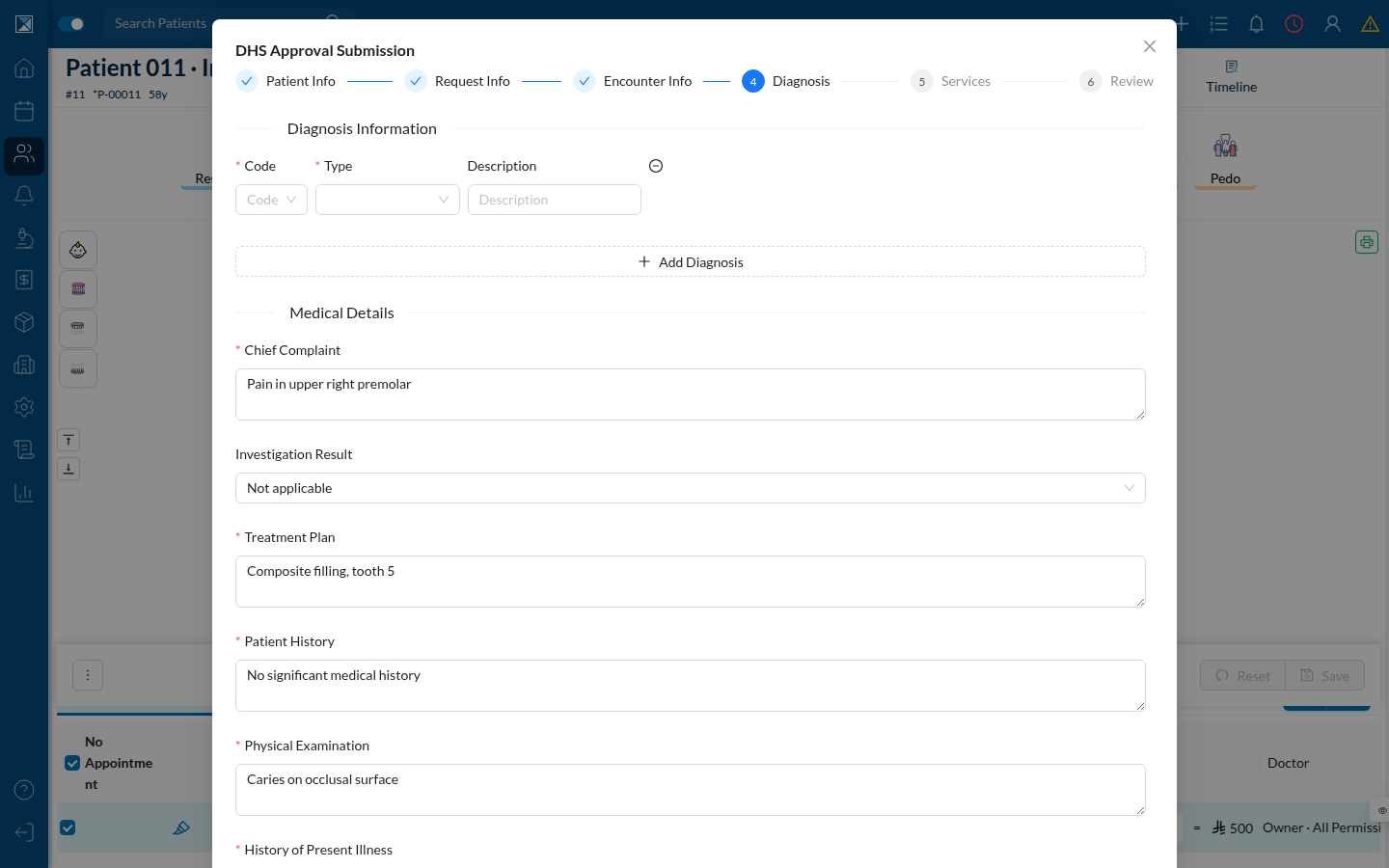
The code field searches the global ICD-10 conditions list. When nothing matches, it offers a deliberate escape hatch rather than dead-ending:
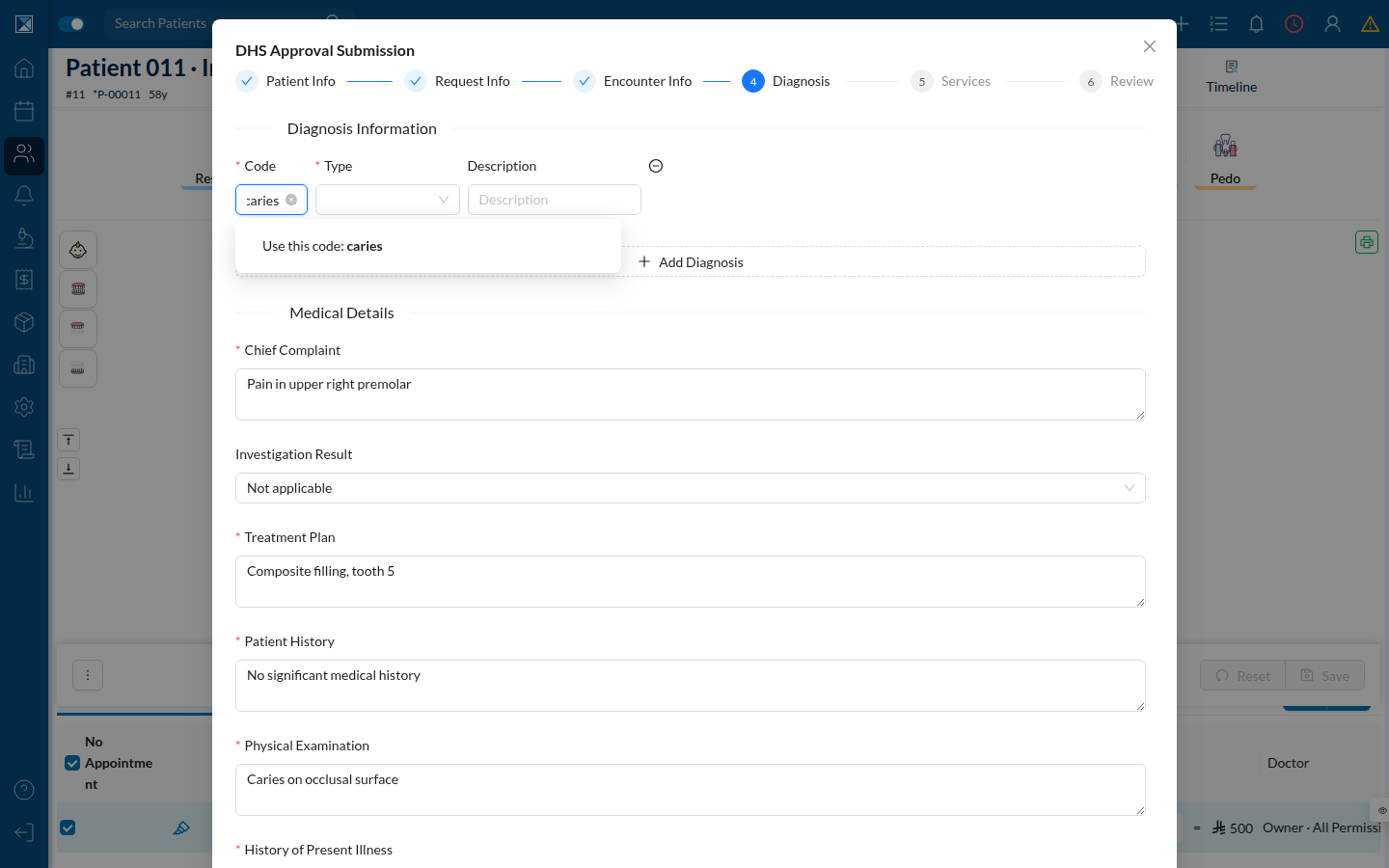
That is DiagnosisStep.tsx:77-94 — the typed string is injected as both code and name. At least one diagnosis is required to leave the step (:42-50).
Step 5 — Services
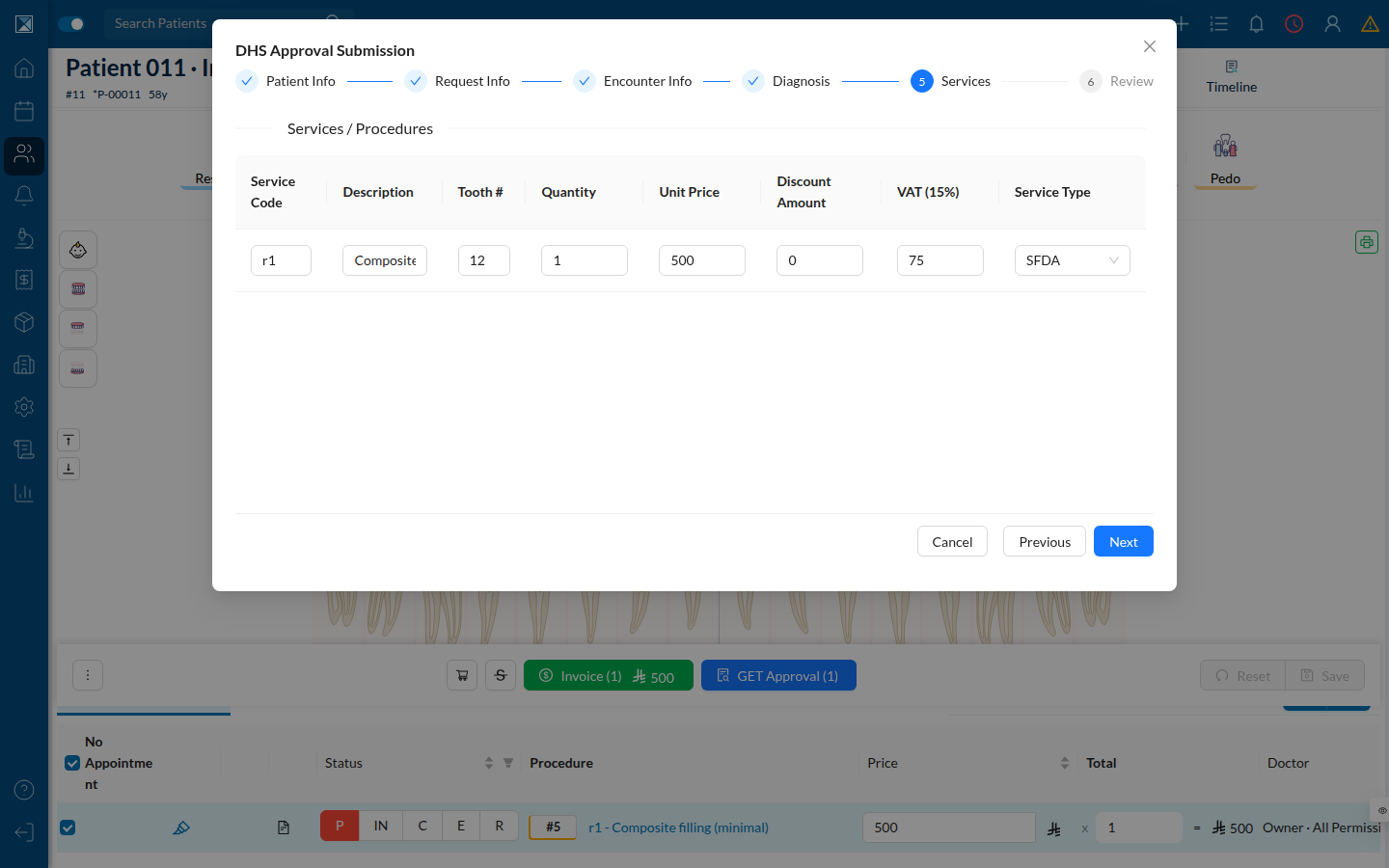
Everything here is derived from the chart operation and read-only except Service Type. VAT is computed automatically — 500 × 15% = 75 — and recalculates whenever price, quantity or discount changes (ServicesStep.tsx:110-144).
Step 6 — Review
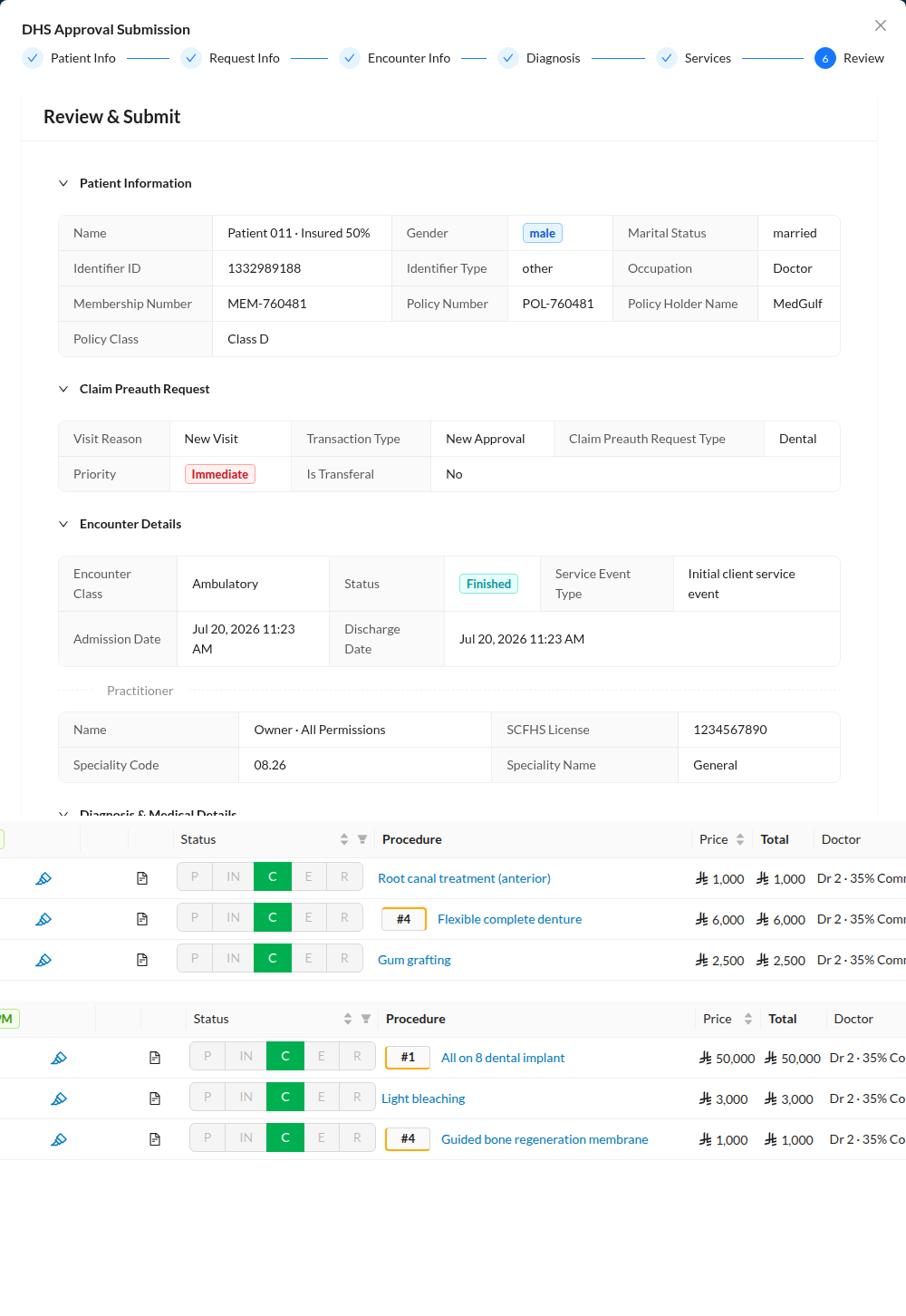
Everything is restated with the coded values translated back to labels, with all panels open by default (ReviewStep.tsx:210). Priority renders as a red tag when Immediate.
This tour stops here. Submitting would have fired a request at the DHS staging exchange with credentials that do not exist; the run was deliberately not completed.
6. Configuration surfaces
Insurance company NPHIES code
**Associates → Insurance Companies → company.** A new read-only row:
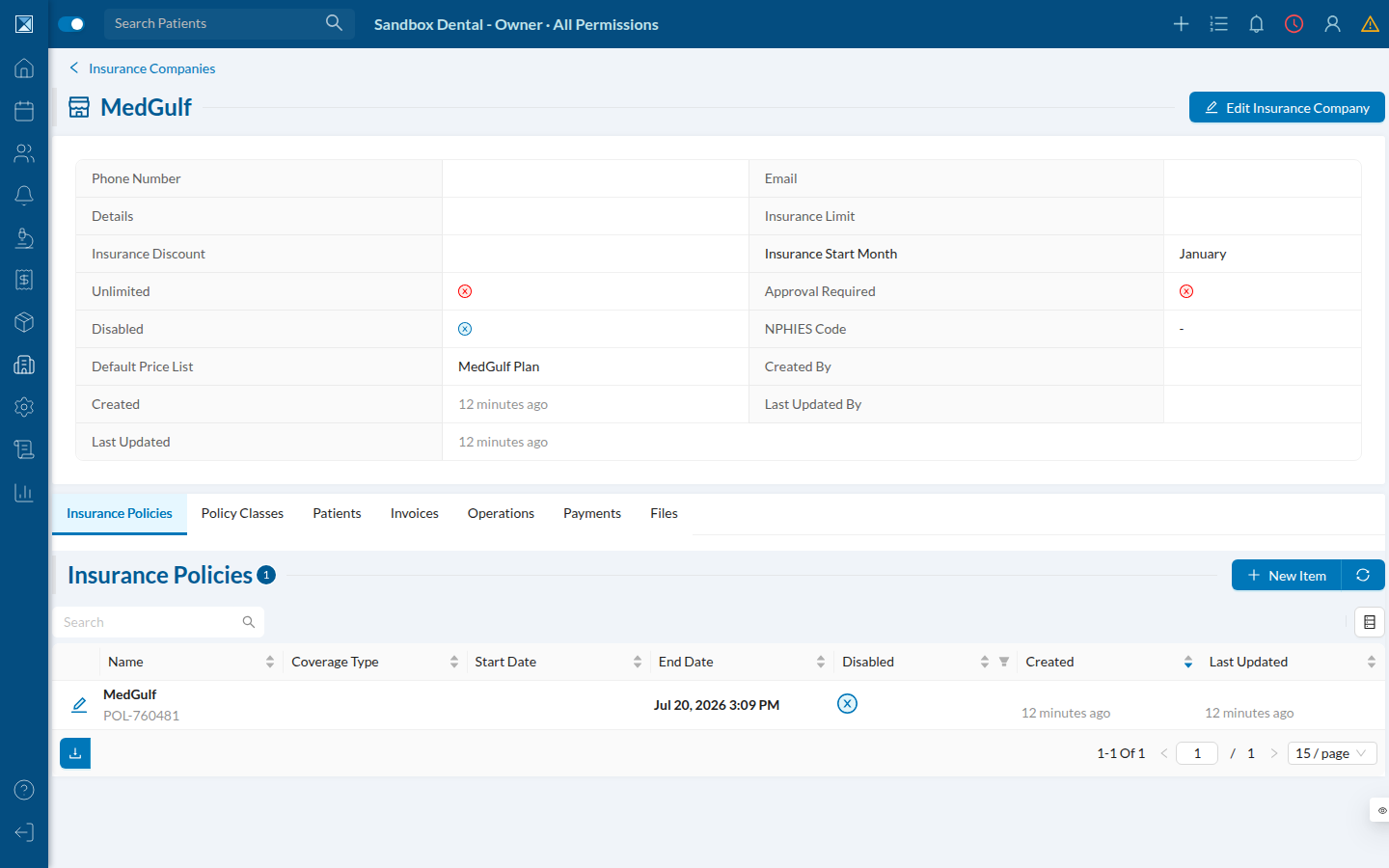
Editable on the company form (InsuranceCompanyForm.js:372-376). Note the asymmetry: addNewInsuranceCompany accepts both nphiesInsuranceCompanyId and nphiesCode, but editInsuranceCompany accepts only nphiesCode — the NPHIES insurer id is not editable after creation (schema.graphql:703-704).
The DHS permission tab
**Settings → Permission Groups → group → DHS Settings.** Shown here on the seeded Reception group, with everything off:
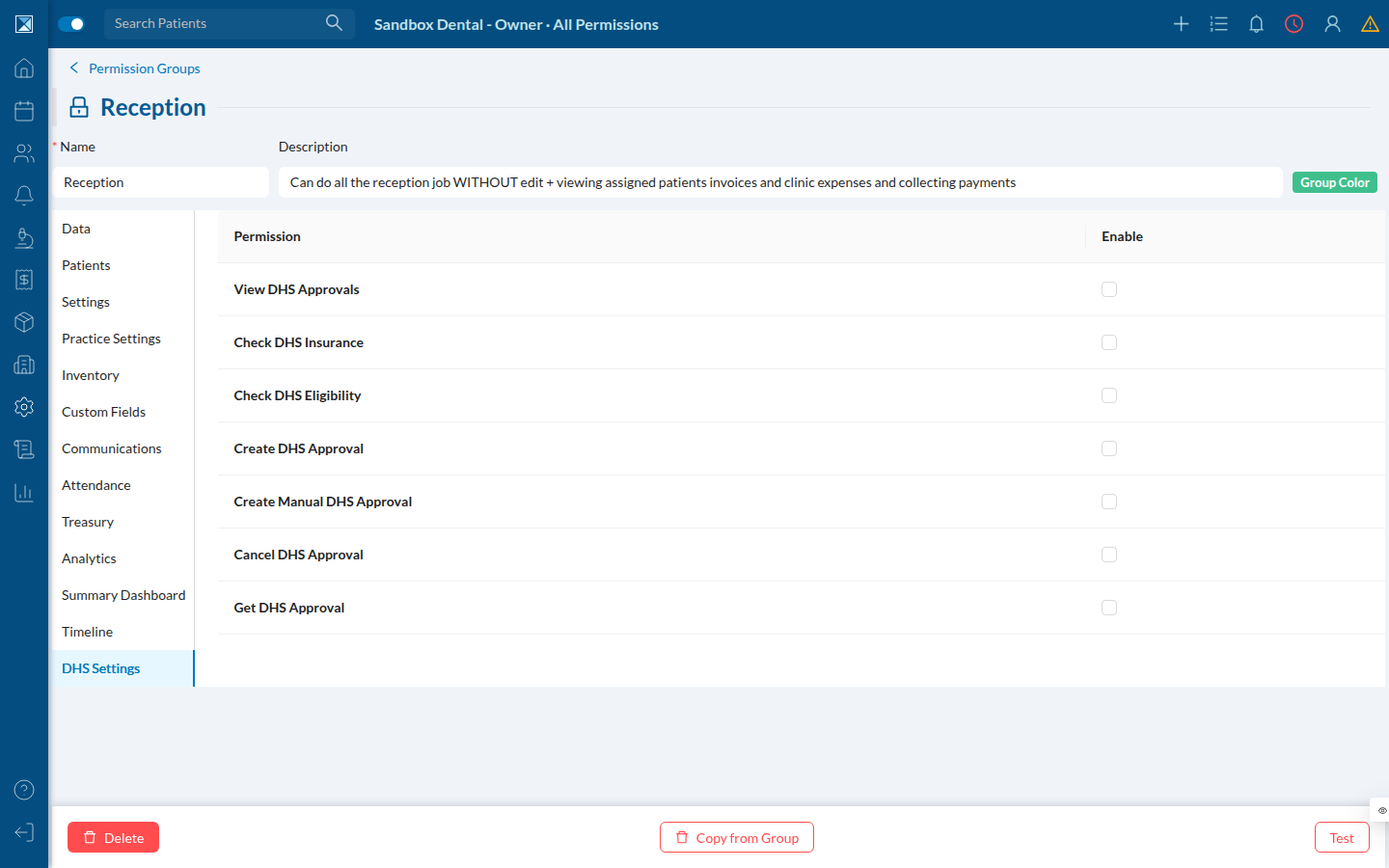
Seven granular permissions, one Enable box each (tableData.js:471-479). The remaining two — View and Edit DHS Integration — sit on the Settings tab under a DHS Integration row.
Unlike the sidebar and the integrations tab, this permission tab is not wrapped in a feature-flag check (Group.js:251), so it is visible to every tenant regardless of whether DHS is enabled for them.
7. One route that isn't finished
The sidebar registers Logs → Approvals at /logs/dhsApprovals (Sidebar.js:567-569, DashboardRouter.js:810-815). Navigating there on the sandbox gives:
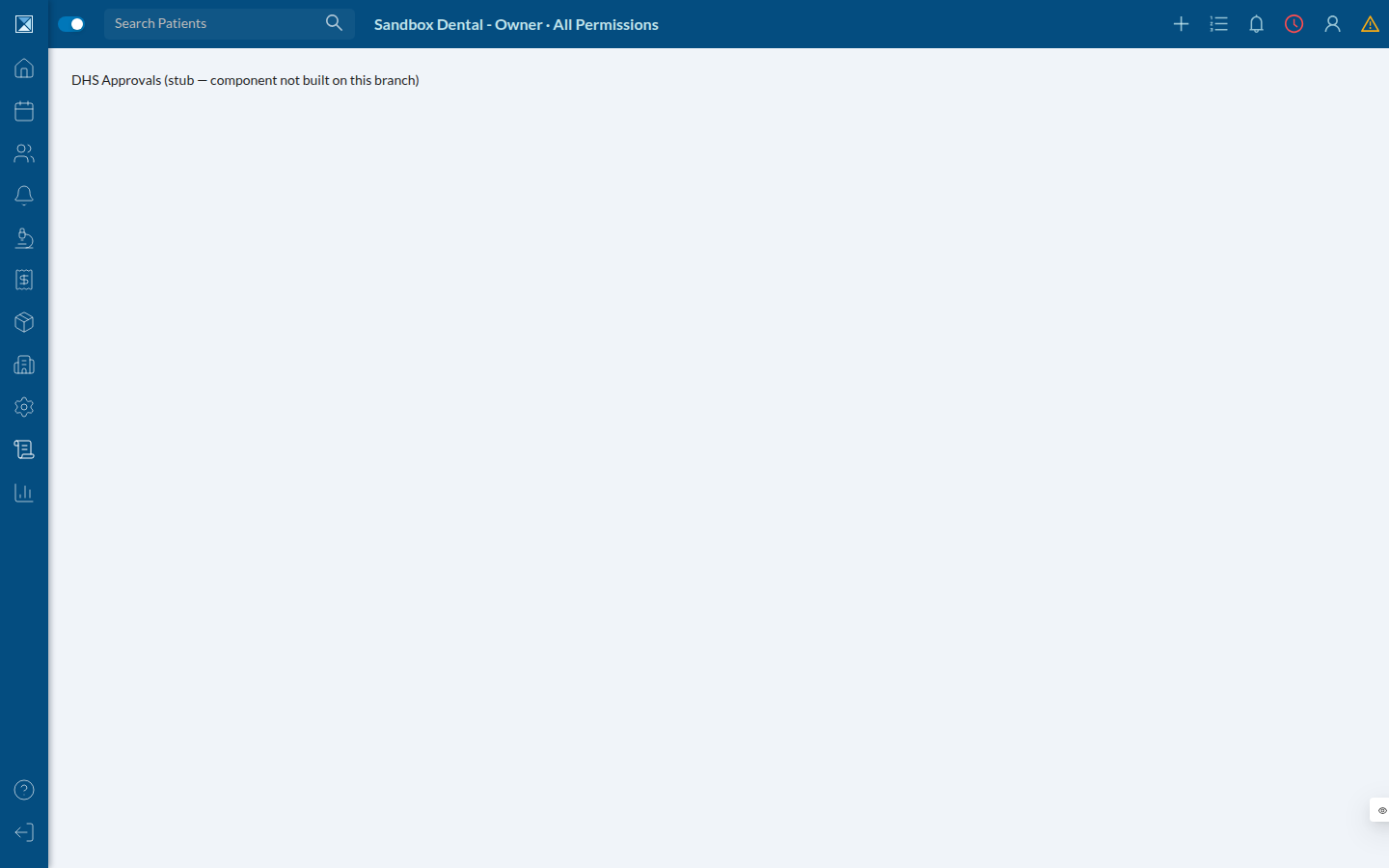
The route lazy-loads packages/clinic-web/src/components/dashboard/logs/dhsApprovals/DHSApprovals at DashboardRouter.js:399, and that directory does not exist in the repository — verified by listing packages/clinic-web/src/components/dashboard/logs/. The sandbox build substitutes the stub shown above so the bundle still compiles.
The per-patient Approvals tab (section 4) is the working surface on this branch. The detail route, /logs/dhsApproval/:approvalId, is implemented — it is the canary DHSApprovalDetail payload inspector, reachable by clicking an approval number in the Approvals tab. See Known Gaps.