On this page
1. Editing a staff member2. Changing what a permission group can do, or deleting it3. Security settings — password and two-factor authenticationNot shown: admin-only actionsWalkthrough
This PR has no new screens, buttons, or settings — it changes what happens on the server when you use screens that already exist. The tour below shows those existing screens so support, sales, and training teams can point at something concrete when they explain the fix: "every one of these actions now also clears the affected phone's notifications."
All screenshots were captured from the sandbox logged in as the owner seed user (Sandbox Dental clinic).
1. Editing a staff member
Settings → Users lists everyone in the clinic.
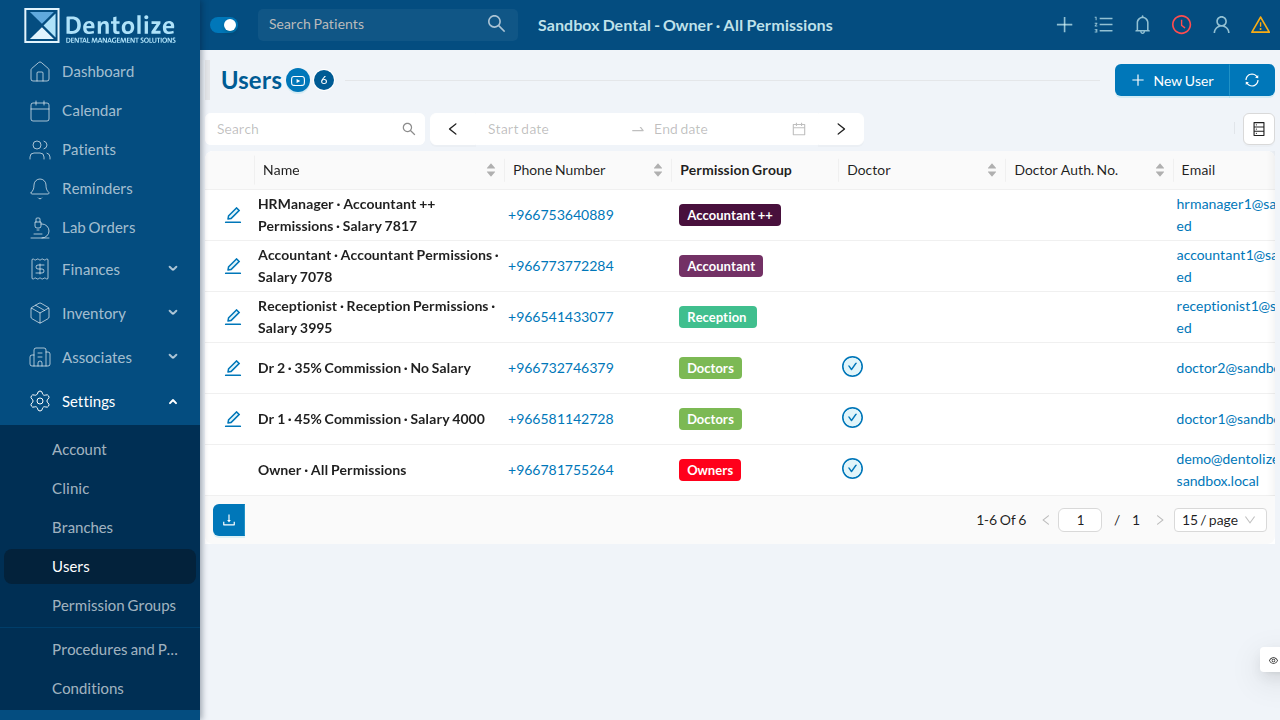
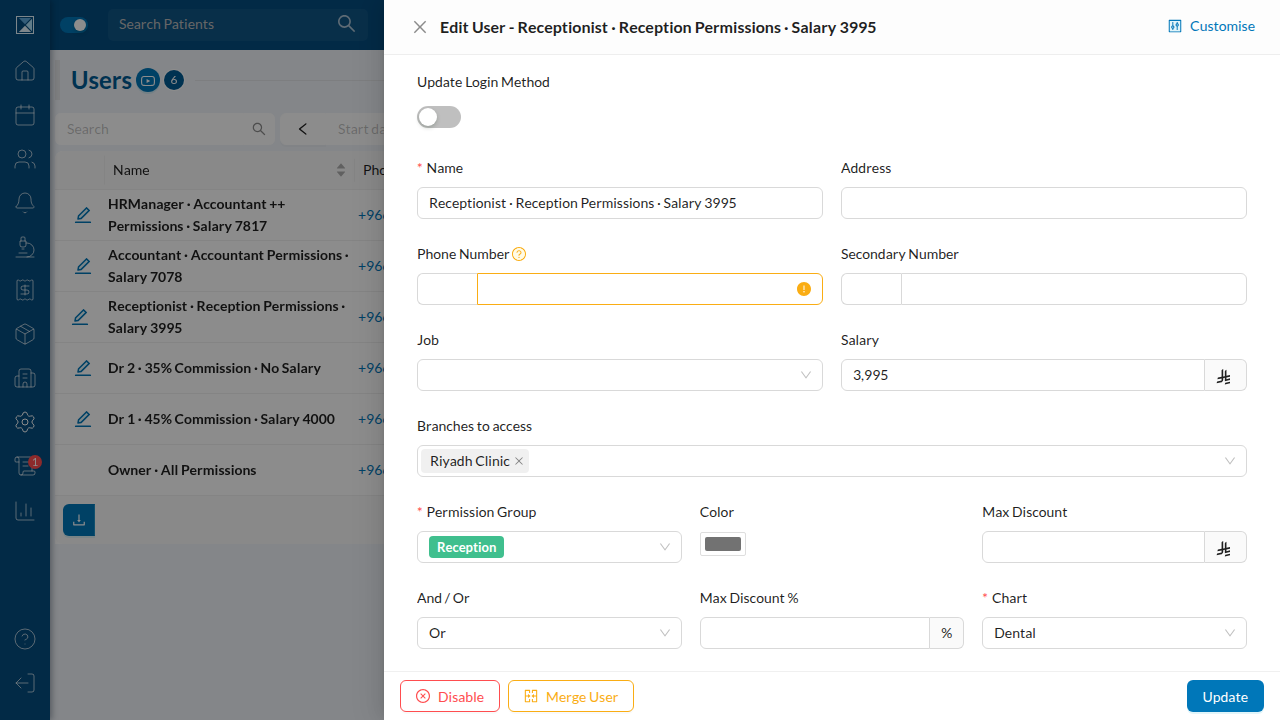
Clicking the edit icon on any row opens the Edit User form. Hitting Update here — even for something as small as changing a job title or salary — calls the editUser mutation, which has always force-logged-out that user's other sessions, and now also empties their stored push tokens.
2. Changing what a permission group can do, or deleting it
Settings → Permission Groups lists every role in the clinic (Owners, Doctors, Reception, Accountant, and so on) and how many users are in each.
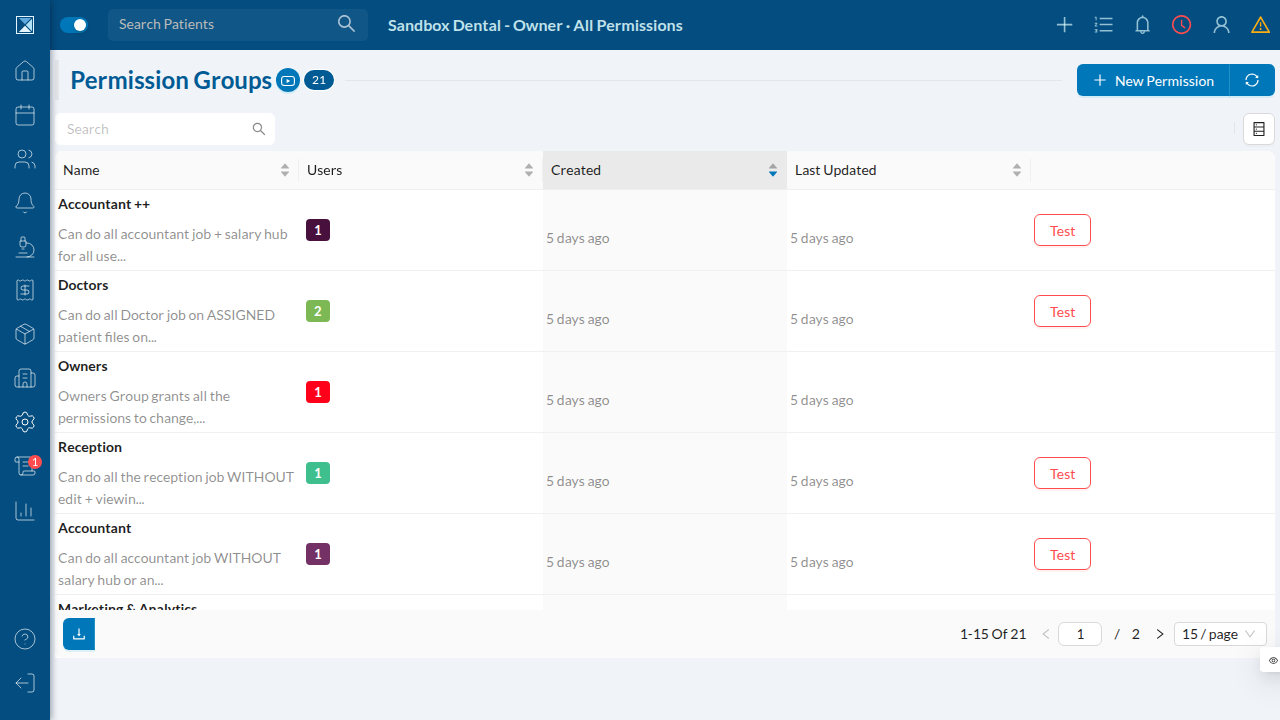
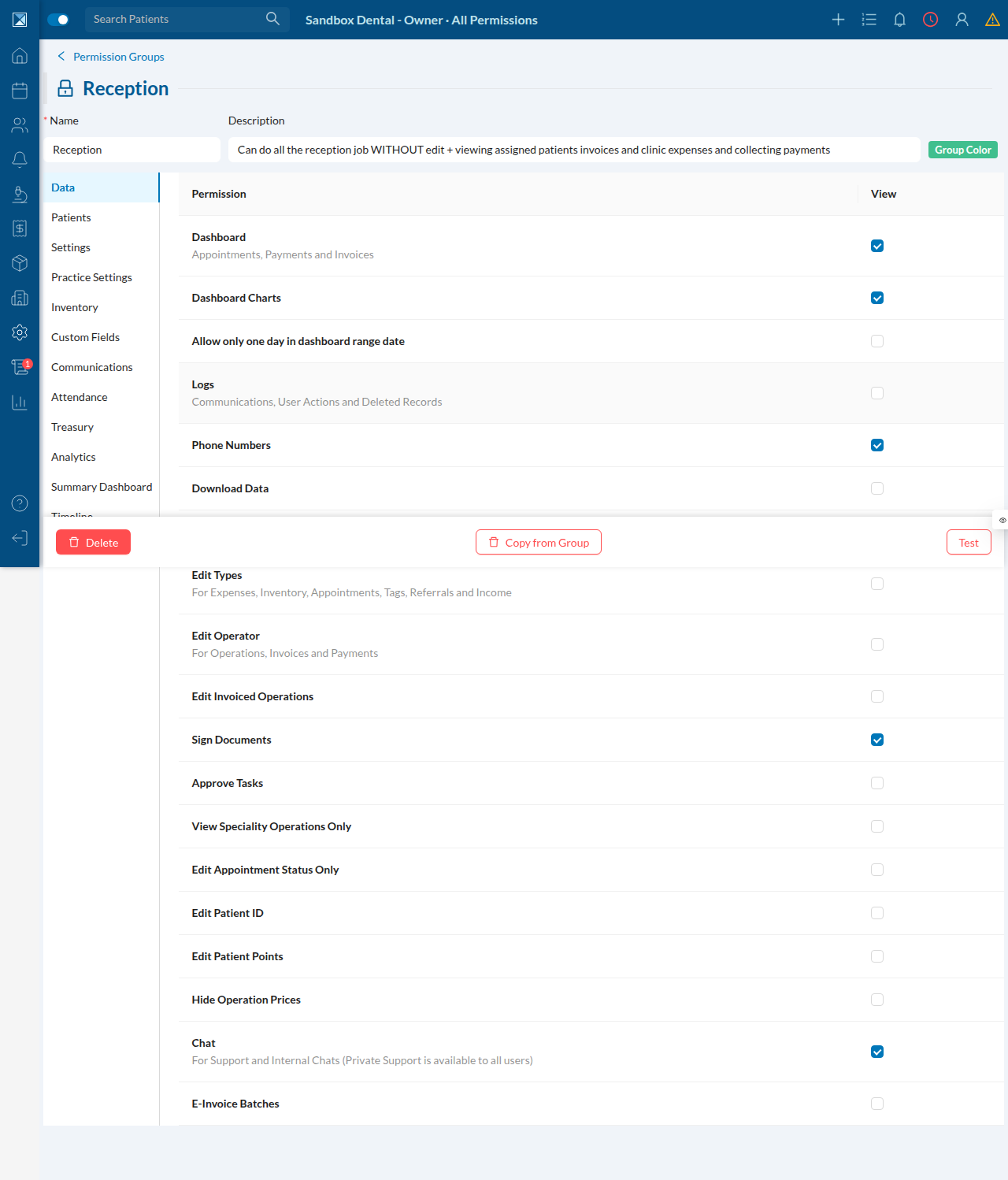
Opening a group shows its permission checklist, plus Delete at the bottom. Saving a permission change (editGroup) or deleting the group (deleteGroup) both force-logout every member of that group — and both now also clear their push tokens.
3. Security settings — password and two-factor authentication
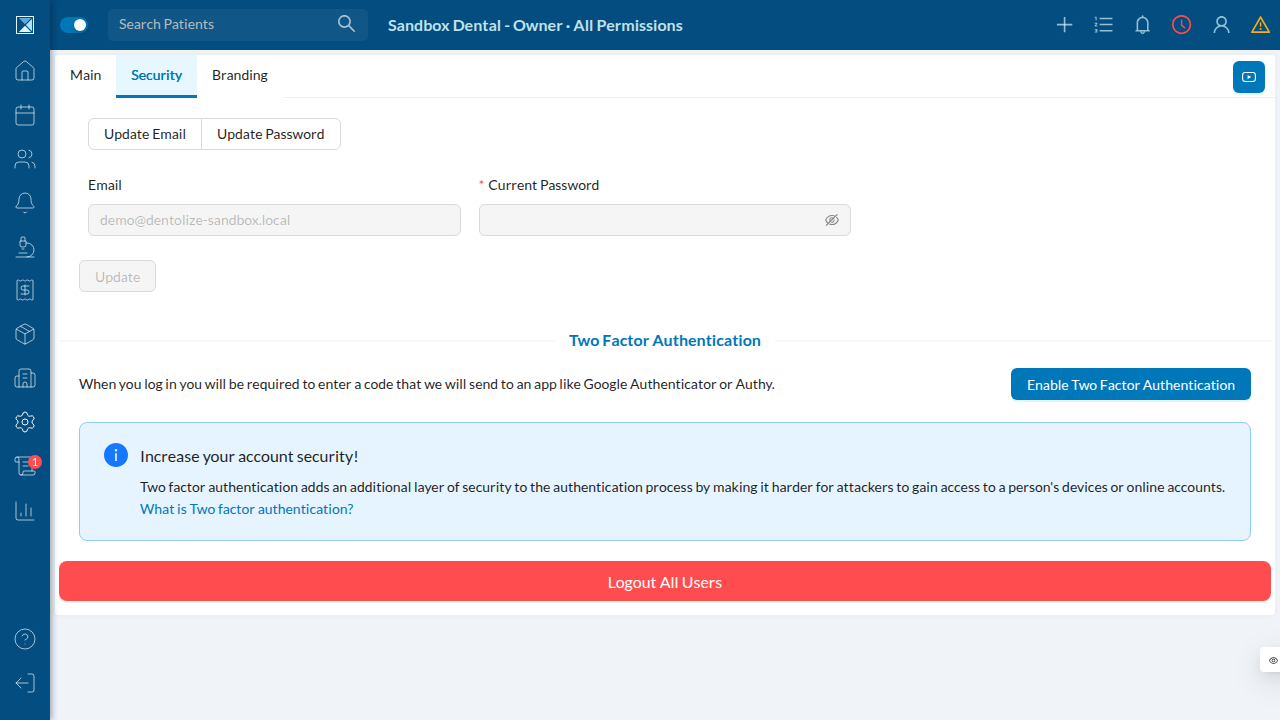
Settings → Account → Security is where a user changes their own password or turns two-factor authentication on or off. It's also where Logout All Users lives — the one action that already cleared push tokens before this PR, and the model for everything this PR extends.
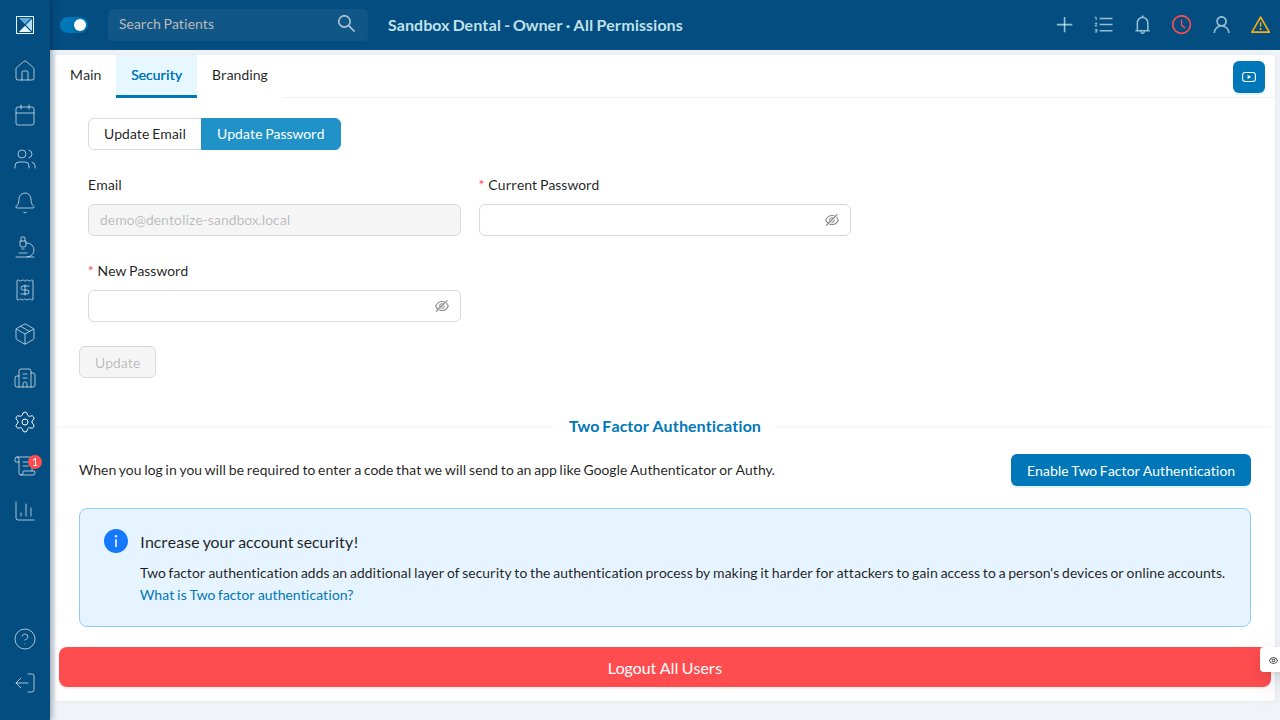
Switching to "Update Password" reveals the password-change form. Submitting it calls updateAuthDetails, which now clears the account's push tokens alongside its existing session teardown.
Not shown: admin-only actions
Two of the nine changed mutations — disableCompany (suspending a whole clinic account) and adminDisableTwoFactor (support forcibly turning off a user's 2FA) — live in Dentolize's internal admin console rather than the clinic-facing web app, and are only usable by Dentolize staff. They follow the same pattern: end the session(s), now also clear the push tokens. See The mutations this PR changes for the code-level detail on those two.