On this page
1. Accounting Overview2. Chart of Accounts3. Account Mapping4. Responsibility Centers5. Revenue Mappings6. Allocation Rules7. Responsibility Center P&L8. Manual Journal9. Journal Entries10. Trial Balance11. Financial Statements12. Bank Reconciliation13. Fixed Assets14. Tax15. Fiscal Periods16. Expense Claims17. HR Overview18. Payroll19. Leave20. CommissionWalkthrough
These are real screenshots from the sandbox build (feat-accounting-module), logged in as the clinic owner role, with seeded demo data (a month of posted journal entries, depreciation runs, insurance claim settlements, expense payments). Nothing here is mocked — every number and row shown came from the actual GraphQL API.
1. Accounting Overview
The landing page of the module. Quick actions jump straight to the most common tasks (Manual Journal, Journal Entries, Trial Balance, Financial Statements); the stat tiles (Net Income, Cash, Accounts Receivable, Accounts Payable) and the "Recent entries" table are live queries, not cached snapshots.
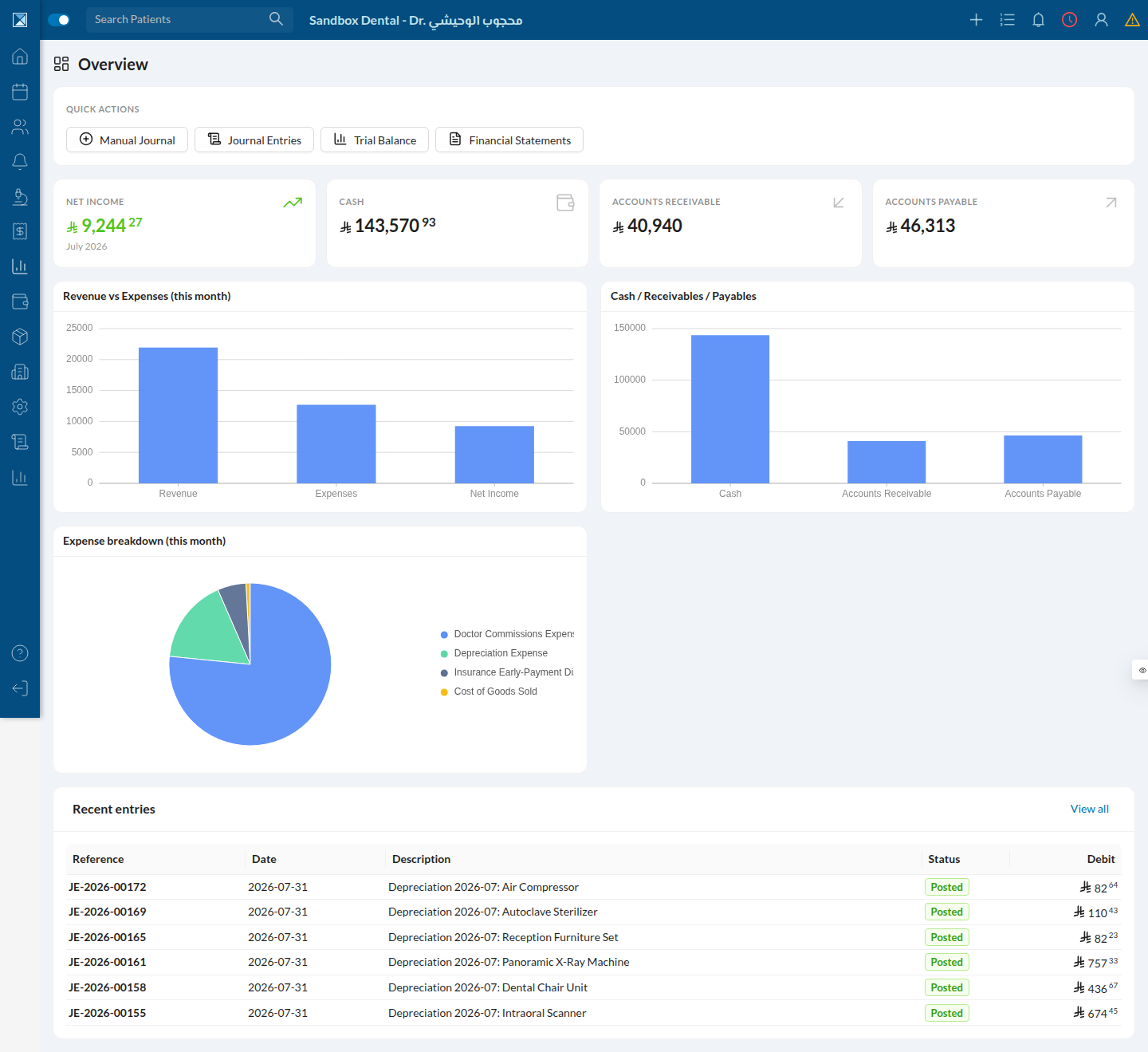
Notice the recent entries are almost all Depreciation — this sandbox has a monthly depreciation cron that had just run across several fixed assets (Dental Chair Unit, Intraoral Scanner, Panoramic X-Ray Machine, and others), each producing its own balanced journal entry.
2. Chart of Accounts
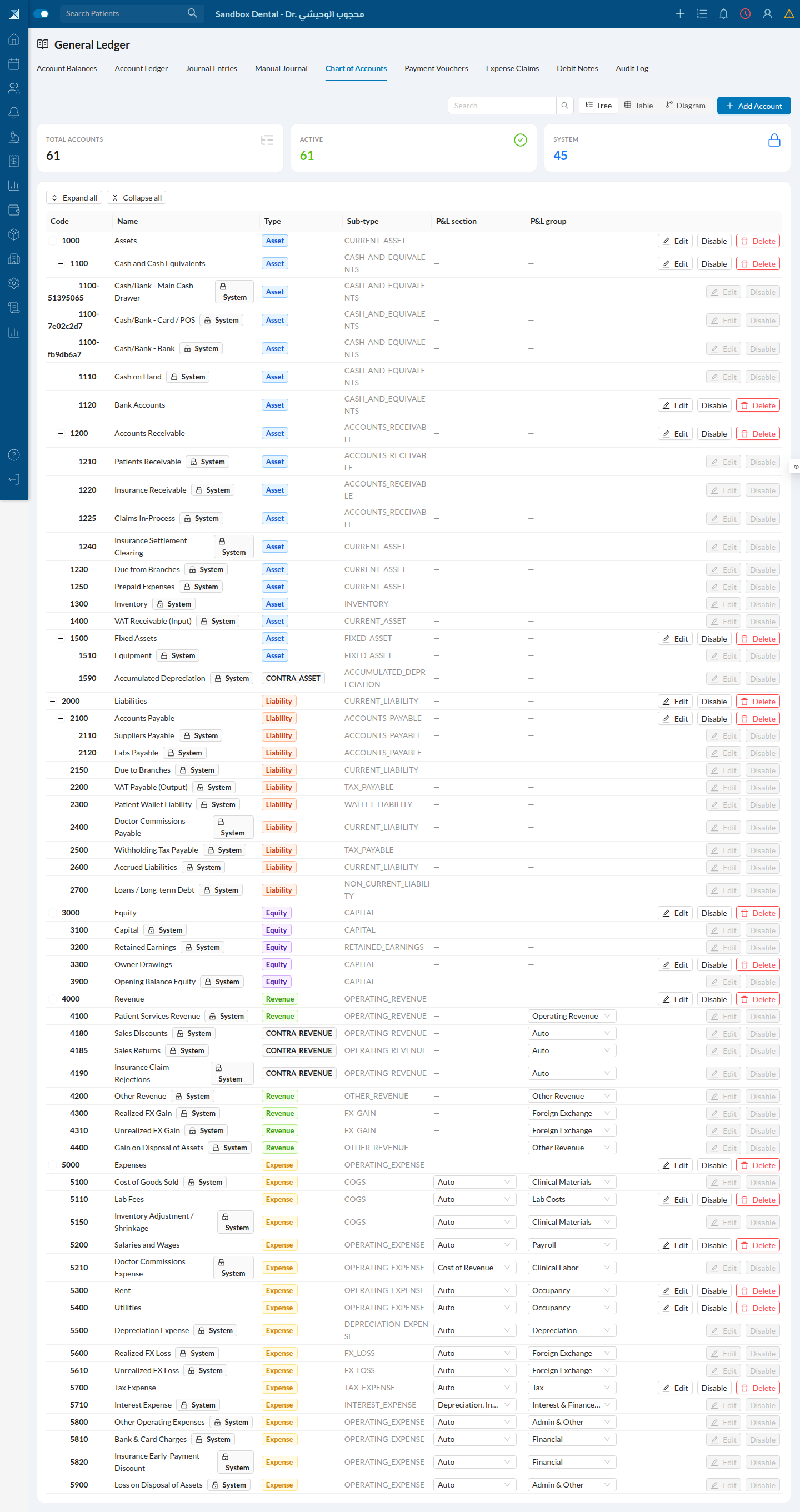
Every clinic gets a seeded starter chart of accounts (assets, liabilities, equity, revenue, expense) organized into a hierarchy. System accounts (the ones the posting engine depends on) are protected from editing or deletion.
3. Account Mapping
This is the single most important setup screen in the module, and the clearest explanation of how automated posting works: every automated entry the system posts — an invoice, a payment, a stock consumption, a claim rejection — needs to know which GL account to hit. Account Mapping is where a clinic points each of these "roles" at a specific account, or leaves it on its accounting-best-practice default. Roles are grouped (Receivables & Cash, Revenue, VAT & Tax, Inventory & COGS, Expenses & Fees, Payroll & Doctors, Payables, Fixed Assets, Insurance Claims, Foreign Exchange, Advanced), and each dropdown only lists accounts of a compatible type — a Revenue-role account can't accidentally be mapped to a Liability account.
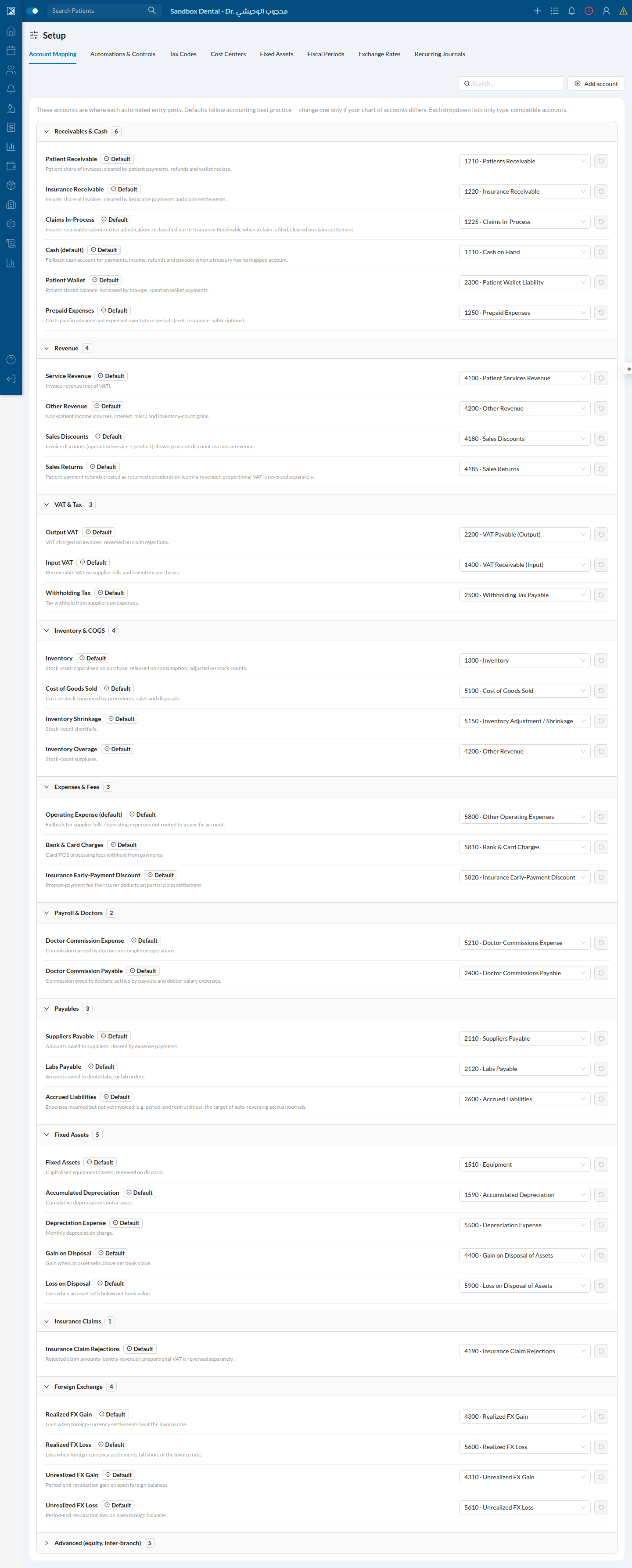
Read the description text under each role name (e.g. "Rejected claim amounts (contra-revenue); proportional VAT is reversed separately") — this screen doubles as the best plain-language explanation of the whole posting model, written by the people who built it.
4. Responsibility Centers
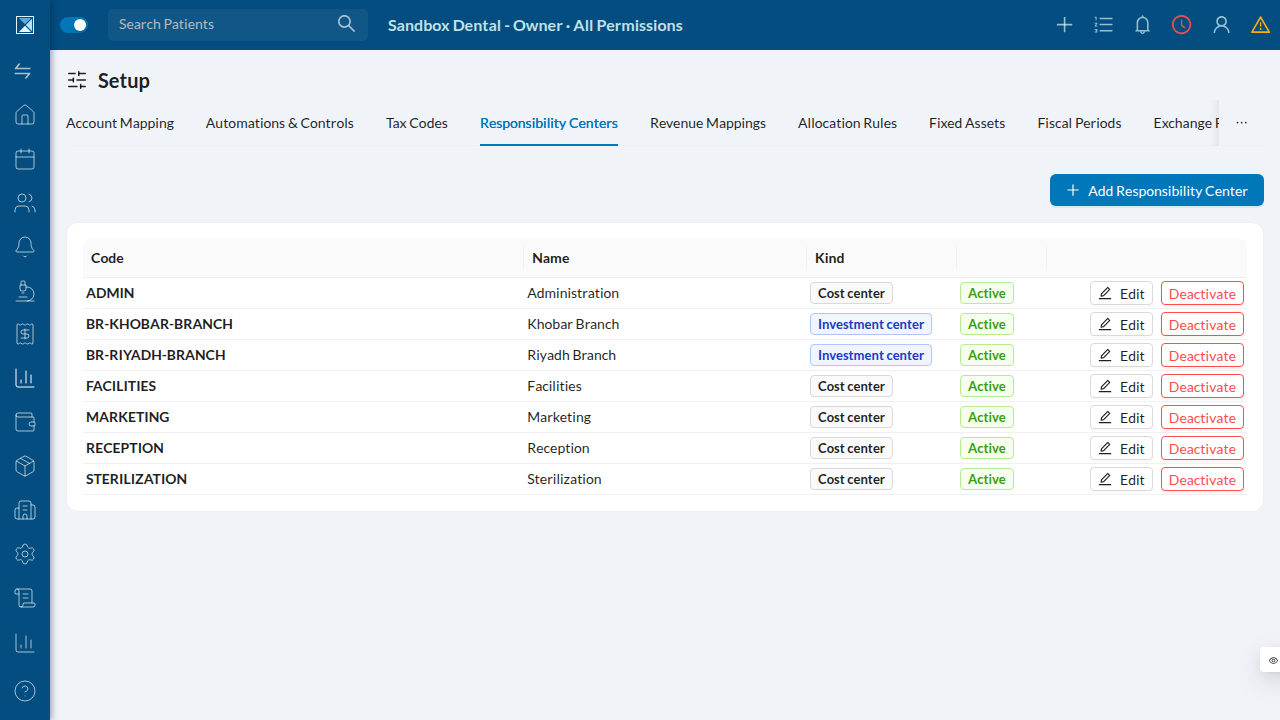
Sitting next to Account Mapping under Setup is Responsibility Centers — a way to tag activity by department, location, or branch, independent of which GL account it hits. Each center has a "Kind": Cost center for a pure overhead pool (Administration, Facilities, Marketing, Reception, Sterilization in this sandbox), or Investment center for something that should show its own bottom line (here, each branch — Khobar and Riyadh — is set up as an investment center).
5. Revenue Mappings
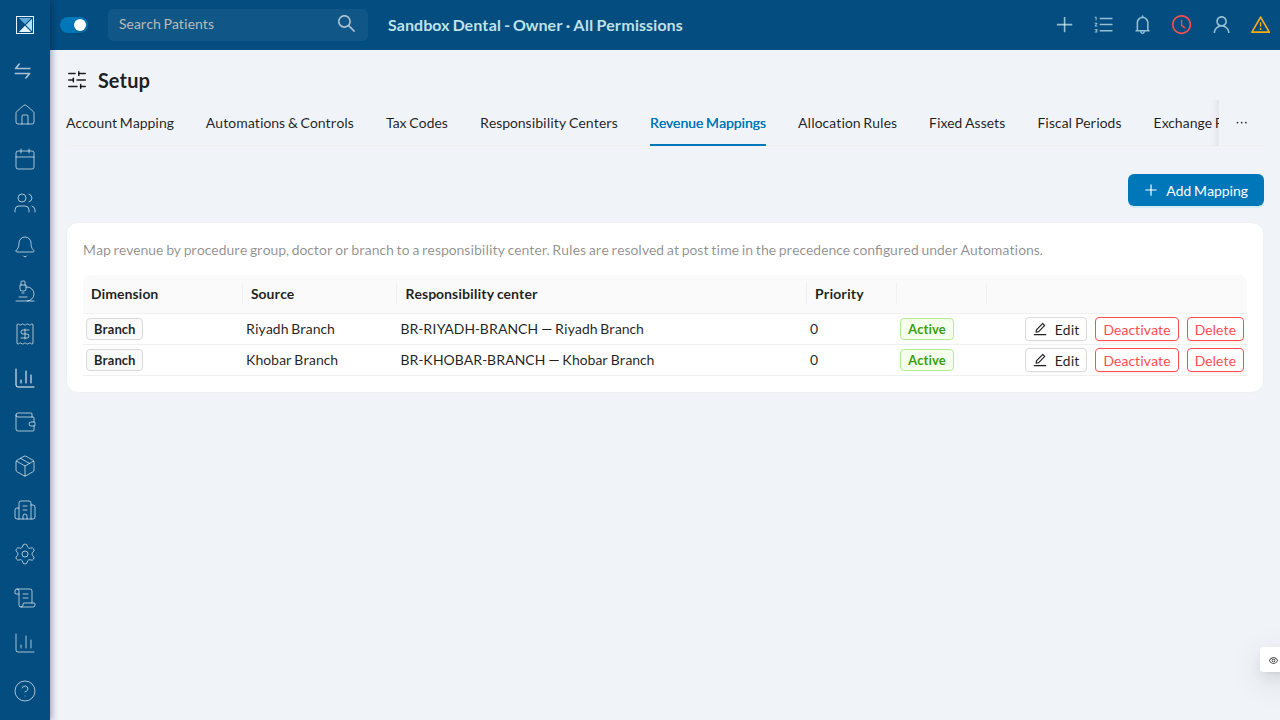
This screen auto-assigns a responsibility center to postings based on a doctor, branch, or procedure group — so a clinic doesn't have to tag every journal line by hand. The sandbox already has two rules mapping each branch's revenue to itself.
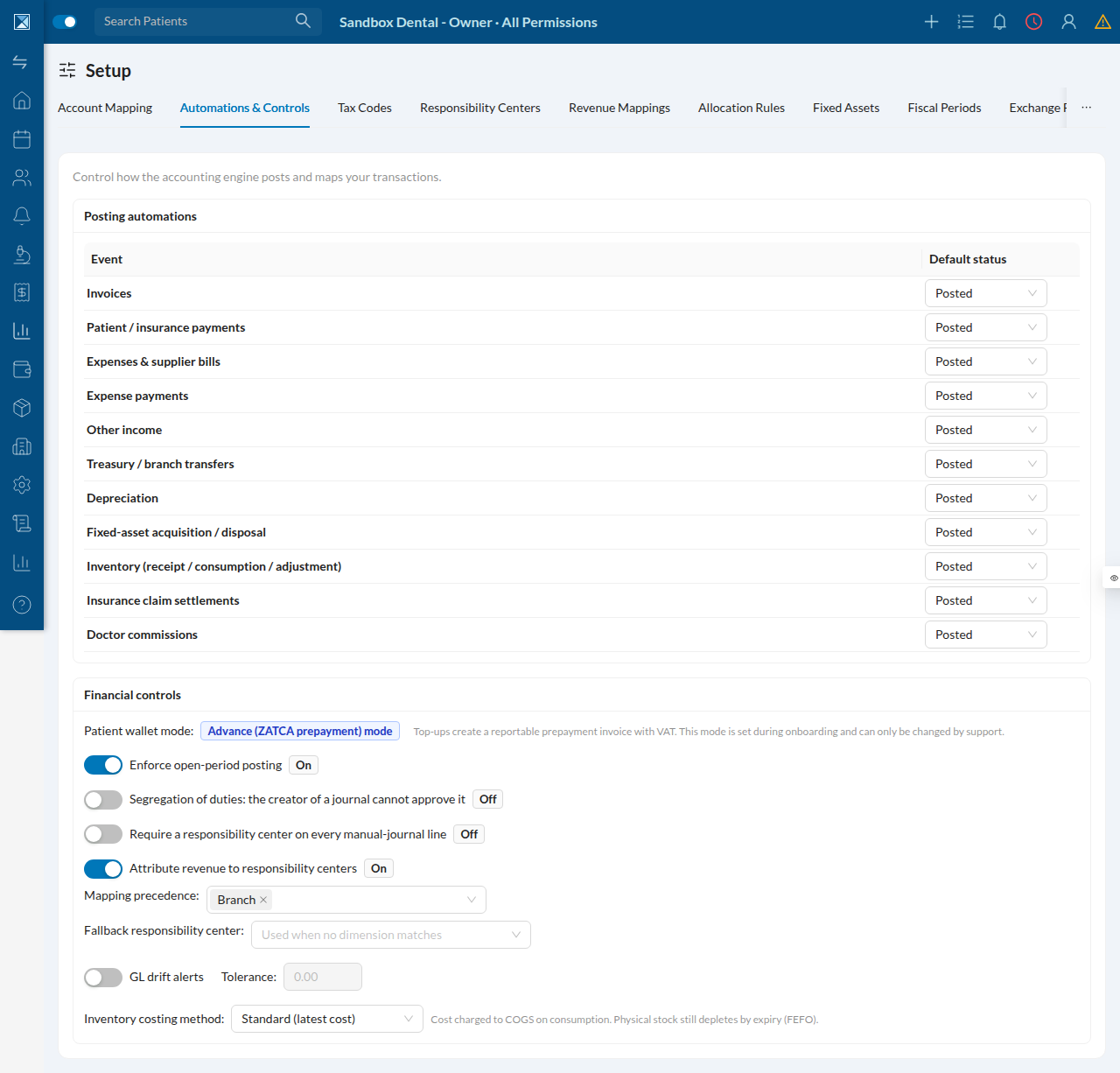
Multiple rules can technically match one posting (e.g. a line has both a doctor and a branch); which dimension wins is set on the Automations & Controls tab (Attribute revenue to responsibility centers and a drag-orderable Mapping precedence list).
6. Allocation Rules
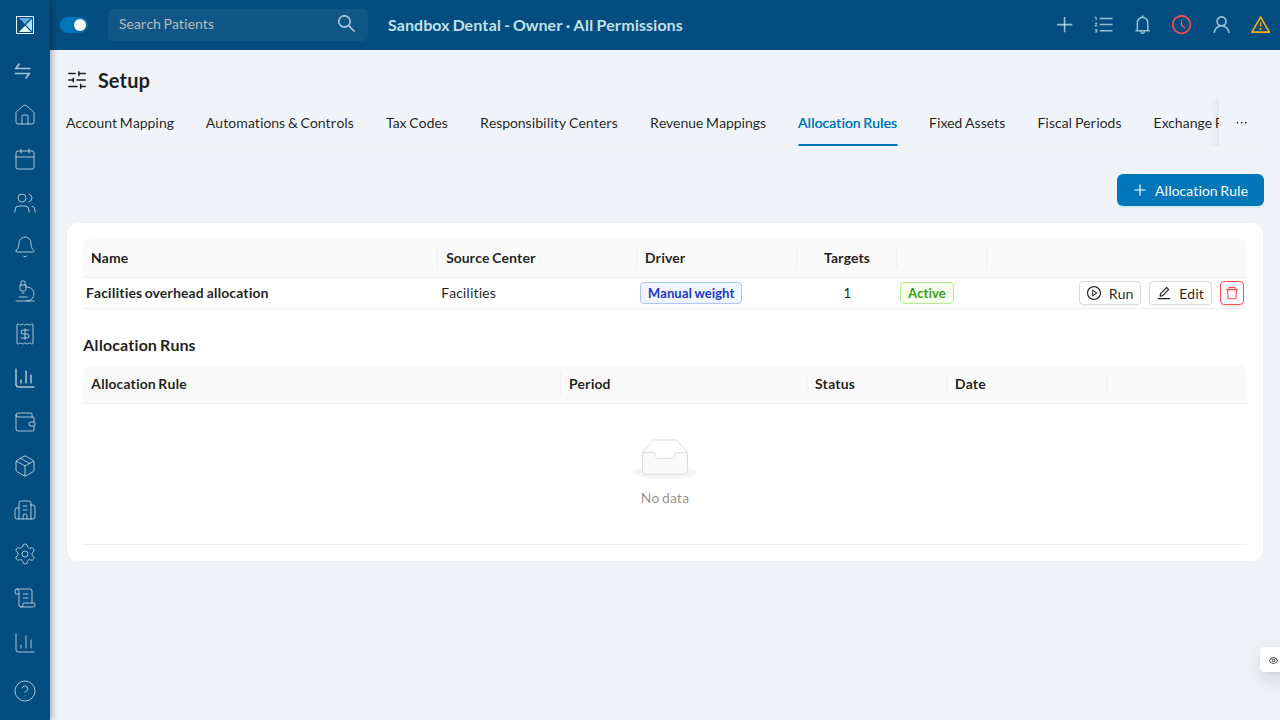
A cost center's shared overhead doesn't have to sit there unattributed forever — an Allocation Rule spreads it out to one or more target centers by a driver (manual weight, chair-minutes, or procedure count). Here we're creating a rule that allocates the Facilities cost pool onto the Riyadh Branch investment center:
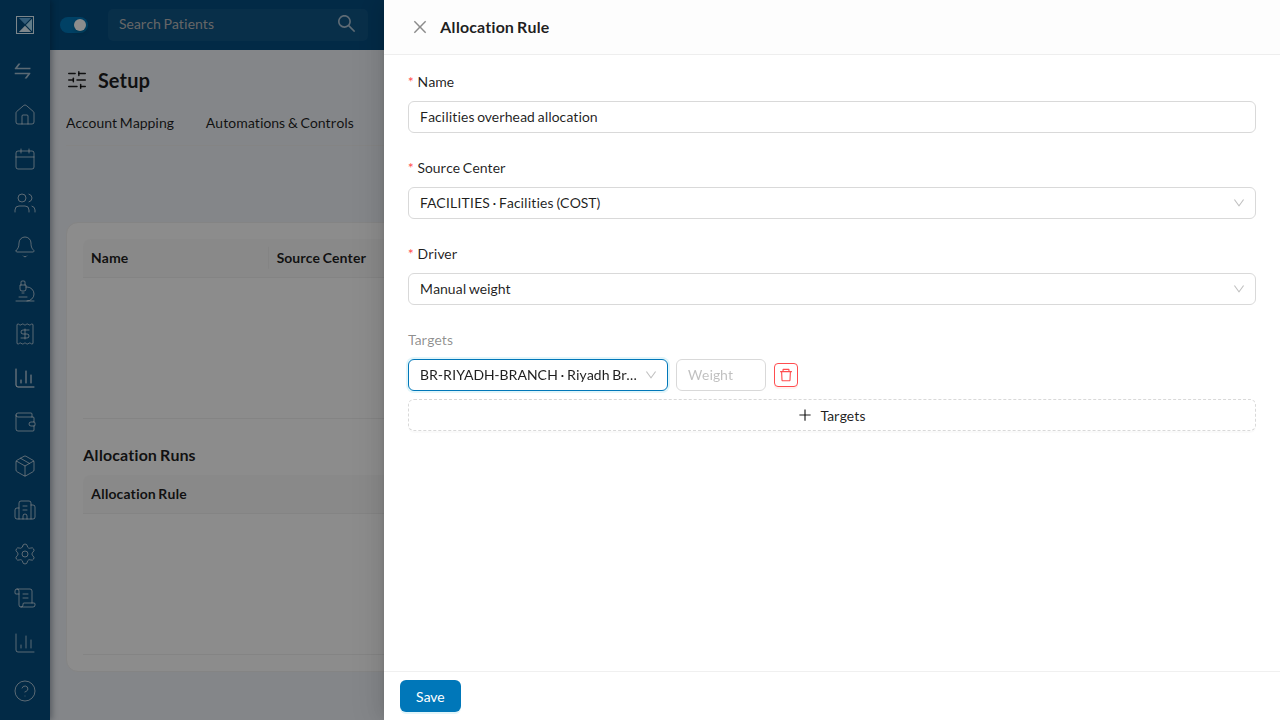
Saving it adds the rule to the list, alongside a log of "Allocation Runs" — each time the rule is actually executed for a period, it posts one real, reversible journal entry:
7. Responsibility Center P&L
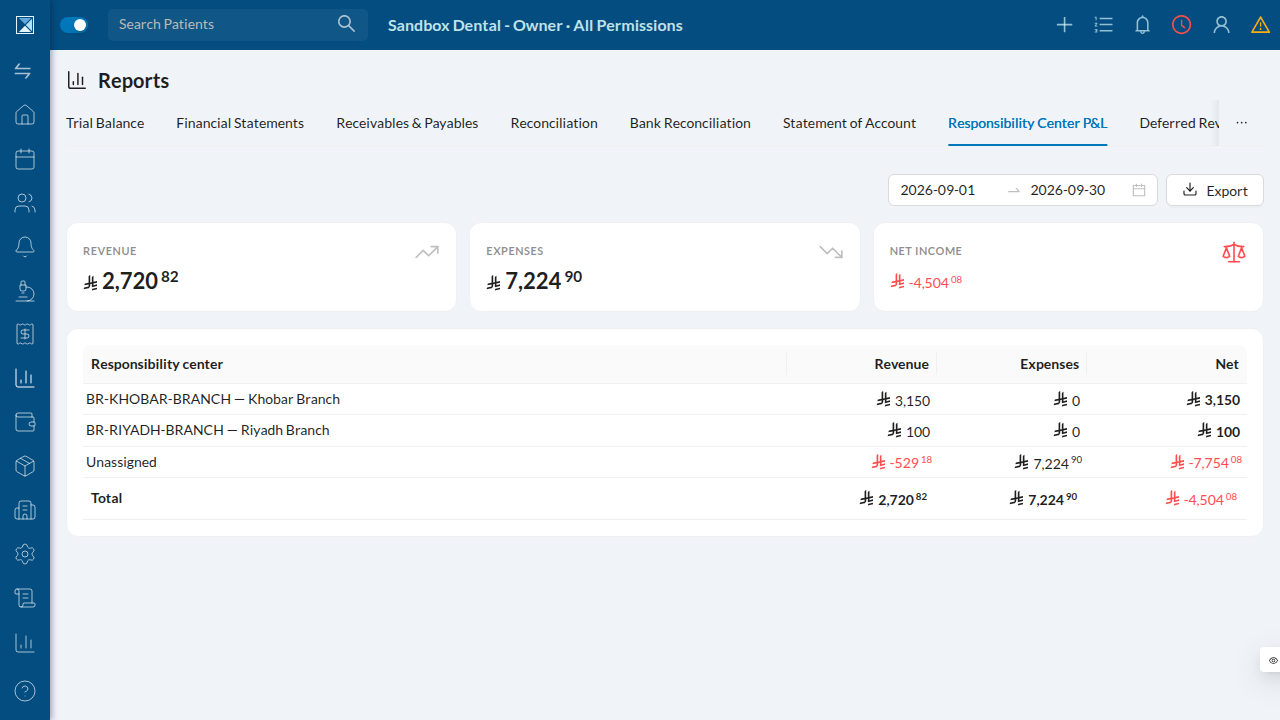
Once responsibility centers are tagging activity, this report shows revenue and expense broken down by center, with an explicit "Unassigned" row for anything not tagged — so the totals always tie back to the overall income statement.
8. Manual Journal
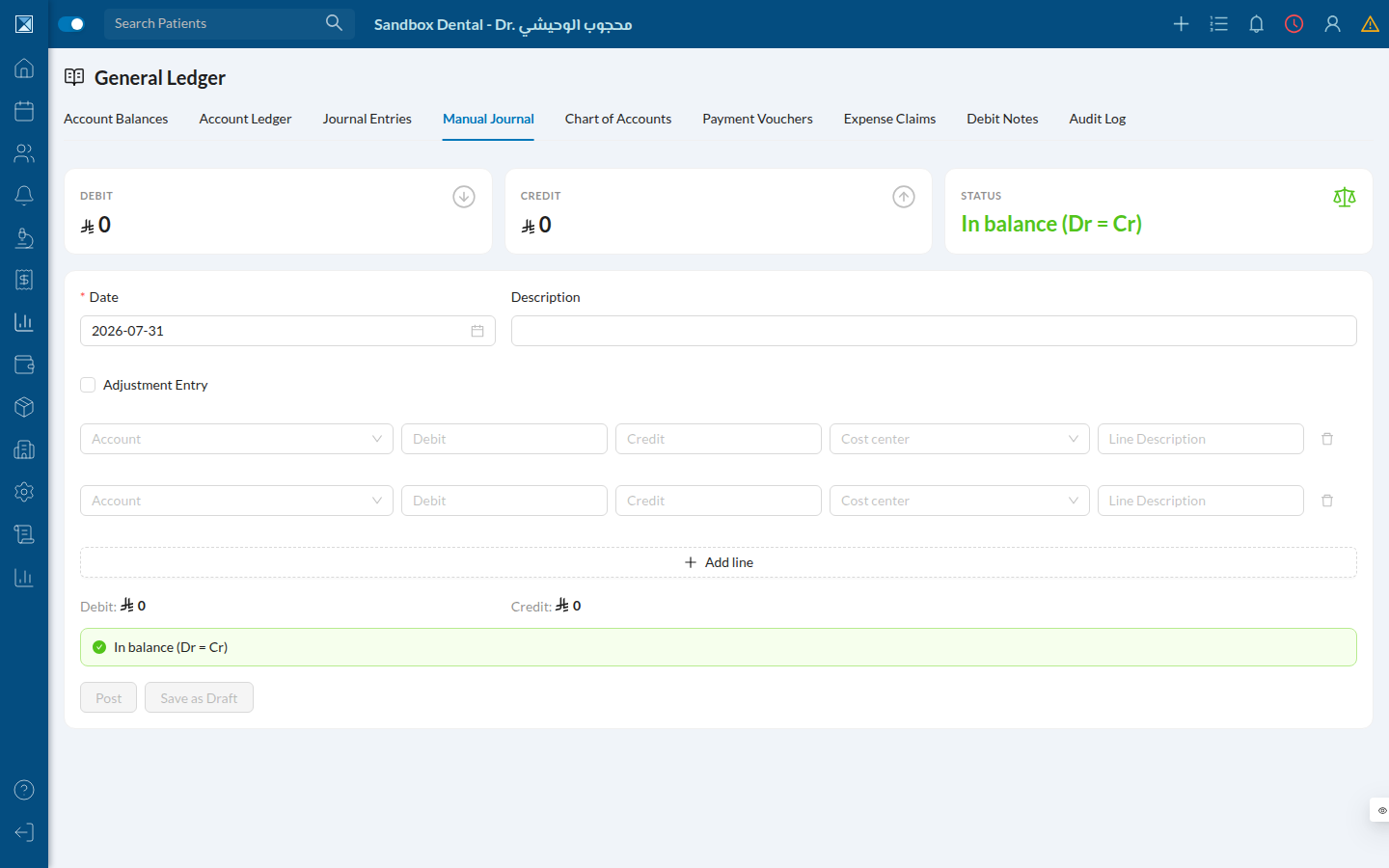
For anything the automated posting doesn't cover — corrections, accruals, opening balances — an accountant can post a manual double-entry journal directly. The form enforces that debits equal credits before it will let you post, and flags the entry as an adjustment if it needs to bypass a soft-closed period.
9. Journal Entries
Every posted entry — manual or automated — lands here. The Source column shows what triggered it (Depreciation, Insurance claim, Expense payment, Payment, Inventory consumption, Doctor commission, Invoice); clicking a reference opens the full entry with its lines, contra-accounts, and audit history.
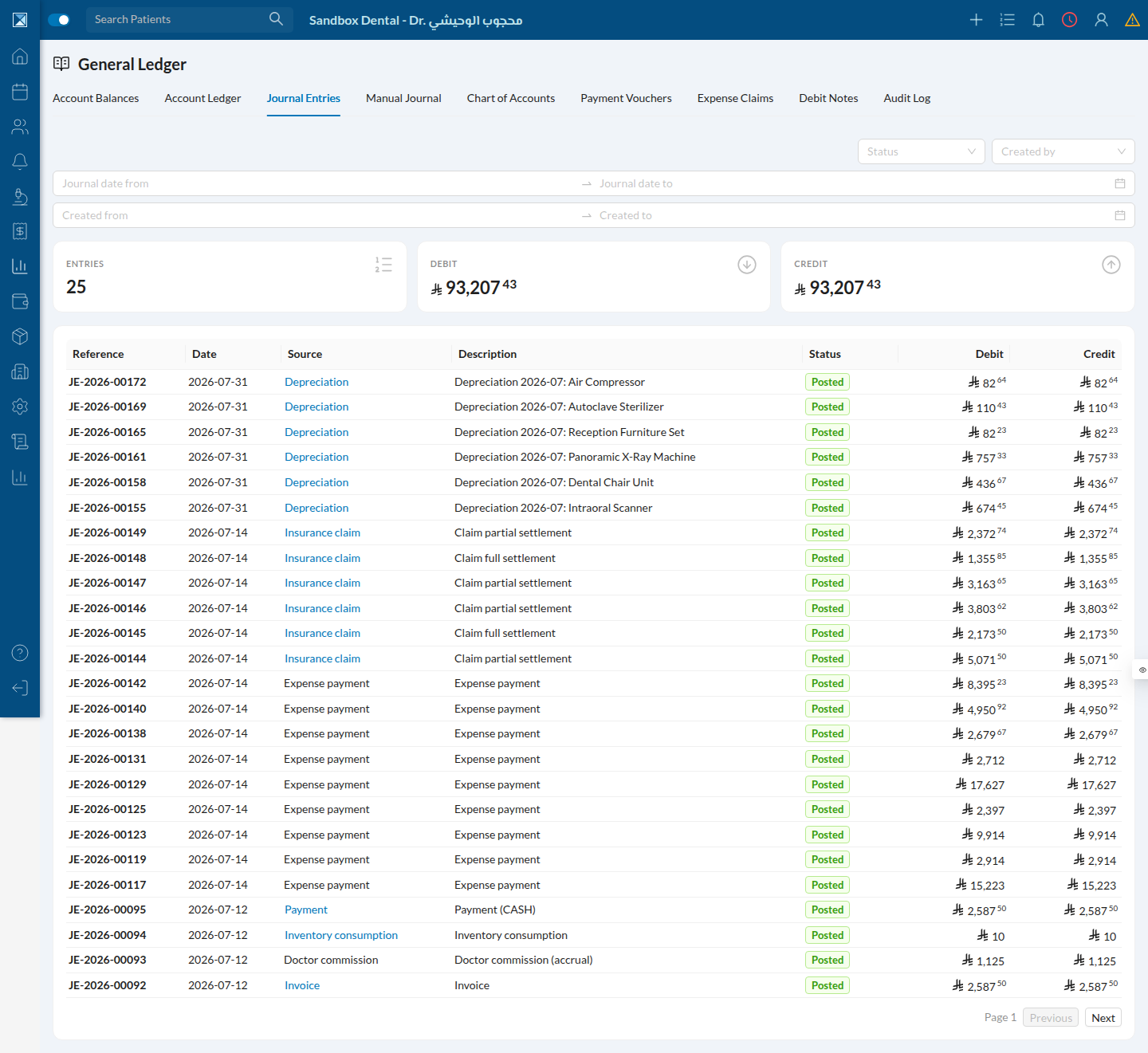
Note this sandbox's entries are always in balance (Debit 93,207.43 = Credit 93,207.43 across all 25 entries shown) — that's the double-entry invariant the posting engine enforces on every single entry, not just in aggregate.
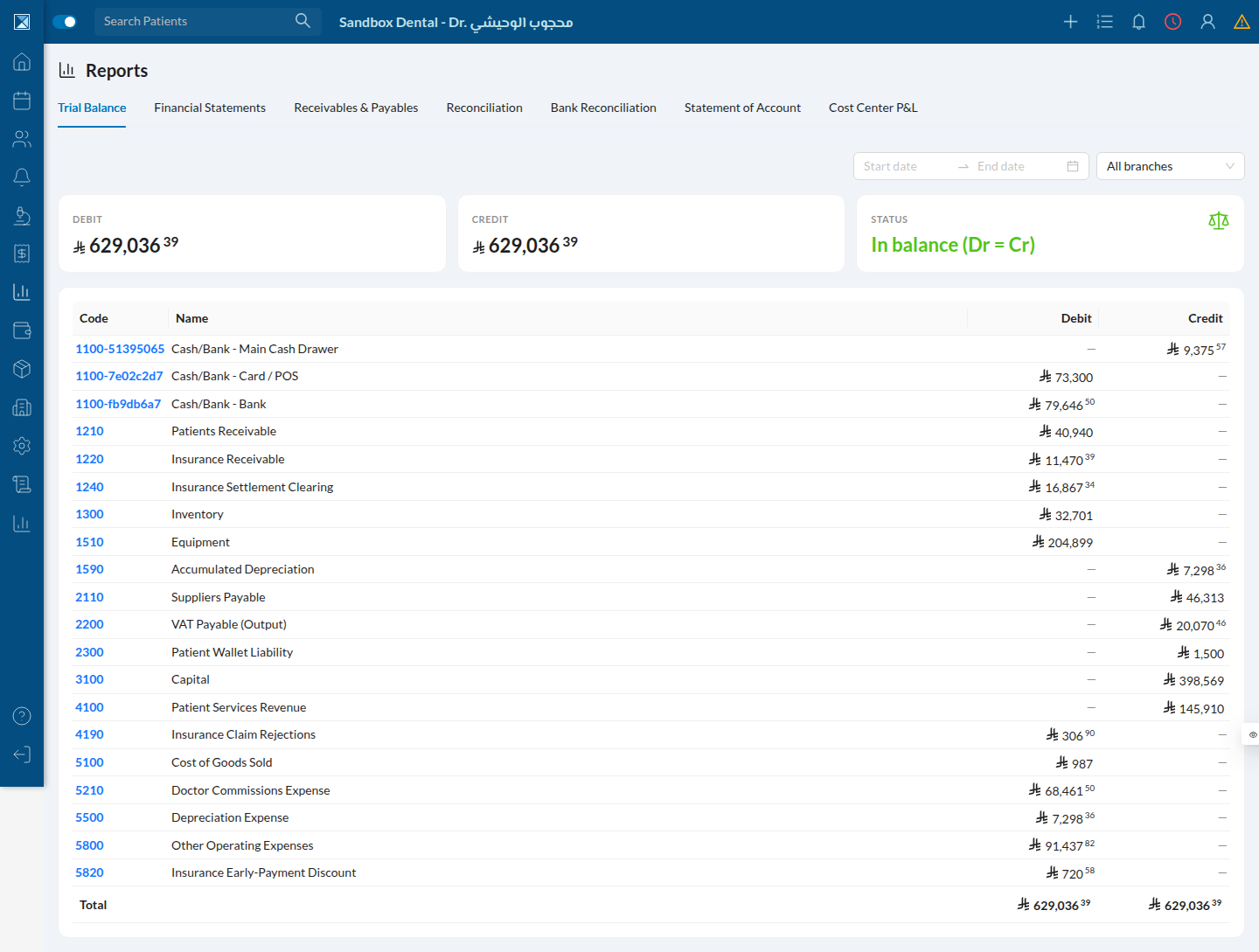
10. Trial Balance
The classic accountant's sanity check: every account's net balance, on its natural side, for a period. If it doesn't balance, something in the posting engine is broken.
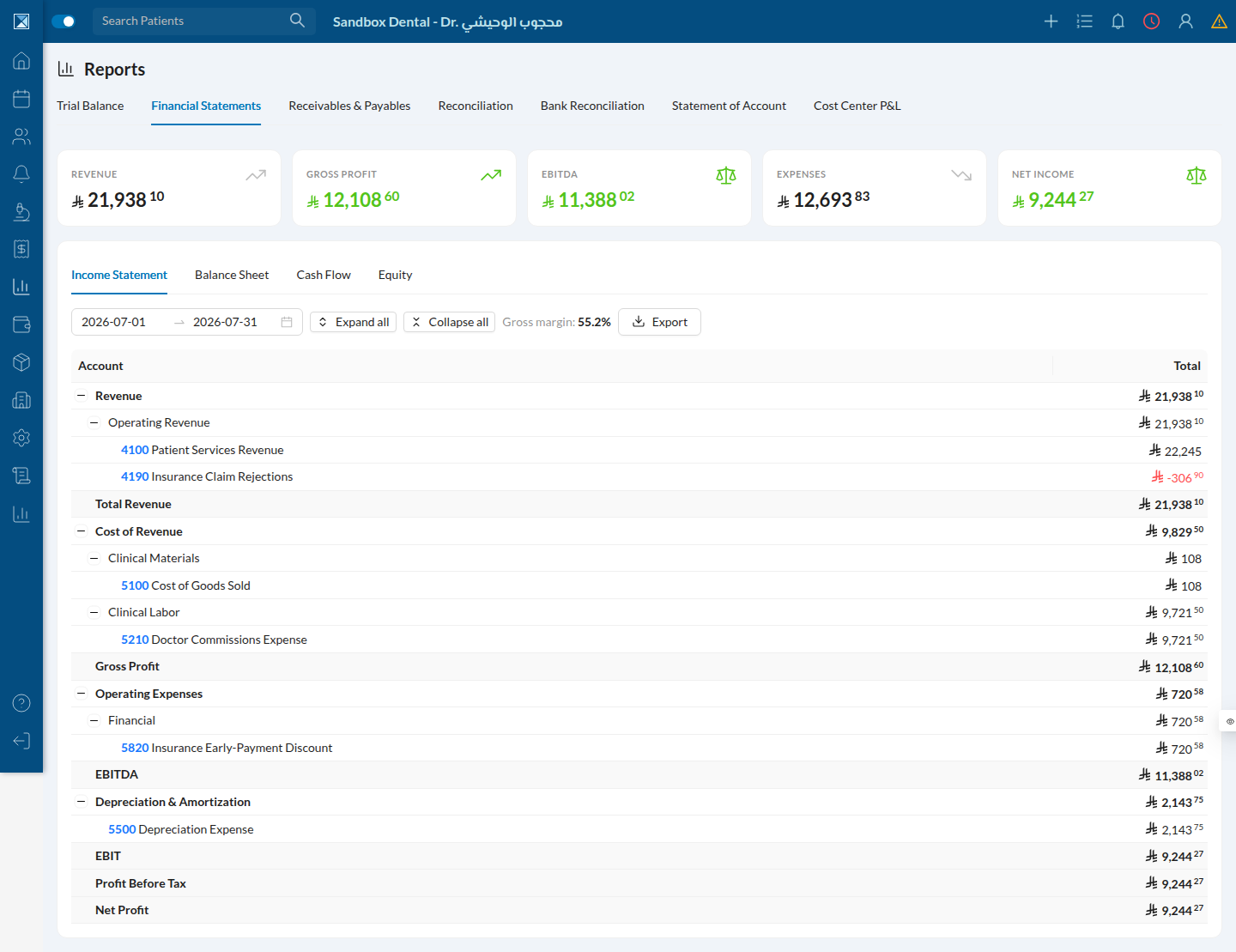
11. Financial Statements
Income Statement, Balance Sheet, Cash Flow, and Statement of Changes in Equity, all computed live from posted journal lines (not cached). The Income Statement follows a standard waterfall: Revenue → Cost of Revenue → Gross Profit → Operating Expenses → EBITDA → Depreciation → EBIT → Net Profit.
12. Bank Reconciliation
Compares a treasury's GL cash-account balance against a bank statement balance for a given date, with manually-entered statement lines and a per-line "matched" toggle.
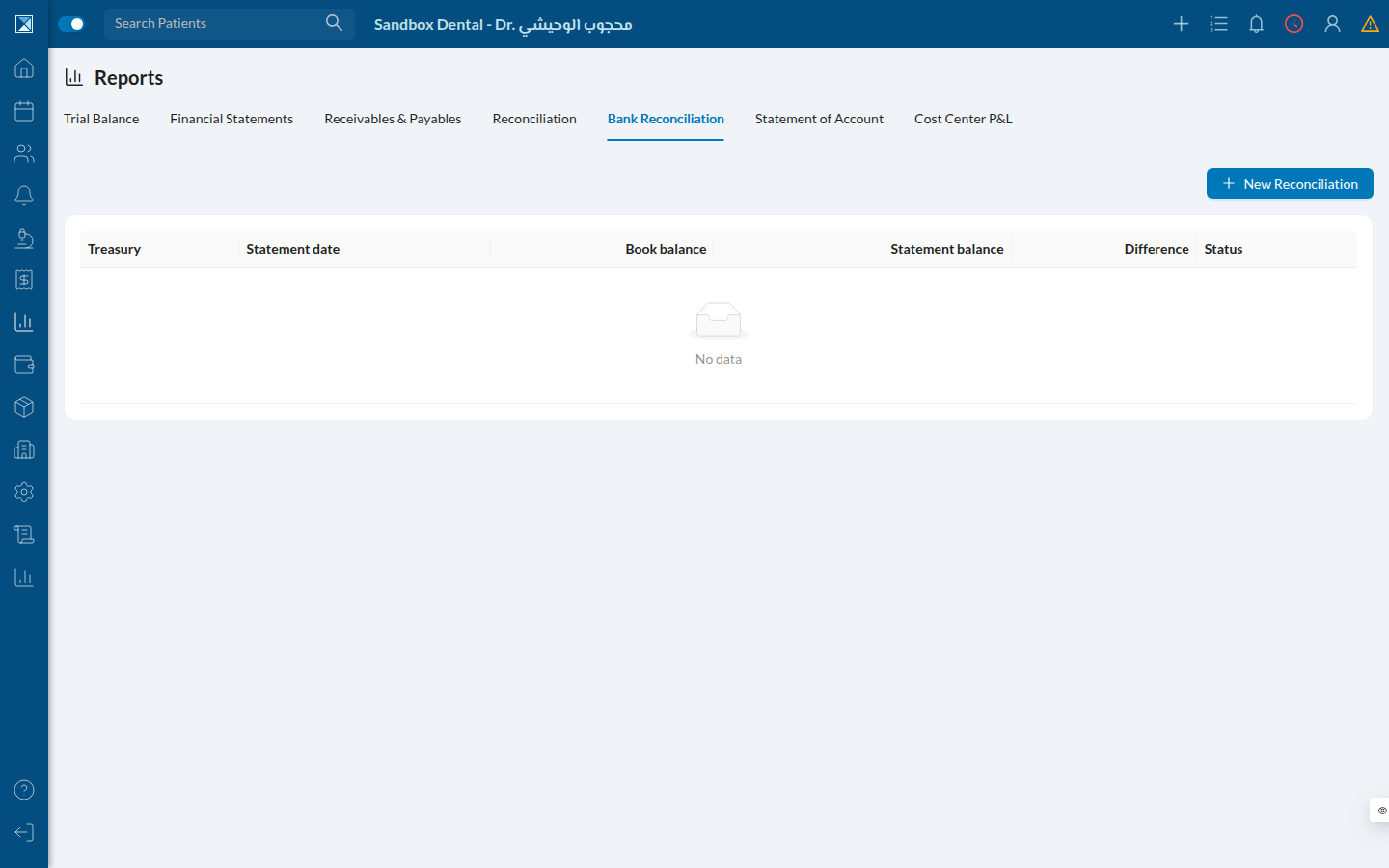
(Worth knowing before you rely on it: the "matched" toggle here is a checklist, not a real match — see For Quality for what that means in practice.)
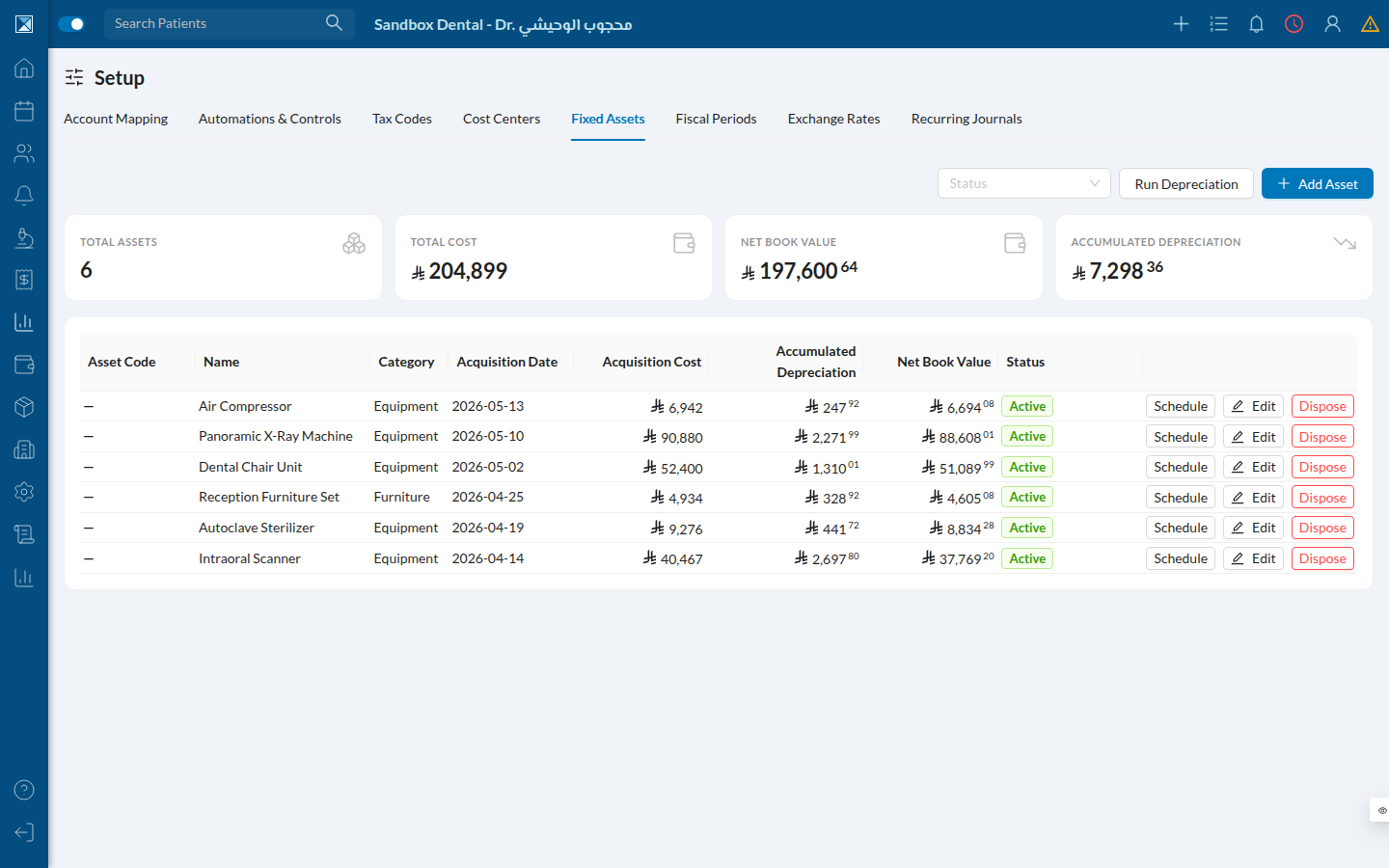
13. Fixed Assets
The asset register: acquisition cost, depreciation method, accumulated depreciation, and net book value for every capitalized asset, with a "Run Depreciation" action that also runs automatically on a monthly cron.
14. Tax
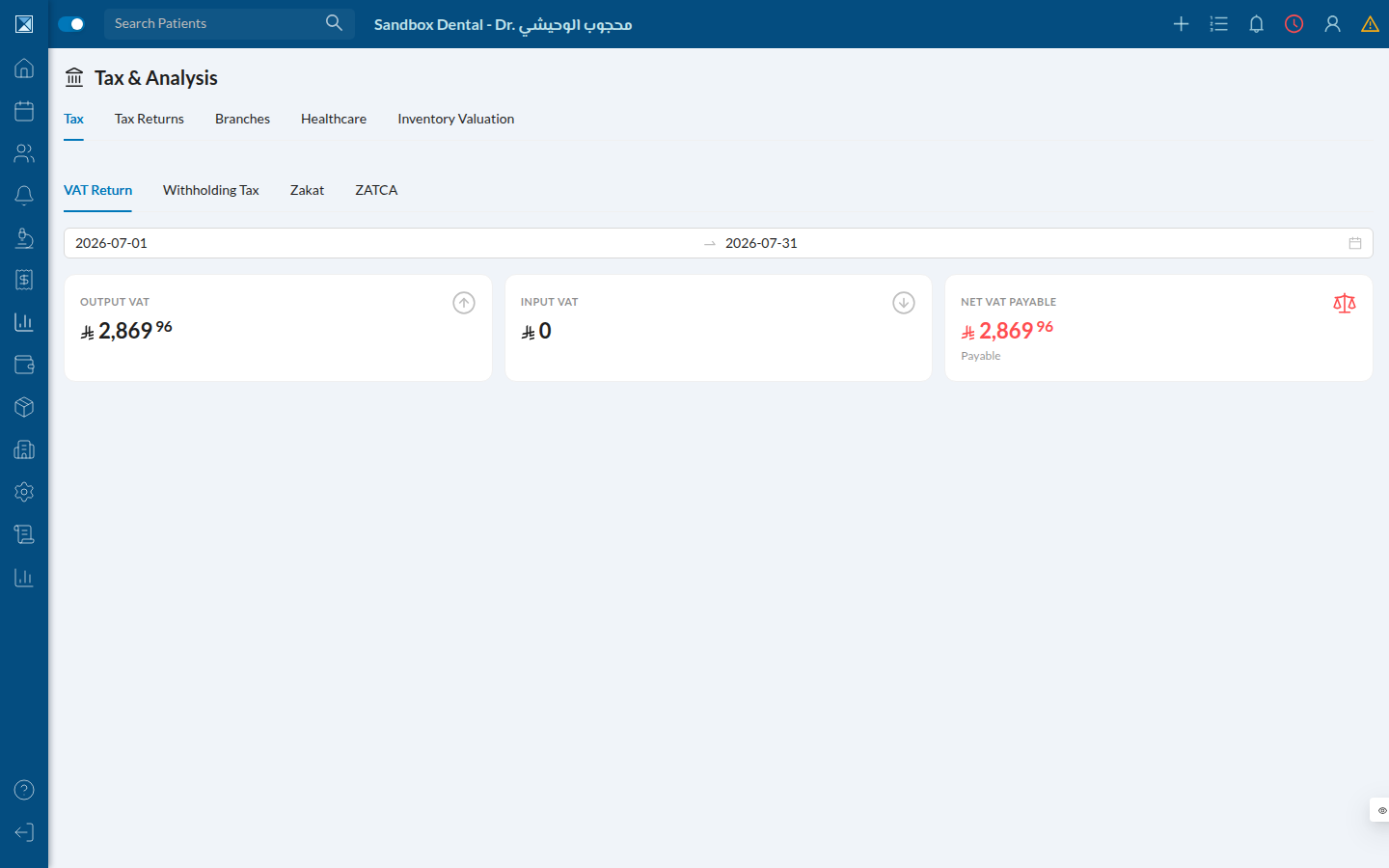
A live dashboard (not a persisted document) across VAT, withholding tax, Zakat, and a ZATCA e-invoicing reconciliation check — all computed on demand from posted GL data.
15. Fiscal Periods
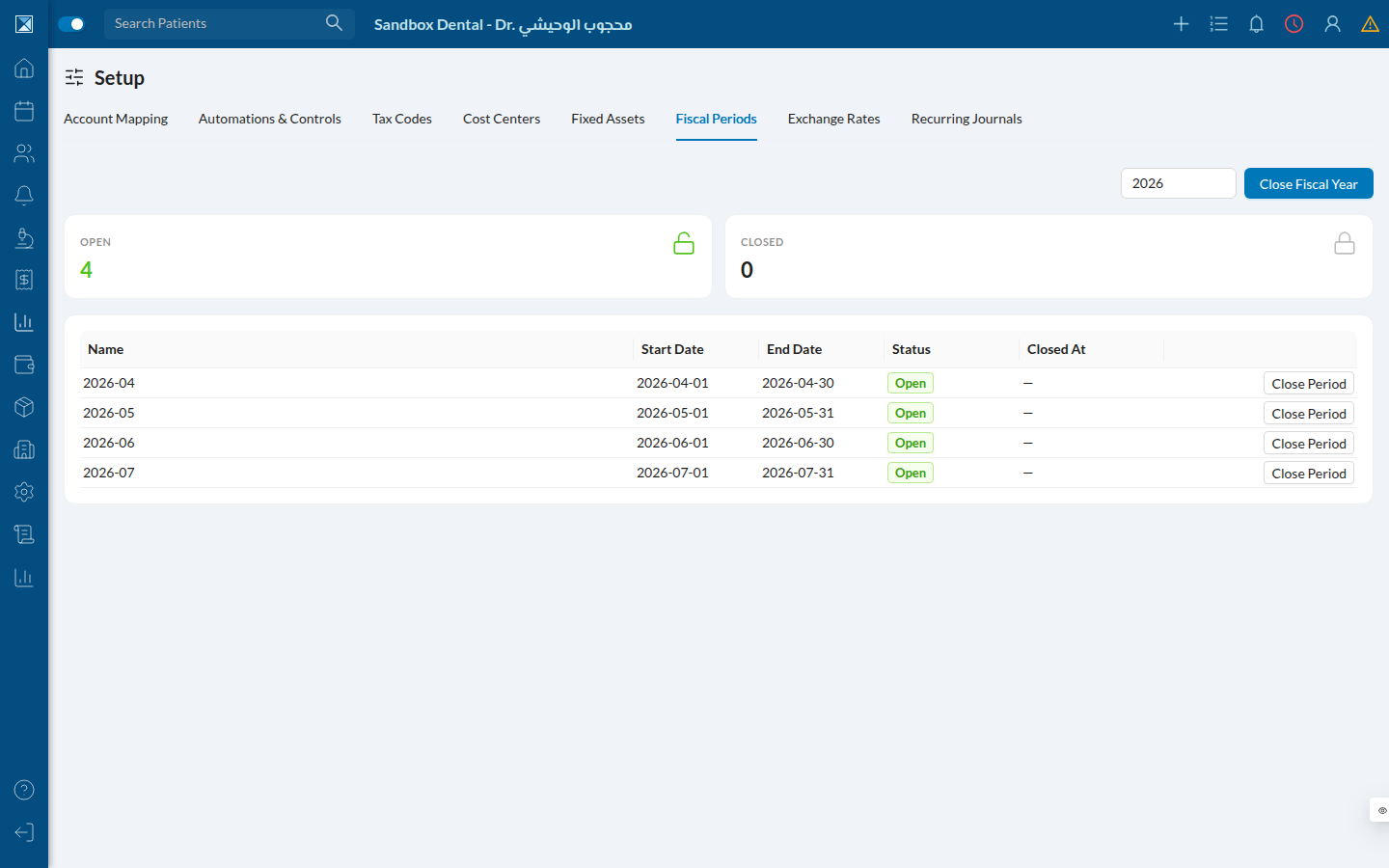
Where a clinic locks a month (soft or hard close) so nothing can post into it by accident, and runs the year-end close that zeroes revenue/expense into retained earnings.
16. Expense Claims
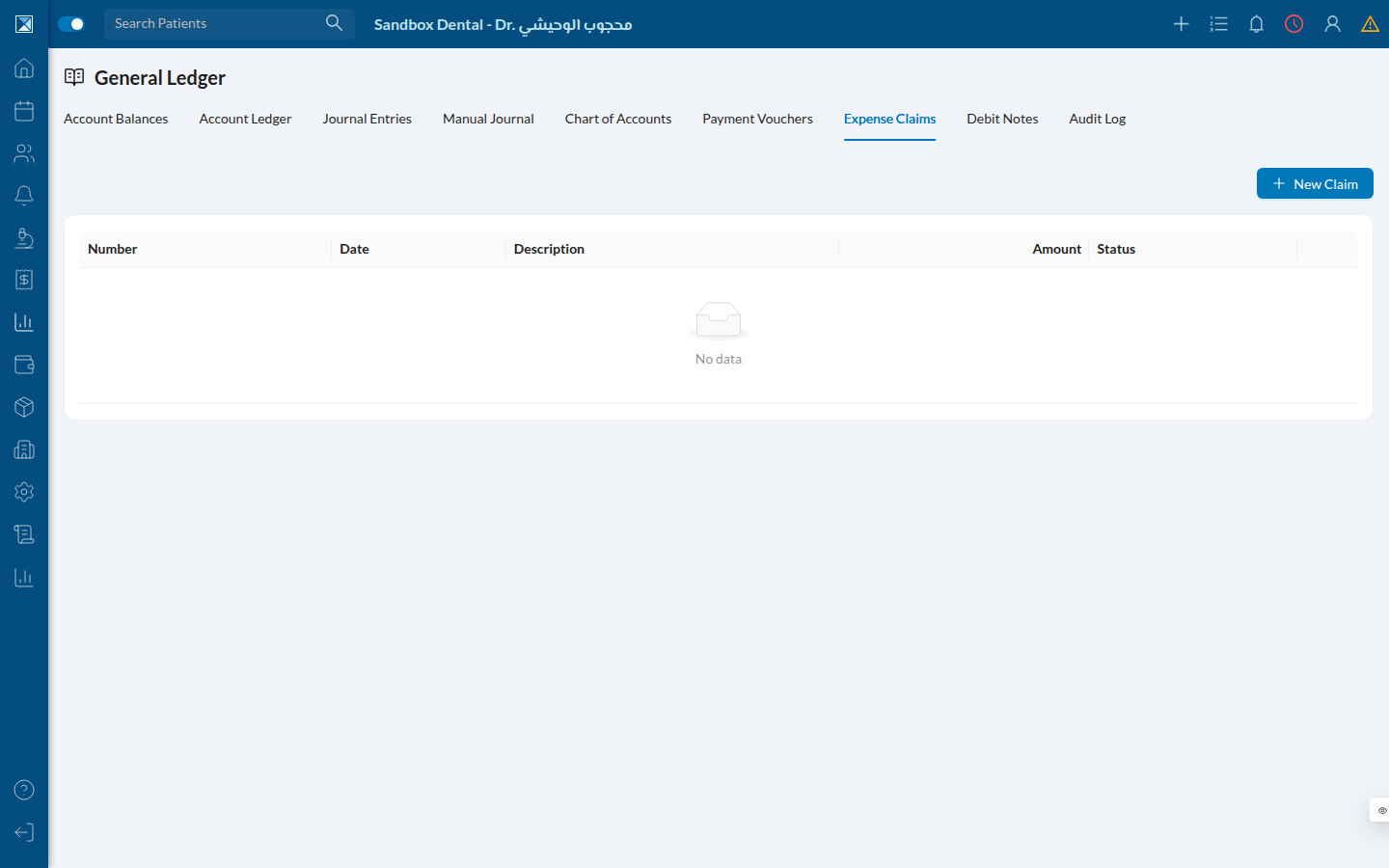
The employee-reimbursement workflow: submit, approve or reject, then pay from a treasury — only the "pay" step touches the general ledger.
17. HR Overview
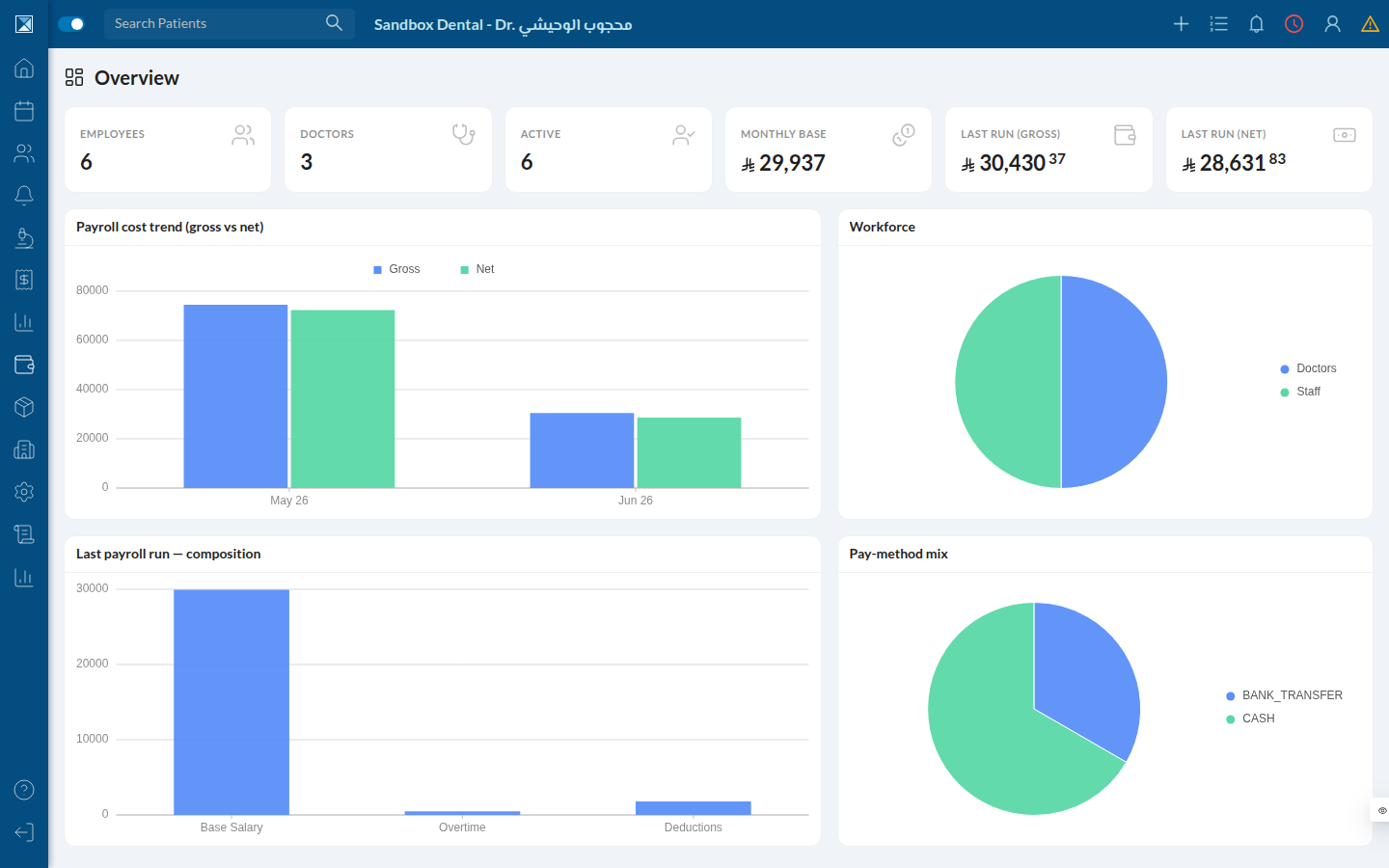
The Salary Hub / HR module's landing dashboard — employee and doctor counts, this month's total base salary, and the last payroll run's gross/net.
18. Payroll
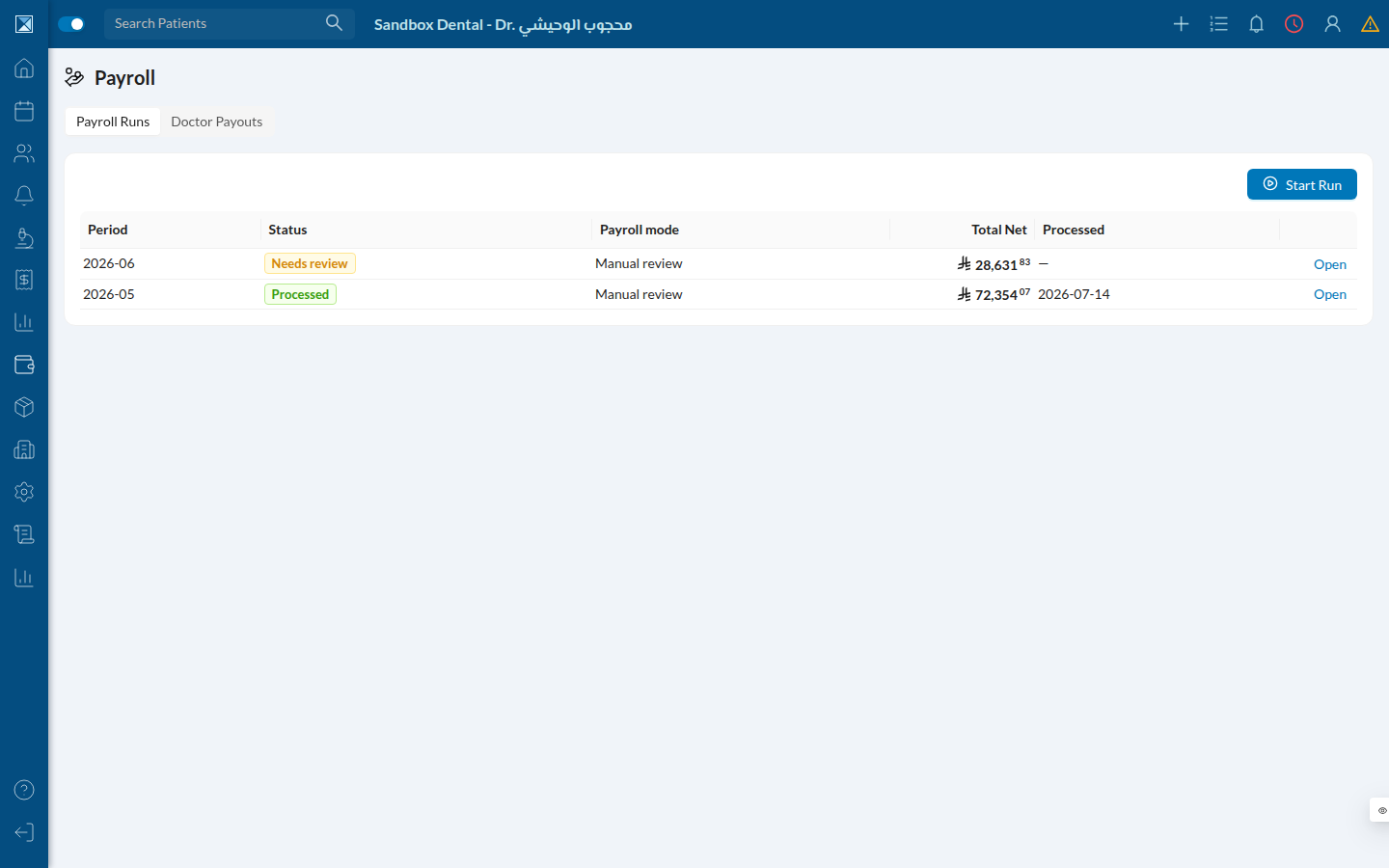
Payroll runs move through Draft → Pending Review → Confirmed → Processed. Each run has one line per employee, with attendance-driven adjustments (overtime, lateness, absence, leave deductions) for non-doctor staff.
19. Leave
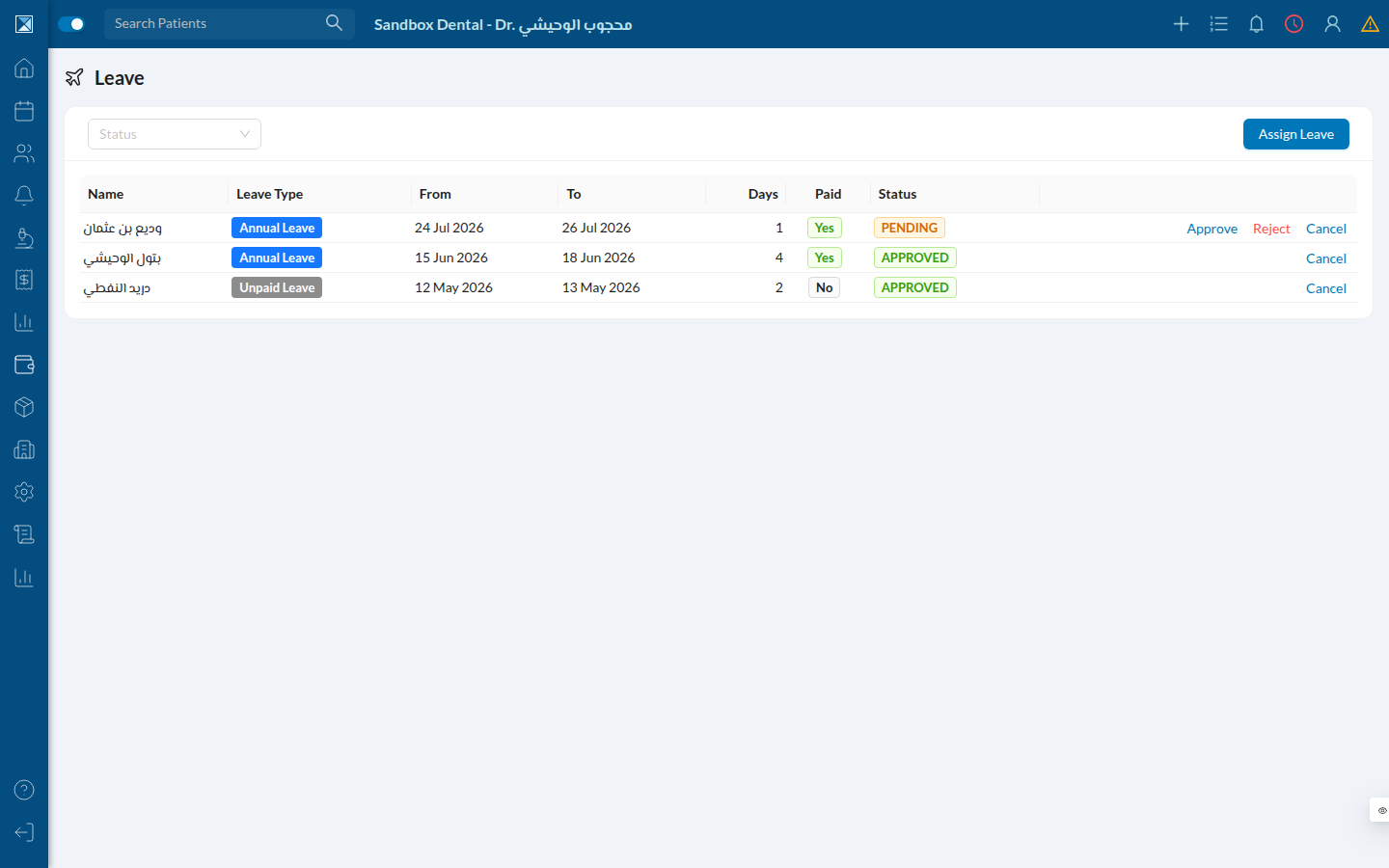
Leave requests, approvals, and balances — annual leave accrues per a configurable interval, and paid leave is capped by the employee's remaining balance.
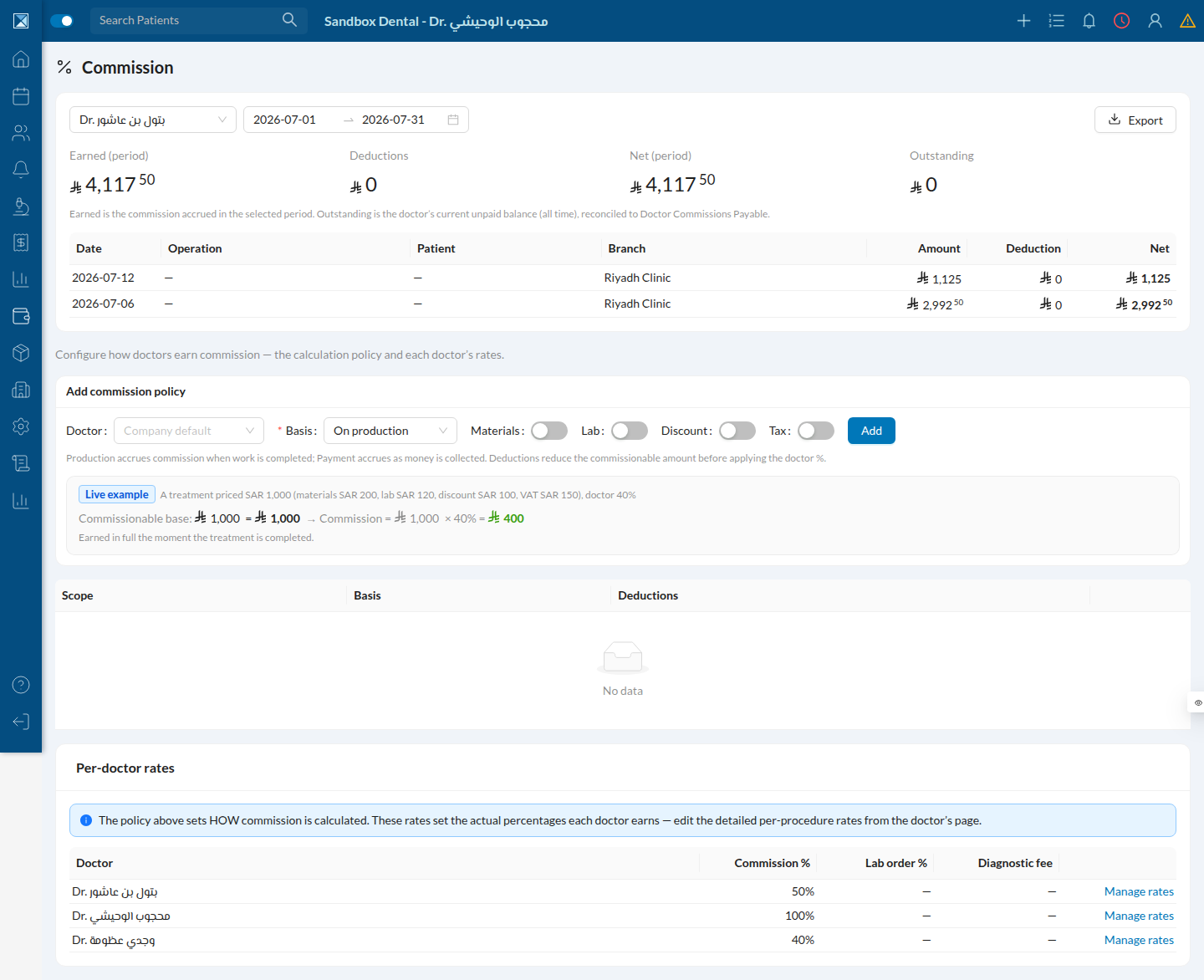
20. Commission
Doctor commission is calculated per a configurable policy (production-based or payment-based, with optional deductions for materials/lab/discount/tax) and reported here per doctor.