On this page
1. Invoices list2. Opening an invoice3. Where the generated link shows up4. Where the integration is configuredWalkthrough
This PR doesn't change any screen — it changes what Dentolize's server sends behind a screen that already exists: the Generate Online Link flow on an invoice. This page walks through where that flow lives, using real screenshots from the sandbox, and explains where the fix kicks in.
Sandbox note: the demo company used for these screenshots (Sandbox Dental) has the Online Payments feature turned off at the company level (it's a plan-gated integration, enabled per-clinic on request). That means the "Generate Online Link" button and the Paymob settings screen aren't reachable from this sandbox account. The screenshots below show the real screens around that flow — the invoice detail page, its dedicated Online Payments tab, and the settings tab where the integration would be turned on — annotated with what happens once the feature is active, based on the actual component and resolver code in the repo.
1. Invoices list
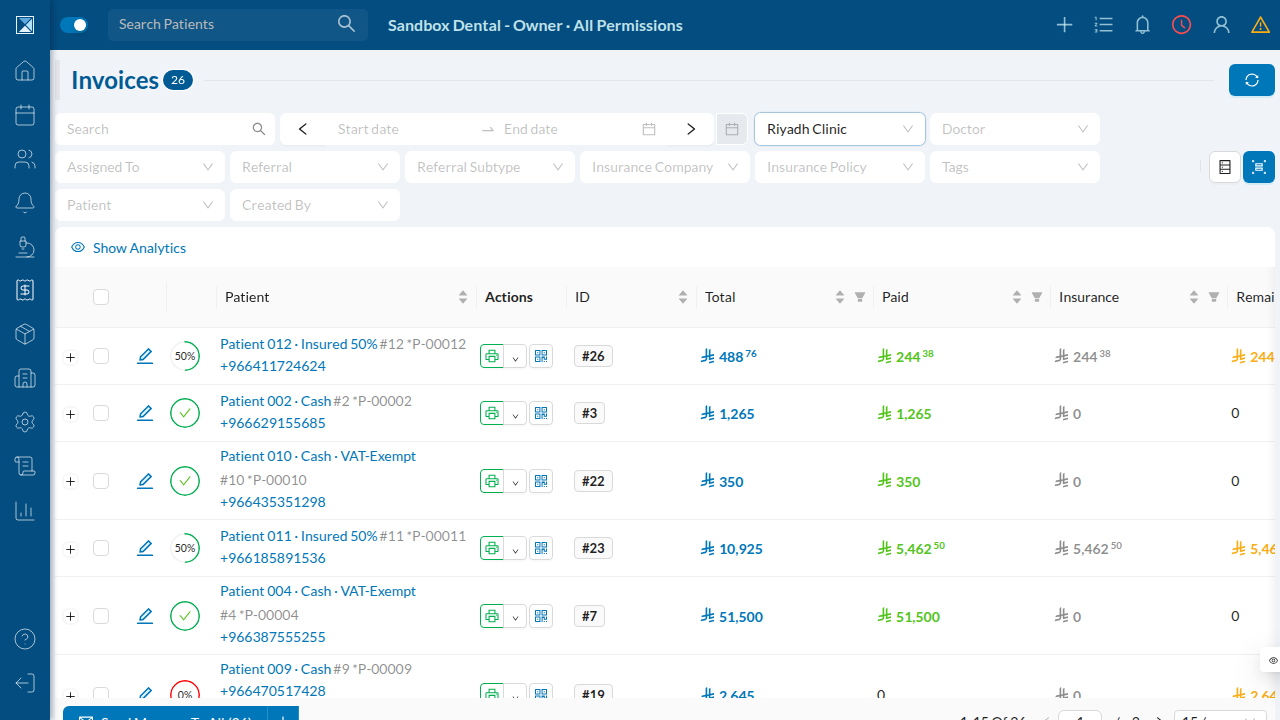
Staff start from Finances > Invoices, where every invoice for the clinic is listed with its patient, total, and how much is still remaining.
2. Opening an invoice
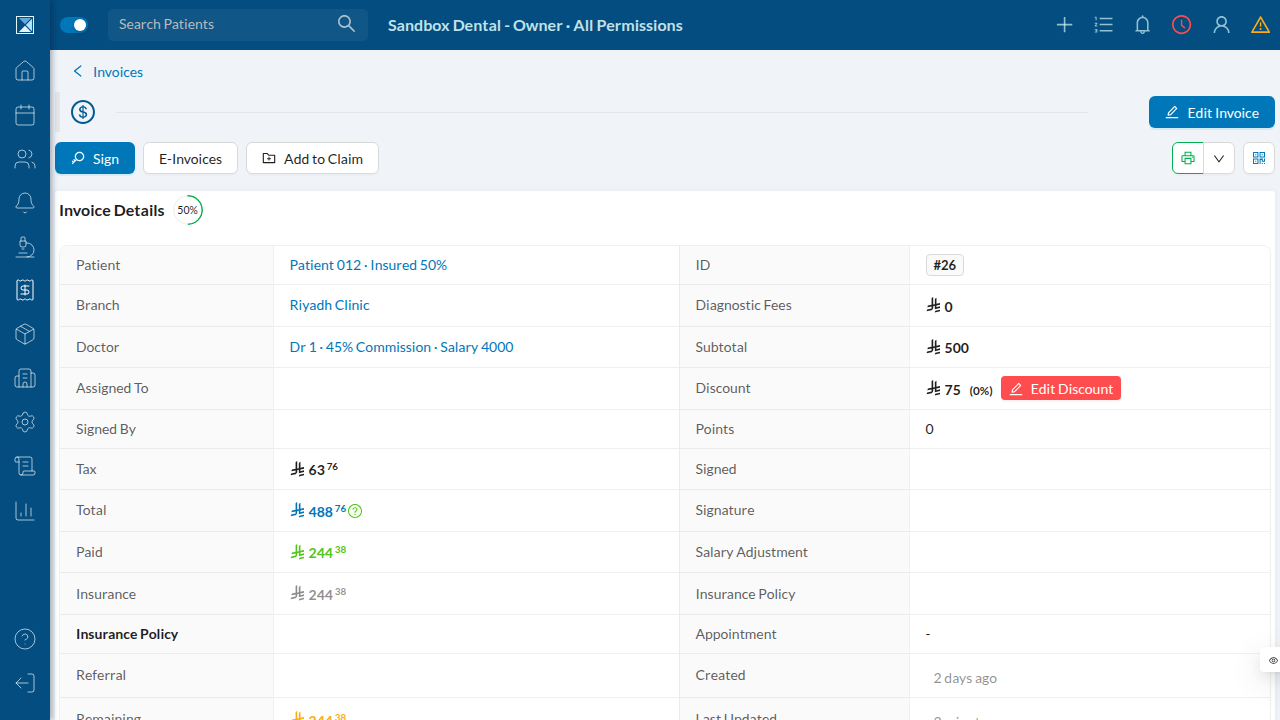
Clicking an invoice's ID opens its detail page. This is where the Generate Online Link button lives (next to Sign / E-Invoices / Add to Claim), shown only when the clinic has online payments enabled.
Clicking it opens a modal (GeneratePaymentModal, packages/clinic-web/src/components/dashboard/finances/invoices/GeneratePaymentModal.js) with:
- Amount — pre-filled with the invoice's remaining balance
- Payment Provider — a dropdown of the clinic's configured payment
options (Geidea, Paymob, Fawry, Stripe...)
- Phone and Email — both optional, with a hint reading "email or
phone." Staff can leave the email blank entirely and still submit the form.
That last point is the crux of this PR: the email field has no required rule, so a blank email reaching the Paymob branch of the server code was — in practice — routine, not an edge case.
3. Where the generated link shows up
Every invoice has an Online Payments tab that lists the links generated for it, along with their status (created, pending, paid, failed, refunded).
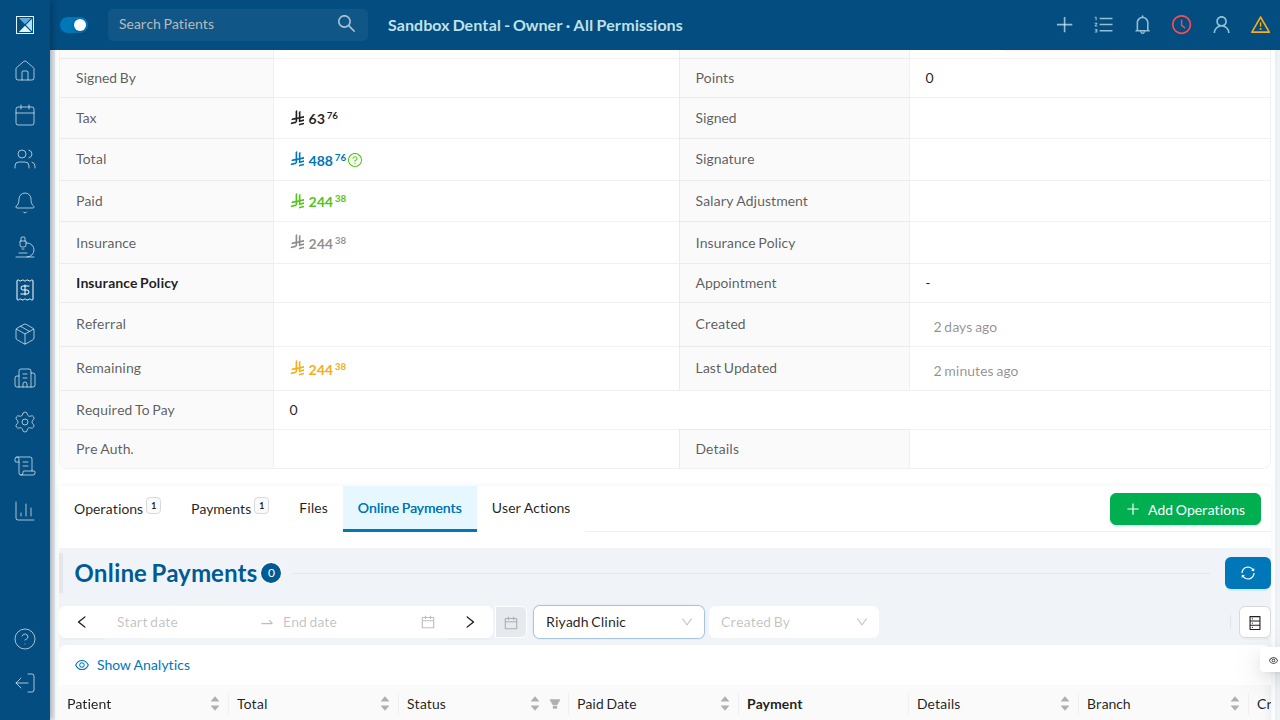
Before this fix, a Paymob link request for a patient with no email could fail at the provider before ever reaching this list — because the outgoing request body was missing the email field Paymob expects. After the fix, the request always carries an email (the patient's real one if they have it, or the fallback online_payment@dentolize.com if they don't), so the link generation step no longer depends on whether the patient happens to have an email on file.
4. Where the integration is configured
Payment providers, including Paymob, are configured under Settings > Integrations > Online Payments. In this sandbox the feature is disabled, so the screen shows the gate rather than the Paymob configuration form:
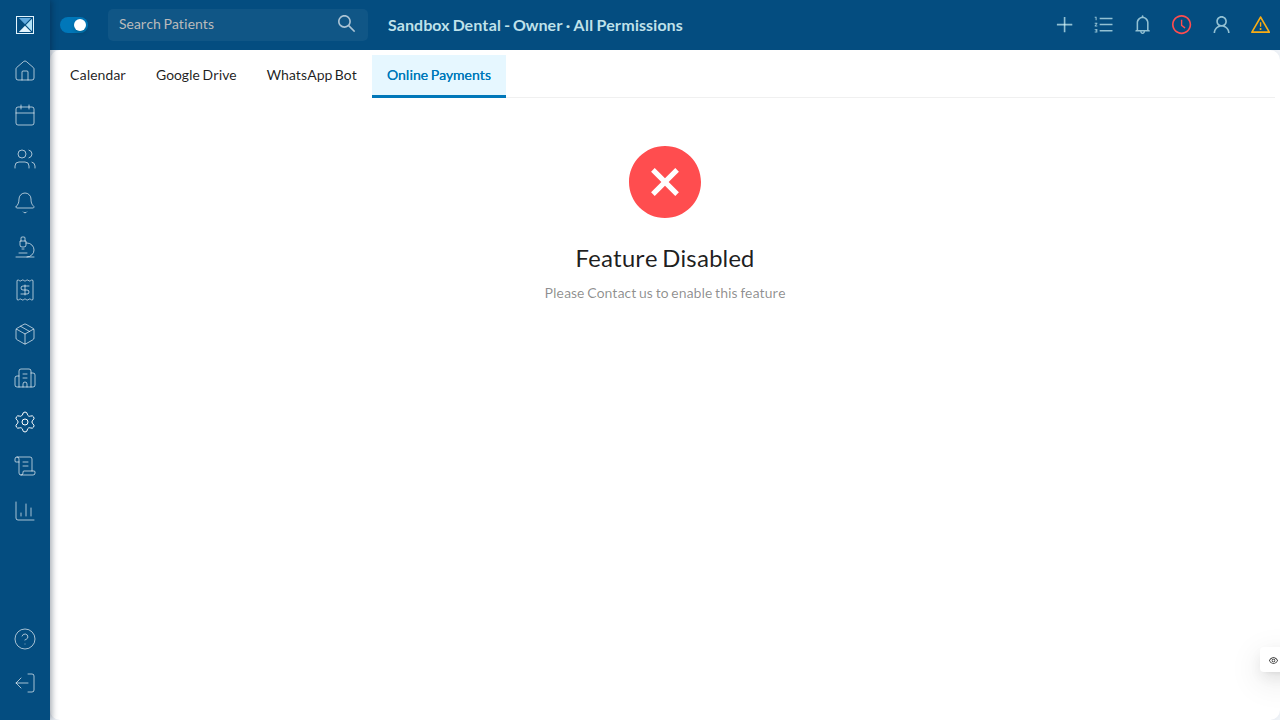
When enabled, this tab shows the clinic's list of payment options (one row per provider credential set) and a form to add a new one — including a Paymob option, where the "username" field holds Paymob's integration ID(s) and the "password" field holds the API key used to fetch an auth token before requesting a payment link.
See Paymob Fallback Email for exactly what changed in the request Dentolize sends to Paymob.