On this page
1. Where the money lives: the dashboard2. Booking an appointment3. The treasury field — the heart of fix #14. Multi-step operations — "Pulses / Sessions"5. Adding a payment to a stepped operation6. The invoices ledgerWalkthrough (screenshots)
A guided tour of the two real screens this PR touches, captured from the pre-release branch sandbox (mo-fix-treasury-and-payment-step) signed in as the Owner role of Sandbox Dental.
Screens are captured on the branch build. The treasury fix itself lives in the mobile app; the web screens below show the same fields and money flows the fix protects, which is what most staff will recognize.
1. Where the money lives: the dashboard
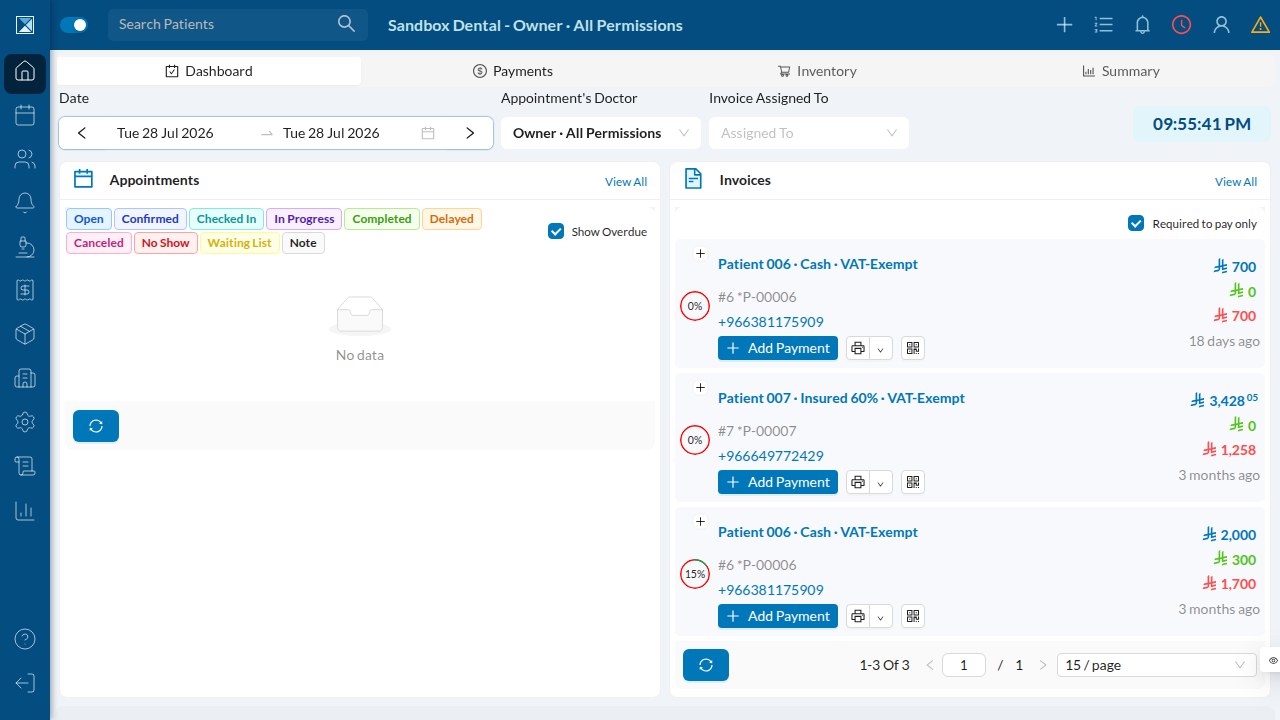
The dashboard opens on outstanding invoices, each with an Add Payment button and a running "paid / remaining" figure. This is the surface both bugs feed into — a diagnostic fee collected at booking becomes an invoice here, and step-payments update these balances.
2. Booking an appointment
From Calendar → New Appointment, staff schedule the visit. The lower part of this form is where the first bug lived.
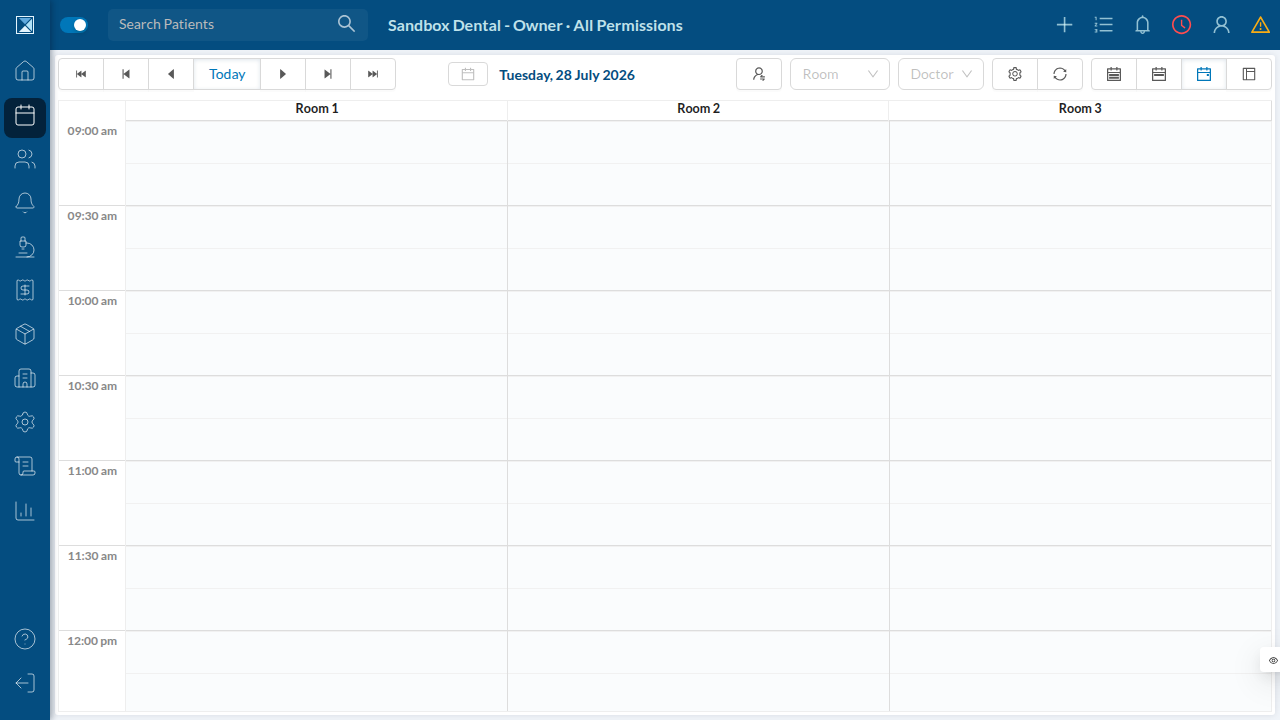
The Create New Appointment dialog collects the patient, doctor, room, time, and appointment type — and, at the bottom, the Diagnostic Fees section.
3. The treasury field — the heart of fix #1
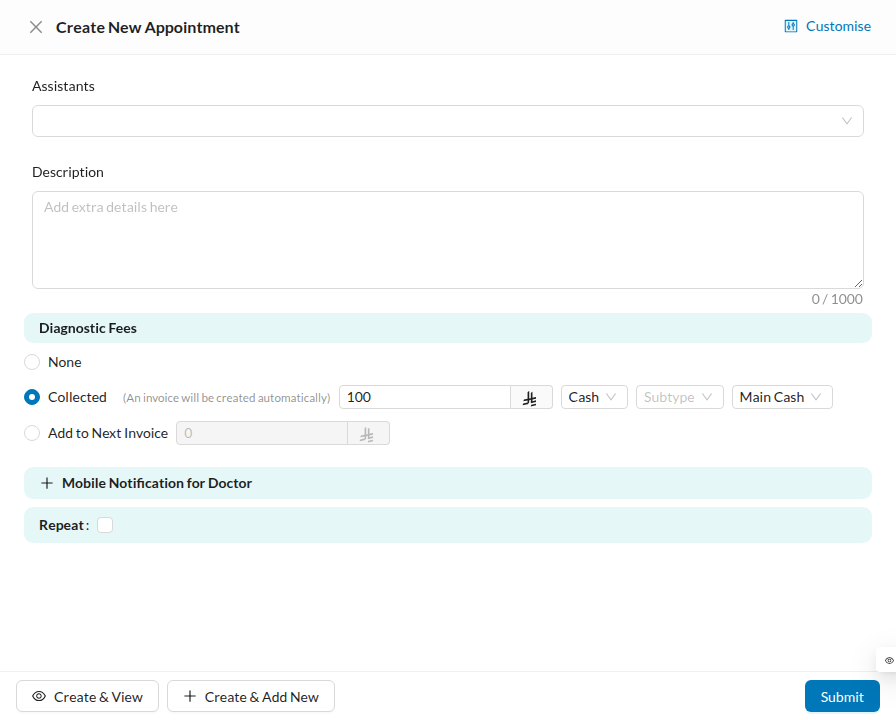
Choosing Collected for the diagnostic fee reveals three inputs: the amount, the payment method (Cash), and the treasury the money goes into — here showing Main Cash. "An invoice will be created automatically."
This is the field that used to go blank on mobile after a treasury was picked. With the fix, the selected treasury is displayed and saved.
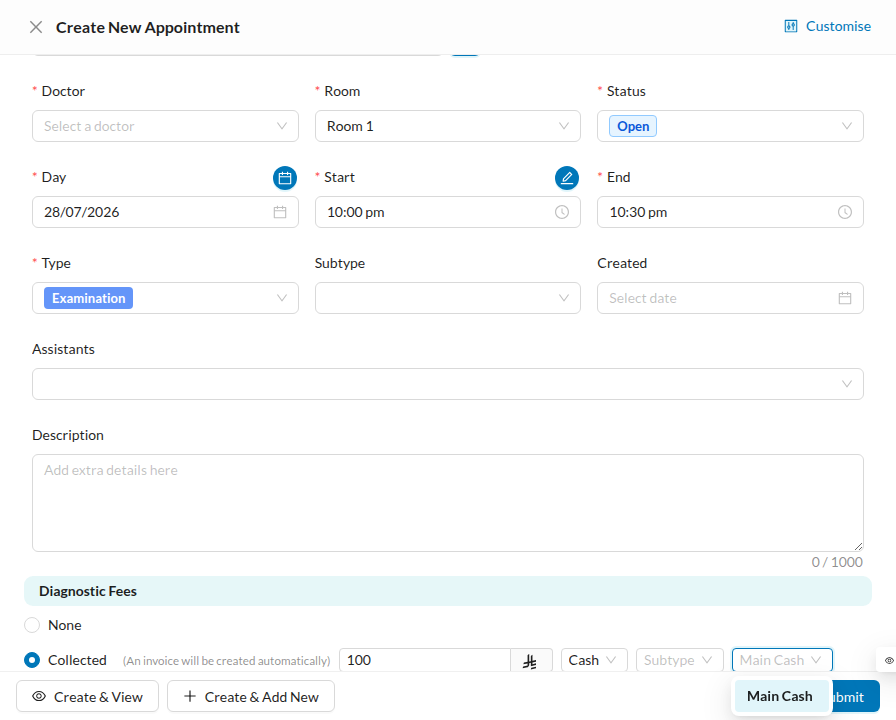
On mobile, tapping the treasury field opens a picker; the fix makes the chosen row come back into the field instead of leaving it empty. The web form above uses a dropdown, so it already displays the value — but it is the same treasury field and the same "collect the diagnostic fee into a treasury" workflow.
4. Multi-step operations — "Pulses / Sessions"
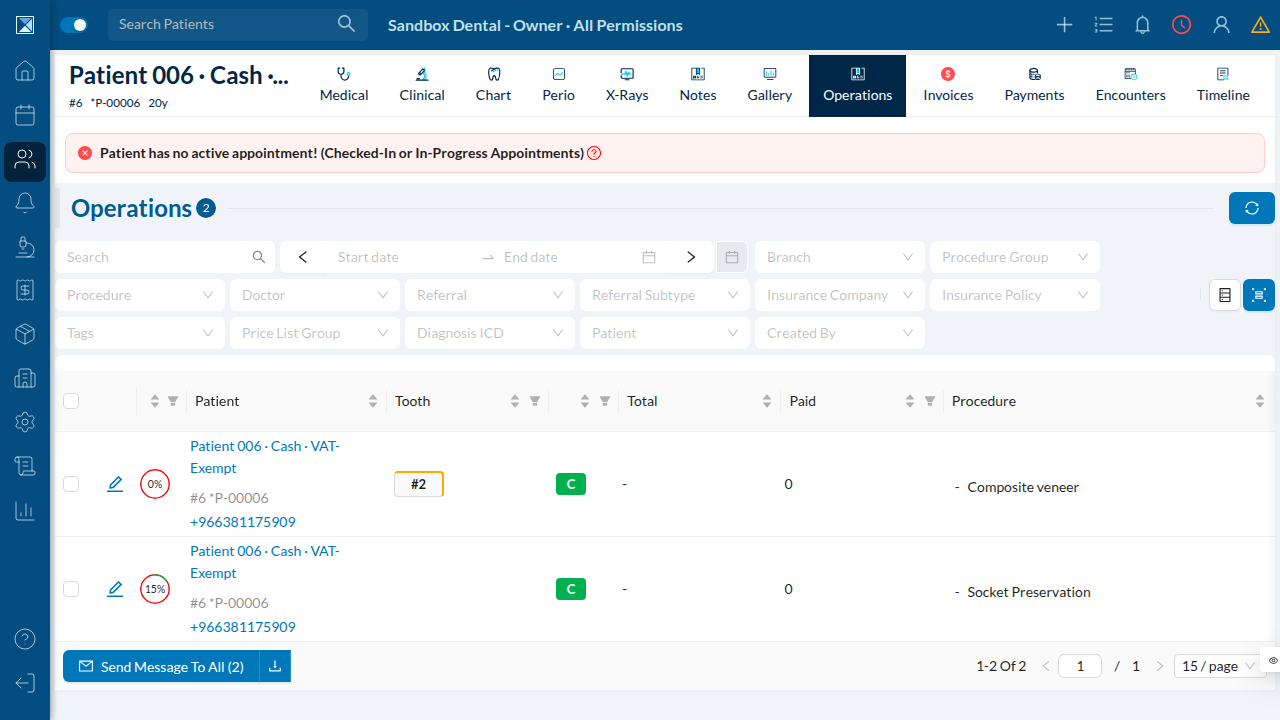
Fix #2 is about operations billed as a course of sessions. Open any patient → Operations. Note the column literally named "Remaining Pulses / Sessions" — Dentolize's word for the remaining steps of a treatment. Each operation here (Composite veneer, Socket Preservation) can be paid off step by step.
5. Adding a payment to a stepped operation
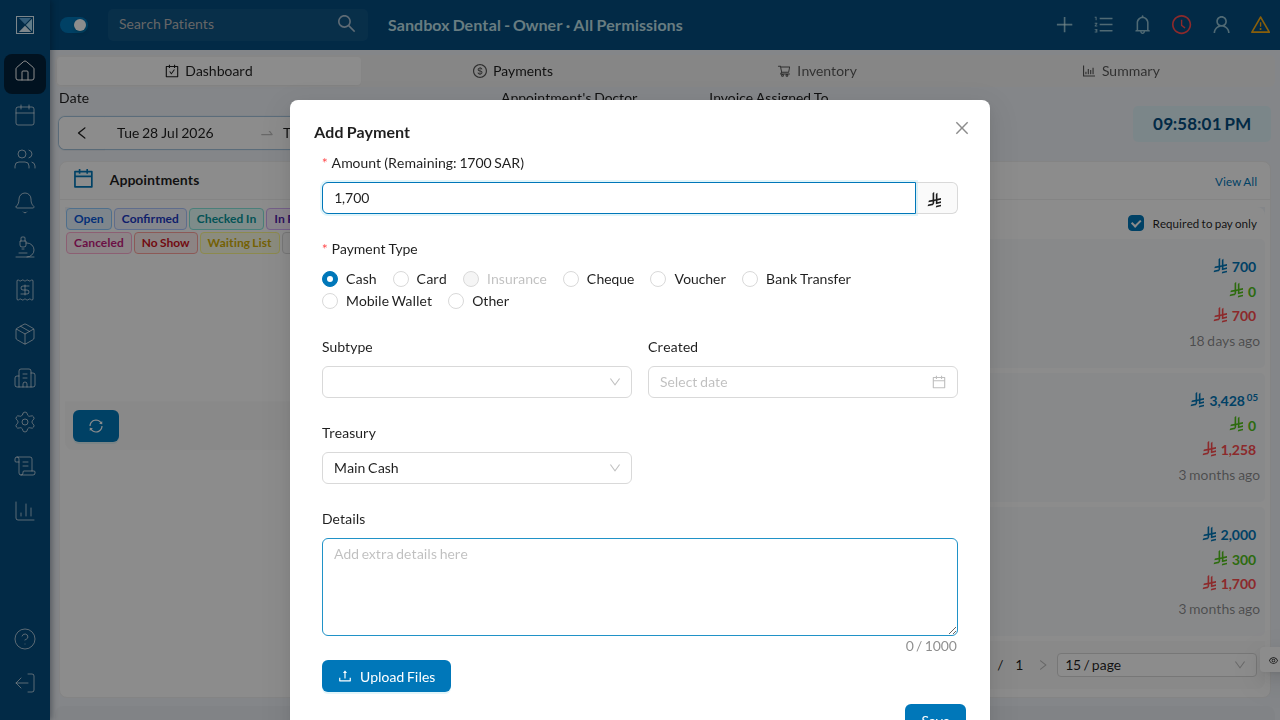
Back on an invoice, Add Payment opens the payment dialog. It carries its own Treasury selector (Main Cash) alongside the amount and date. When this payment is applied to an operation with steps, the server decides how much of it settles each step and whether the operation is now paid in full — the logic this PR corrects so the payment is recorded as one record with the doctor's commission fully attributed.
6. The invoices ledger
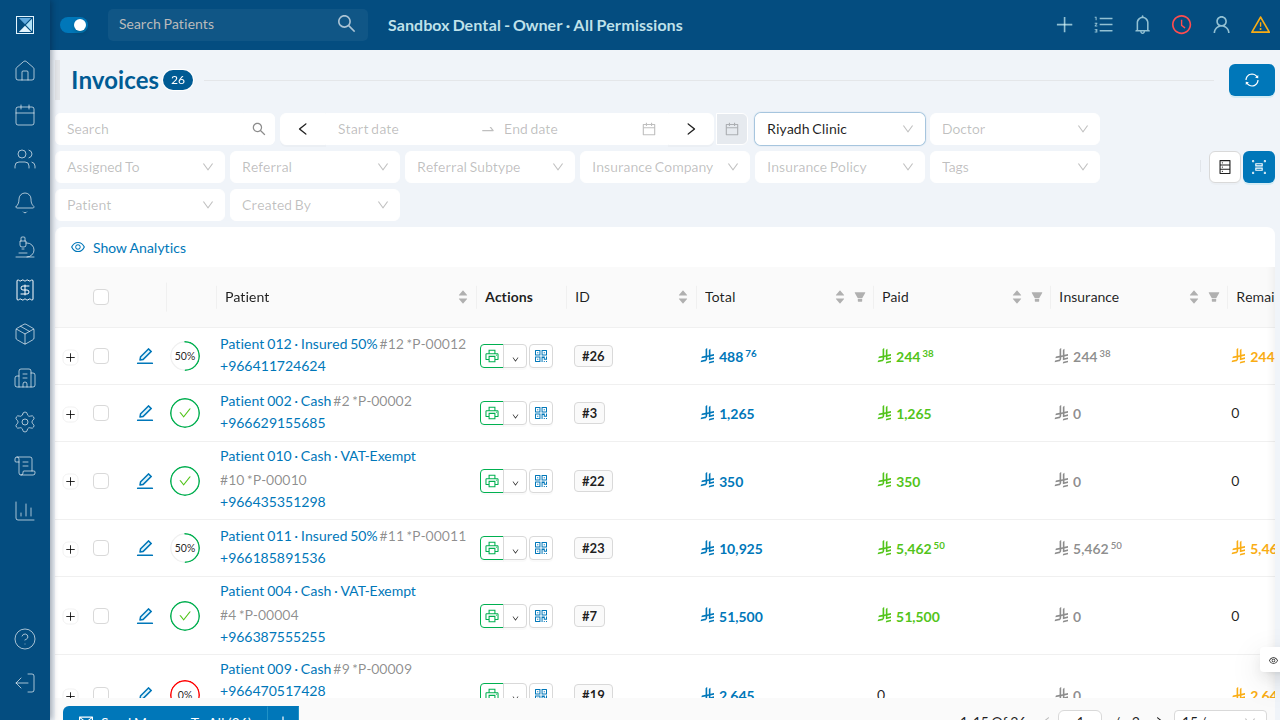
Every collected fee and step-payment lands in Finances → Invoices, the ledger accountants reconcile against the treasuries. Both fixes exist to keep this list honest: the right treasury on each collected fee, and one clean payment record per collection.