On this page
1. Finding it: Inventory → Stock Counts2. The list3. Opening a count4. The count screen5. Counting, one line at a time6. Counting from a spreadsheet7. Cancelling8. ConfirmingWhat isn't shown hereWalkthrough
A guided tour through the web experience, captured on the branch's sandbox (mo-stock-counts.sandbox.anastawfik.com), logged in as the owner user (all permissions).
A note on the screenshots below: this sandbox's seed data stores item quantities onInventoryItem/InventorySubItemtotals but does not populate the per-locationInventoryLocationrows that a stock count actually reads from (packages/server/src/resolvers/mutations/actions/stockCounts/addNewStockCount.js:53). That means every count opened here has 0 lines to count. The screens, buttons, and dialogs below are all real and unmodified — only the "0 of 0" figures are an artifact of this particular sandbox snapshot rather than the feature. Where the counting input itself isn't visible in a screenshot for that reason, it's described from source instead, with exact file references.
1. Finding it: Inventory → Stock Counts
A new "Stock Counts" entry appears in the Inventory sidebar, gated behind a permission check (user.permissions.stockCounts) so clinics that haven't granted count access don't see it at all.
2. The list
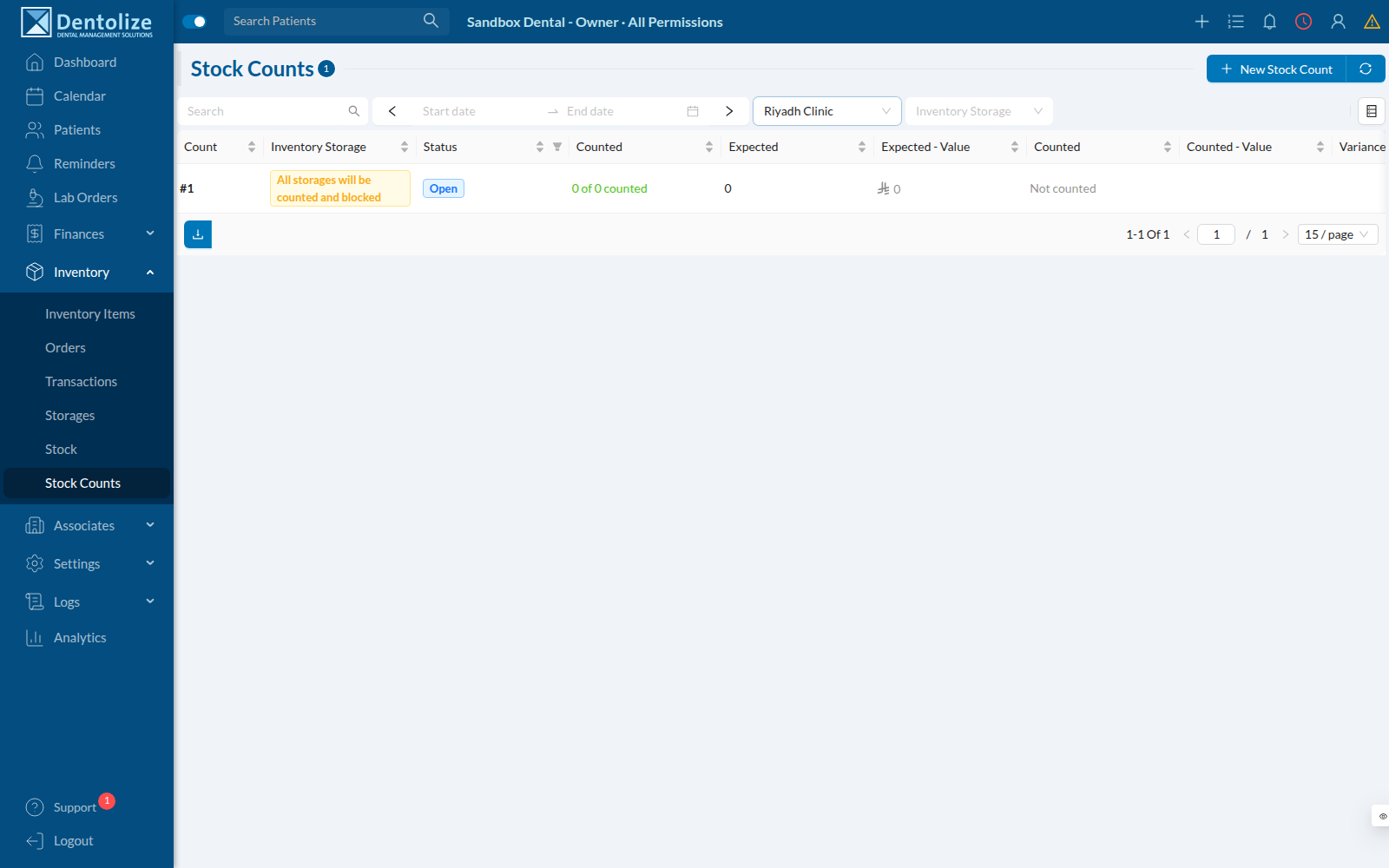
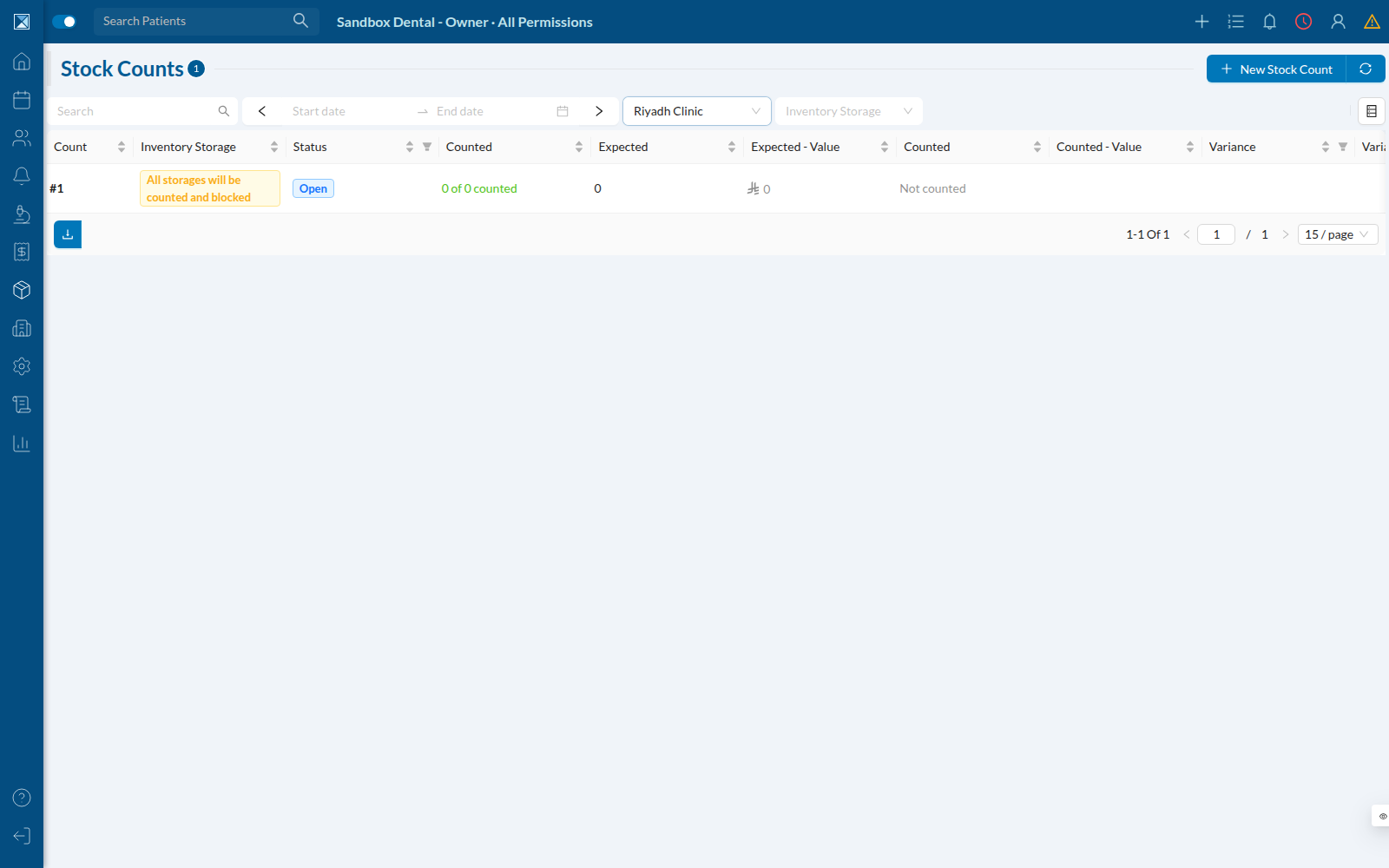
Every count the current user can see, with running totals: expected vs. counted amount and value, and the variance between them. Status is colour-coded (Open / Confirmed / Cancelled), and a count that covers "all storages" is flagged with a warning tag instead of a single storage name.
3. Opening a count
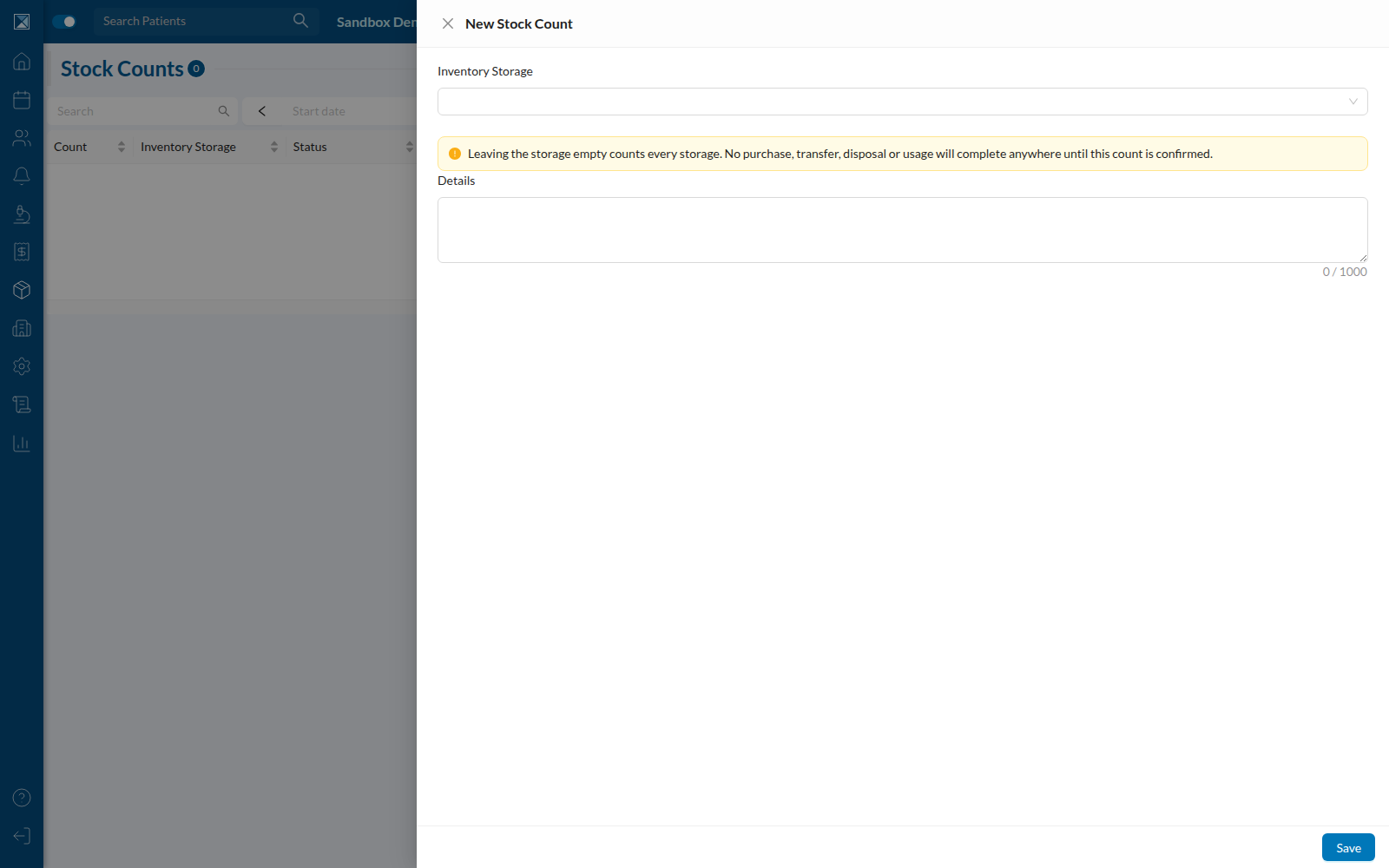
Clicking New Stock Count opens a small form: pick a single storage to count, or leave it empty to count (and lock) every storage in the clinic at once. The form is explicit about the consequence of leaving it empty before you can make the mistake of doing it by accident.
Filling it in — a storage picked, a free-text detail field for context ("Q3 quarterly cycle count"):
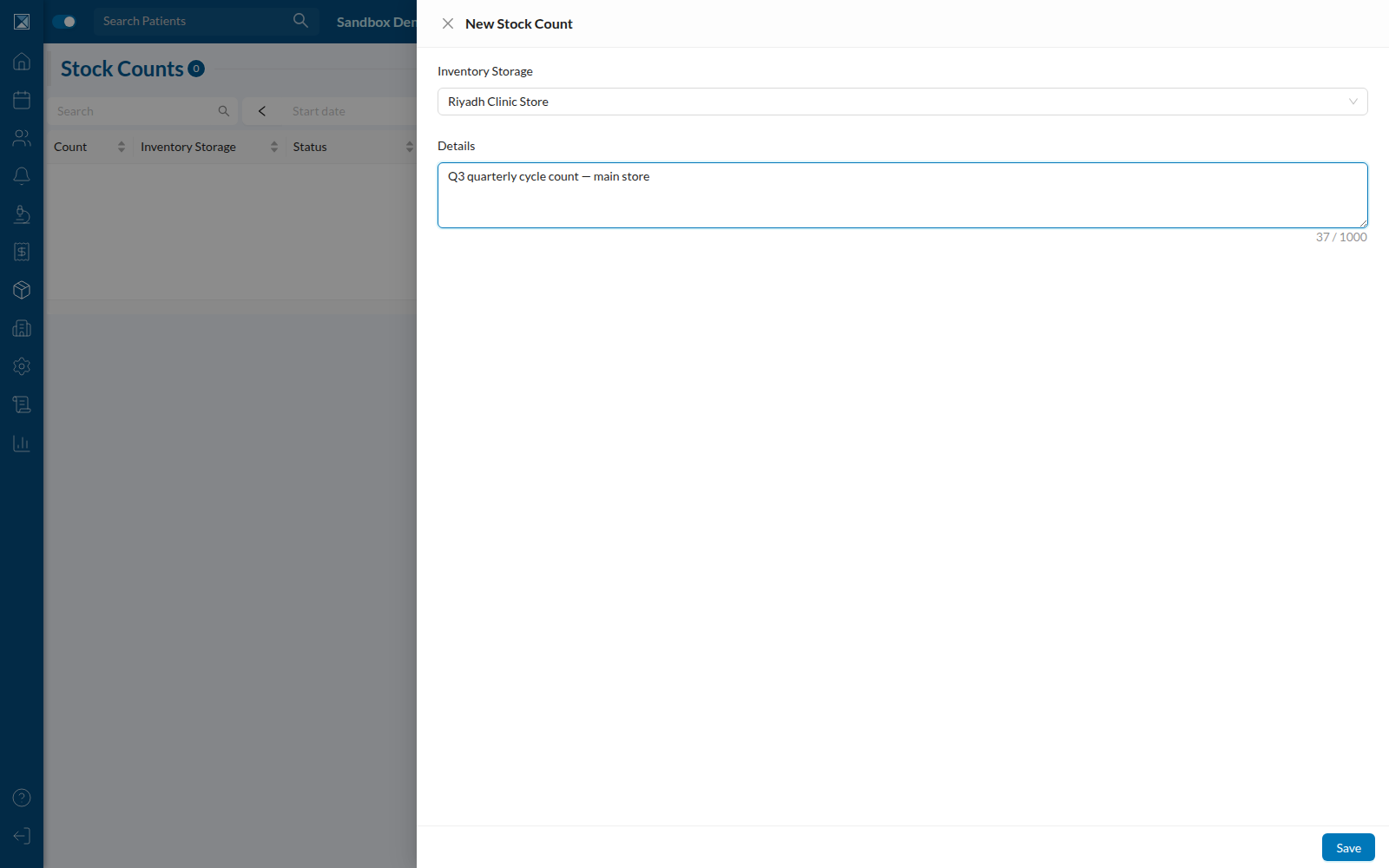
Saving takes you straight to the new count, numbered sequentially per clinic (#1, #2, …).
4. The count screen
The detail screen is the hub for a count: header actions (Start Count, Upload Count Sheet, Cancel, Delete, Confirm — all disabled once the count is closed), a summary of what's expected vs. counted vs. the variance, and a full line-by-line table underneath (built on the same CommonTable component used across the app, so it has its own search/filter/sort/date-range/export for free).
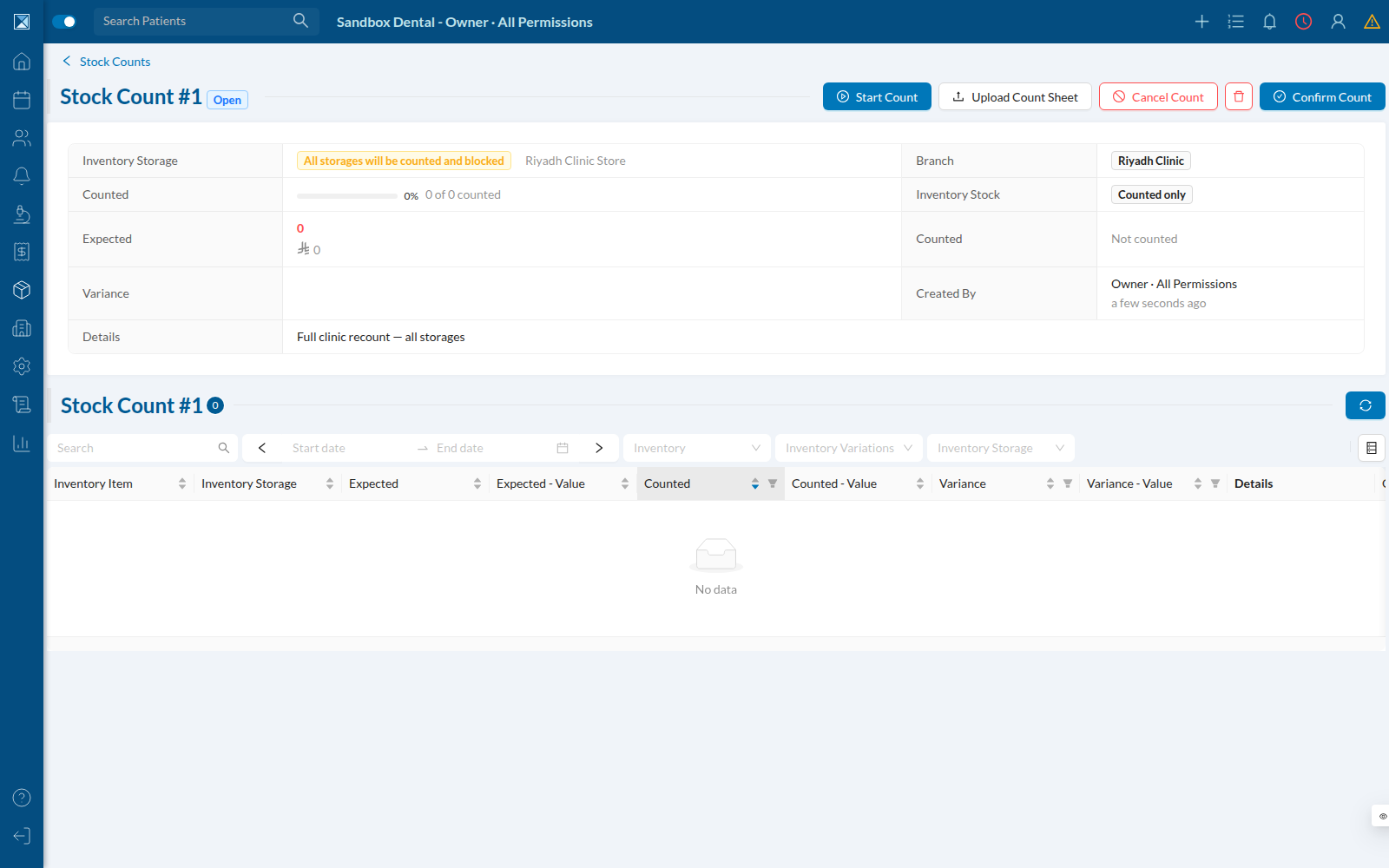
Note the storage cell: because this count has no single storage, it shows "All storages will be counted and blocked" instead of a storage name, and (once locking has actually engaged on non-empty data) would list which storages that resolved to under lockedStorages.
5. Counting, one line at a time
The Start Count button opens a focused modal built for someone standing at a shelf: it hands out the next uncounted line automatically, takes one number (in items or boxes), an optional note, and moves to the next line on save — with a live progress bar. A search box lets a counter jump straight to a specific item if the shelf order doesn't match the list order.
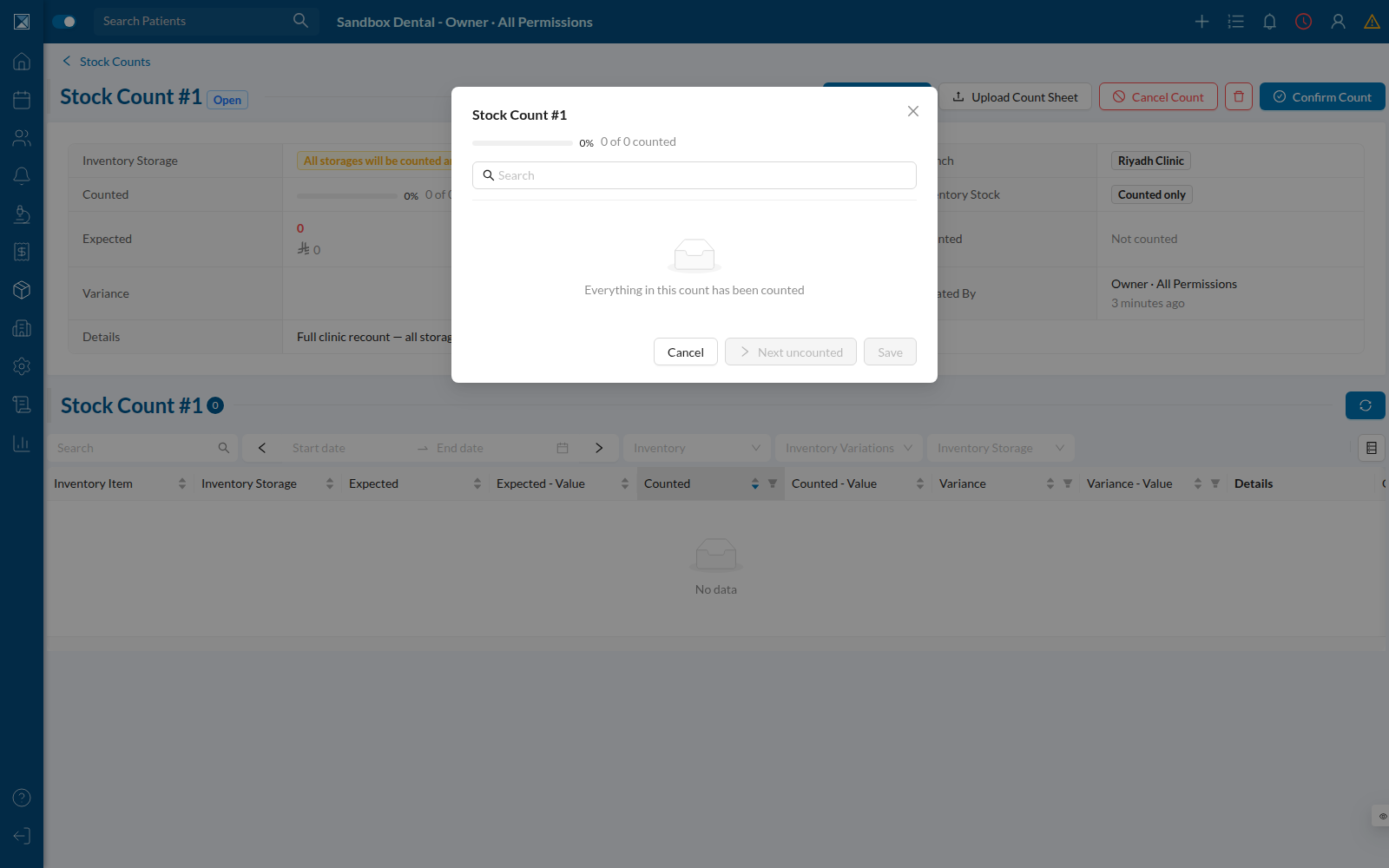
With real lines in the queue, this same modal shows the item name, its storage, the expected amount (in both units), an InputNumber for the count, an item/box toggle, and a details field — see Counting & Recording for the full mechanics, since this sandbox's zero-item count can't show the populated state.
6. Counting from a spreadsheet
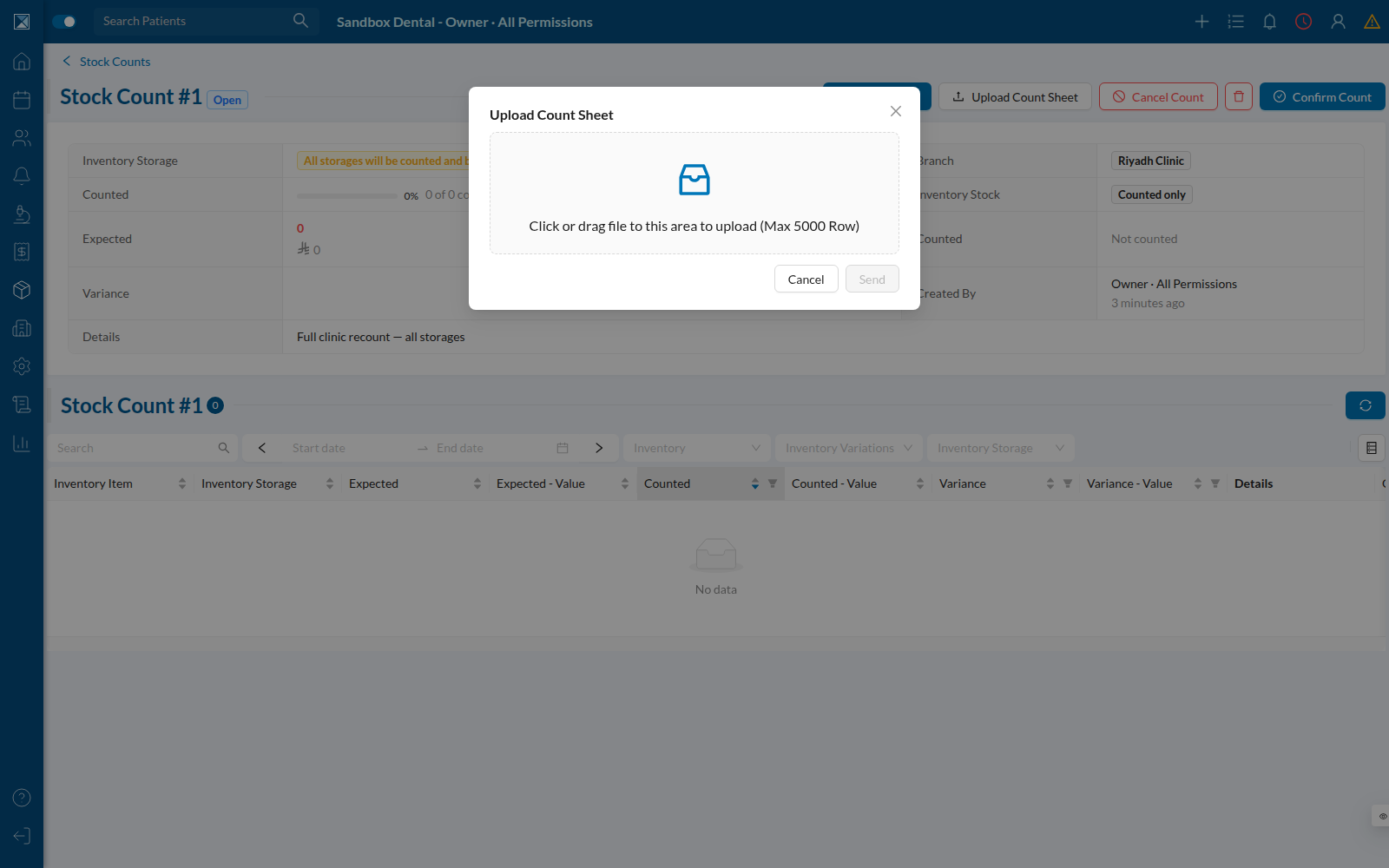
Some clinics count on paper first, or want to hand a printed sheet to staff. Upload Count Sheet accepts an .xlsx/.xls/.csv file and matches each row back to a line in the count by its printed code, falling back to SKU + storage name if the code column got lost in a copy-paste.
7. Cancelling
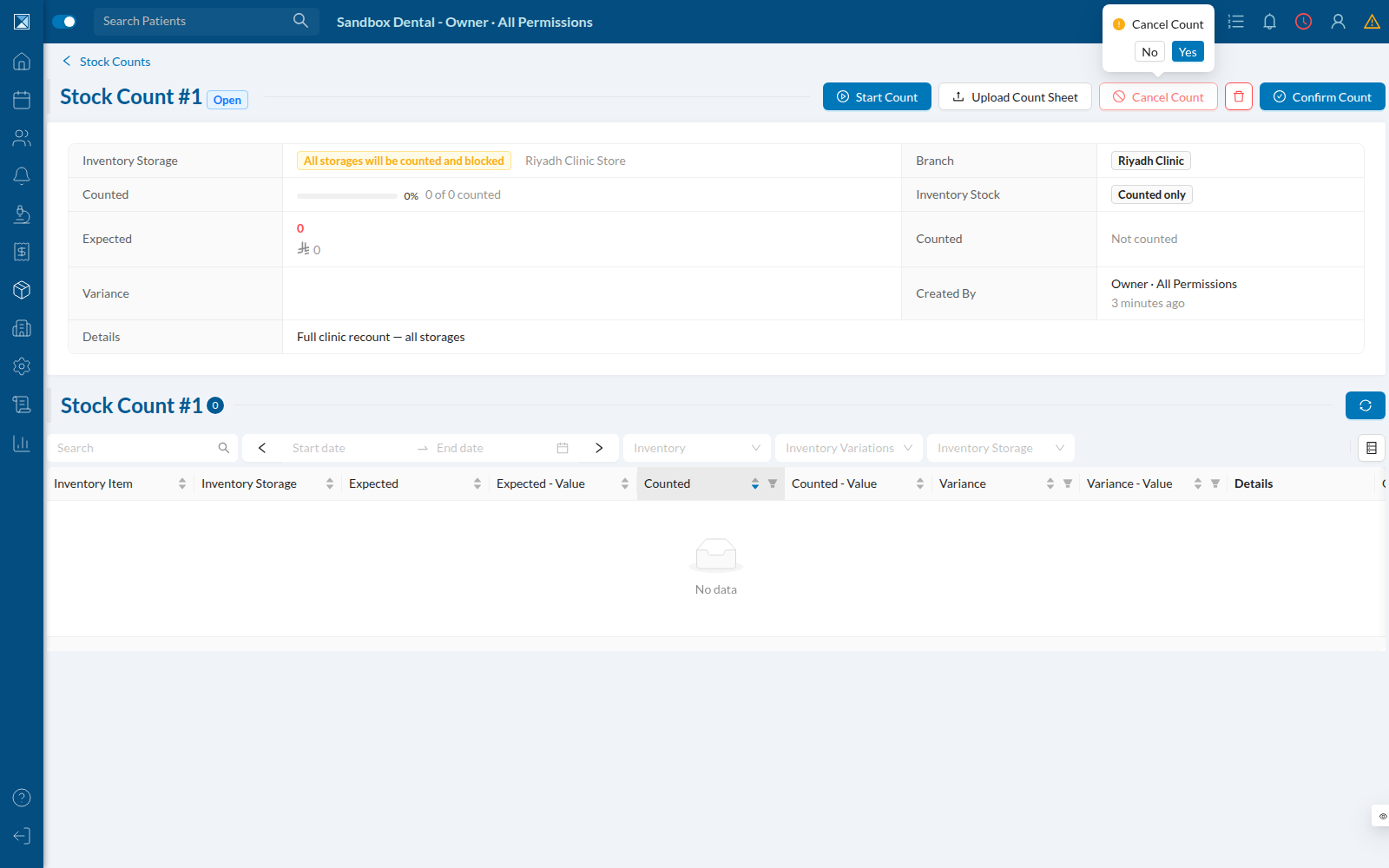
Cancel Count ends a count without touching stock and immediately releases any storages it was holding. It asks for confirmation first, since it can't be undone (a cancelled count can't be reopened):
8. Confirming
Confirm Count is the moment that matters most: it's the only action that can change real stock. The dialog states plainly what will happen either way — how many lines were counted, the total variance in quantity and value, and a warning if any lines were never counted (those are left alone, not treated as zero). Two buttons make the outcome explicit rather than implicit in a checkbox: Confirm without changing stock (record the count, change nothing) or Confirm and update stock (also book an ADJUSTMENT inventory order for every line that came out different).
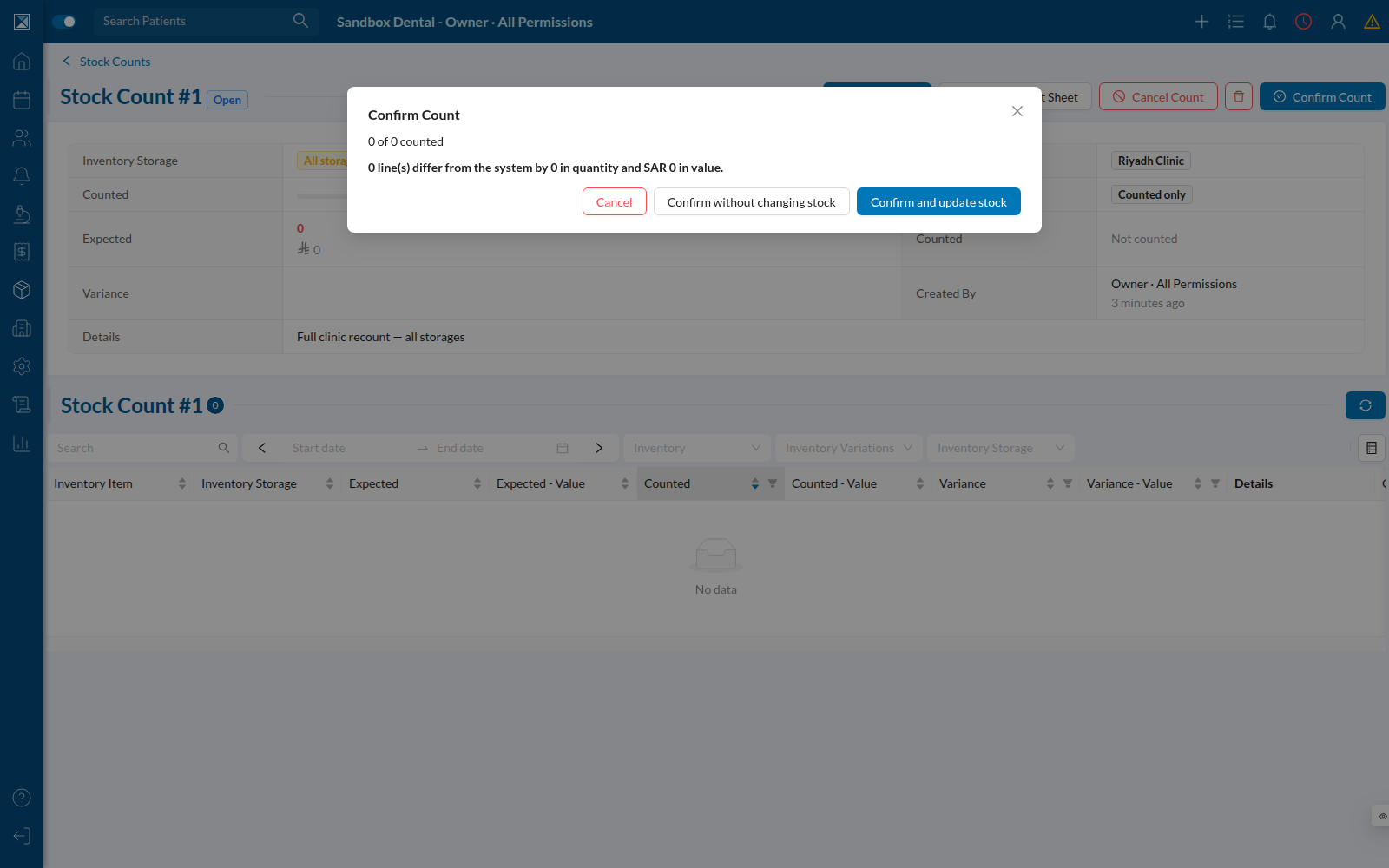
Confirm and update stock is itself disabled for users without ADD_INVENTORY_ADJUSTMENT permission — counting and adjusting stock are deliberately separable permissions.
What isn't shown here
The mobile app (Expo/React Native, not reachable as a web page in this sandbox) ships the same workflow with a phone-first spin: a barcode scanner that jumps straight to a line, and a dedicated single-line counting screen instead of a modal. See Counting & Recording for how it's built, with file references into packages/clinic-mobile.