On this page
1. Issue an Access Key for the desktop app2. Request a capture from a patient's X-ray chart3. Track and audit captures from LogsWalkthrough
A guided tour through the clinic-web surfaces, captured live from the sandbox (owner role — the only seeded user with full company-admin rights). The sandbox has real acquisition history from automated end-to-end tests that exercise the actual desktop app against this environment, so several screenshots below show genuine in-flight and historical data rather than an empty demo state.
1. Issue an Access Key for the desktop app
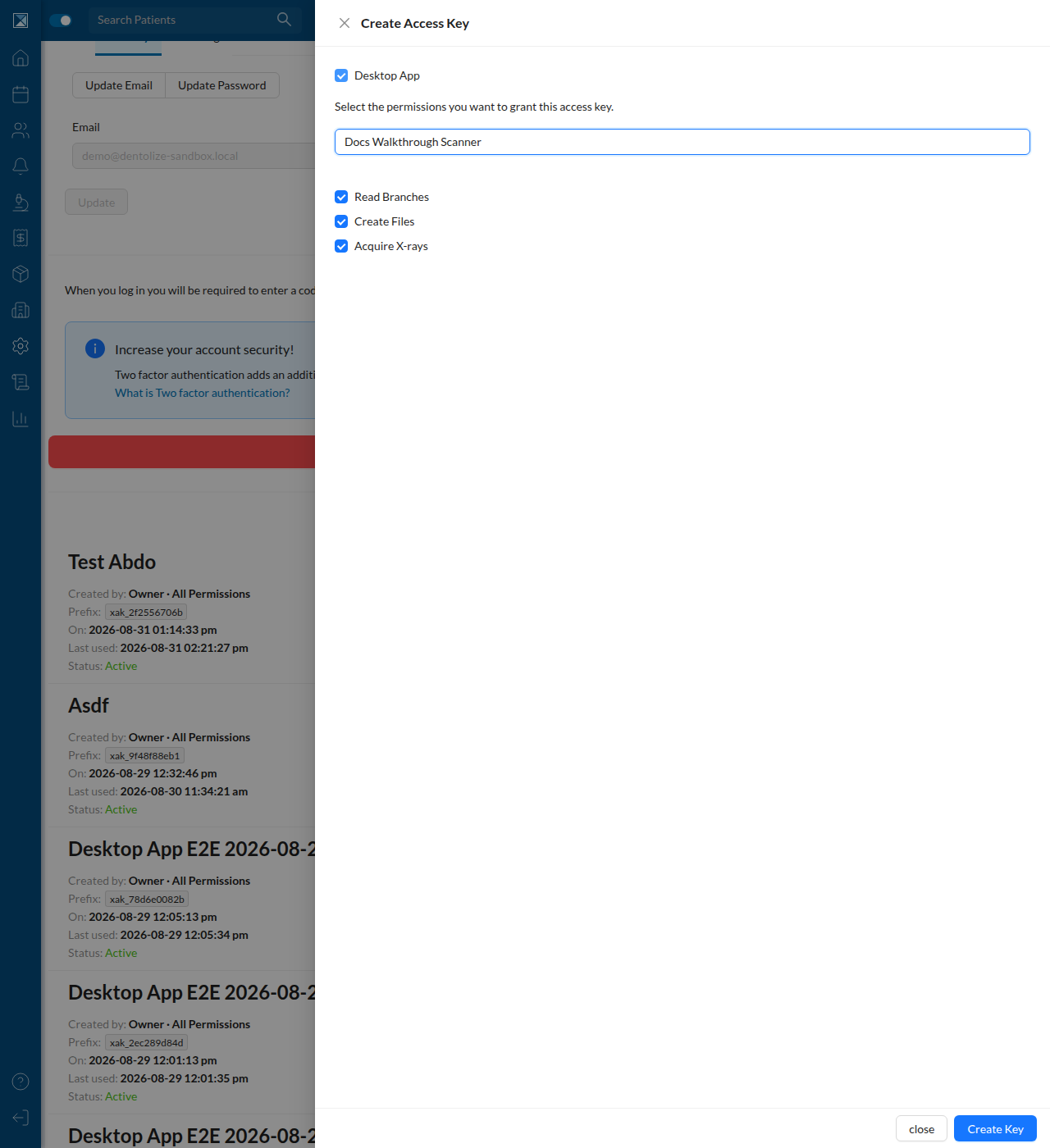
Access Keys live under Account → Security, below the existing password and two-factor settings. Clicking Create New Token opens a drawer. The Desktop App checkbox is a shortcut that selects every available scope in one click; scopes can also be picked individually. A label is required so the clinic can tell keys apart later:
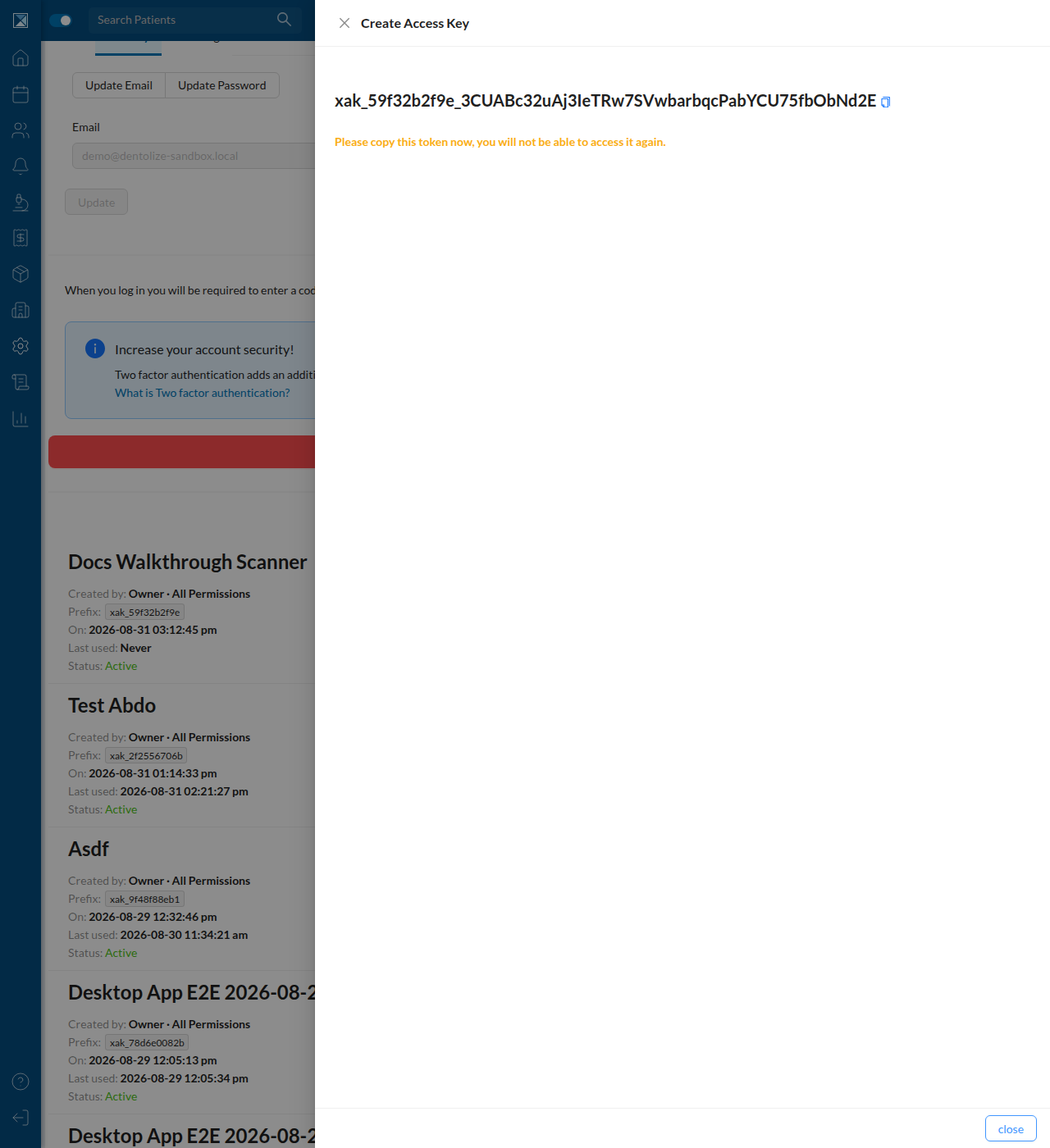
Submitting shows the raw key exactly once, with an explicit warning that it can't be retrieved again. Note the key format — xak_<10-char prefix>_<43-char secret> — only the prefix is ever stored or shown again:
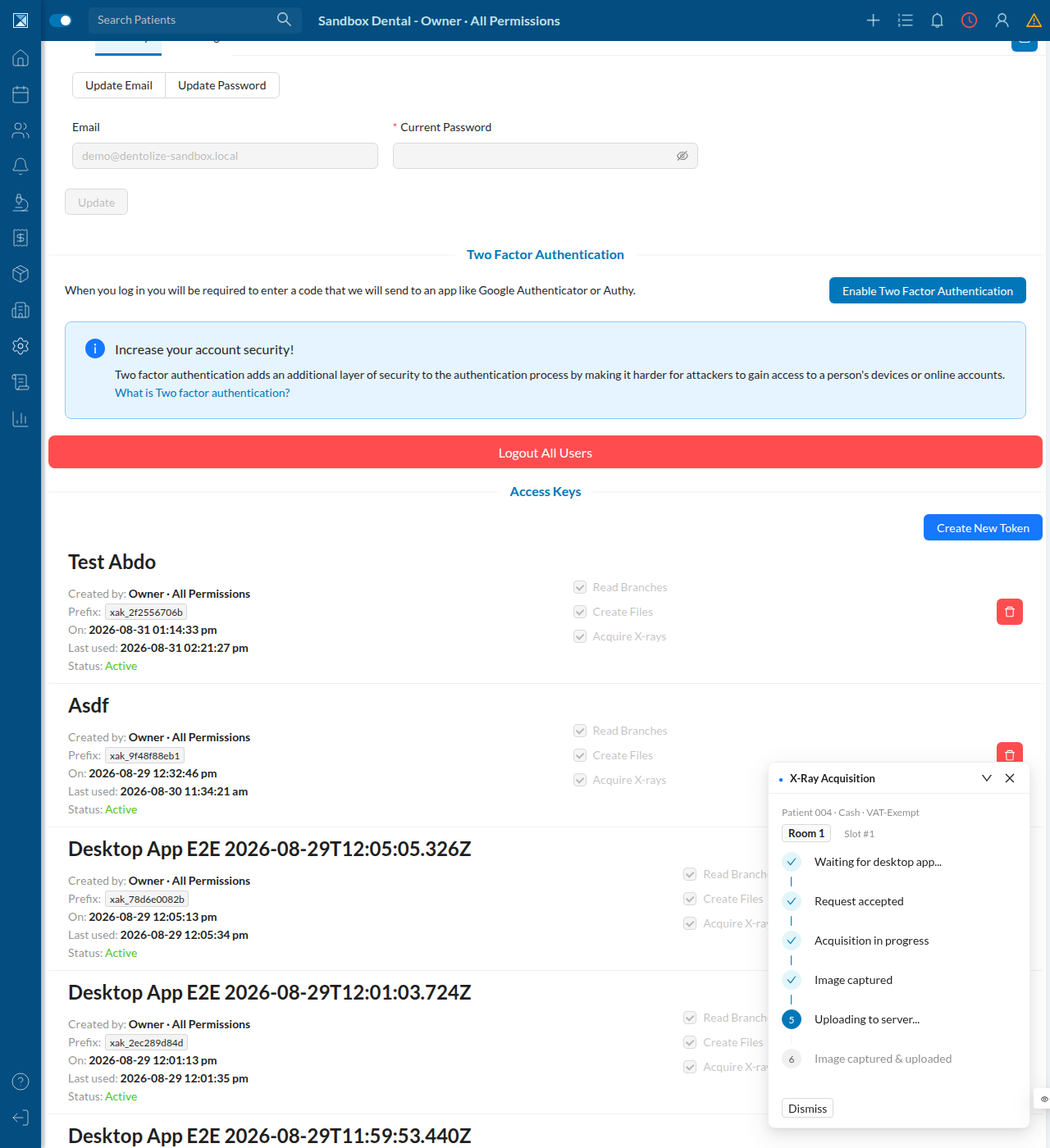
After closing the drawer, the key appears in the list — showing its label, creator, creation time, key prefix (not the full key), last-used timestamp, status, and the scopes it was granted (shown as disabled checkboxes), plus a revoke button. This sandbox already has dozens of keys from live end-to-end runs of the companion desktop app, which is why the list is long:
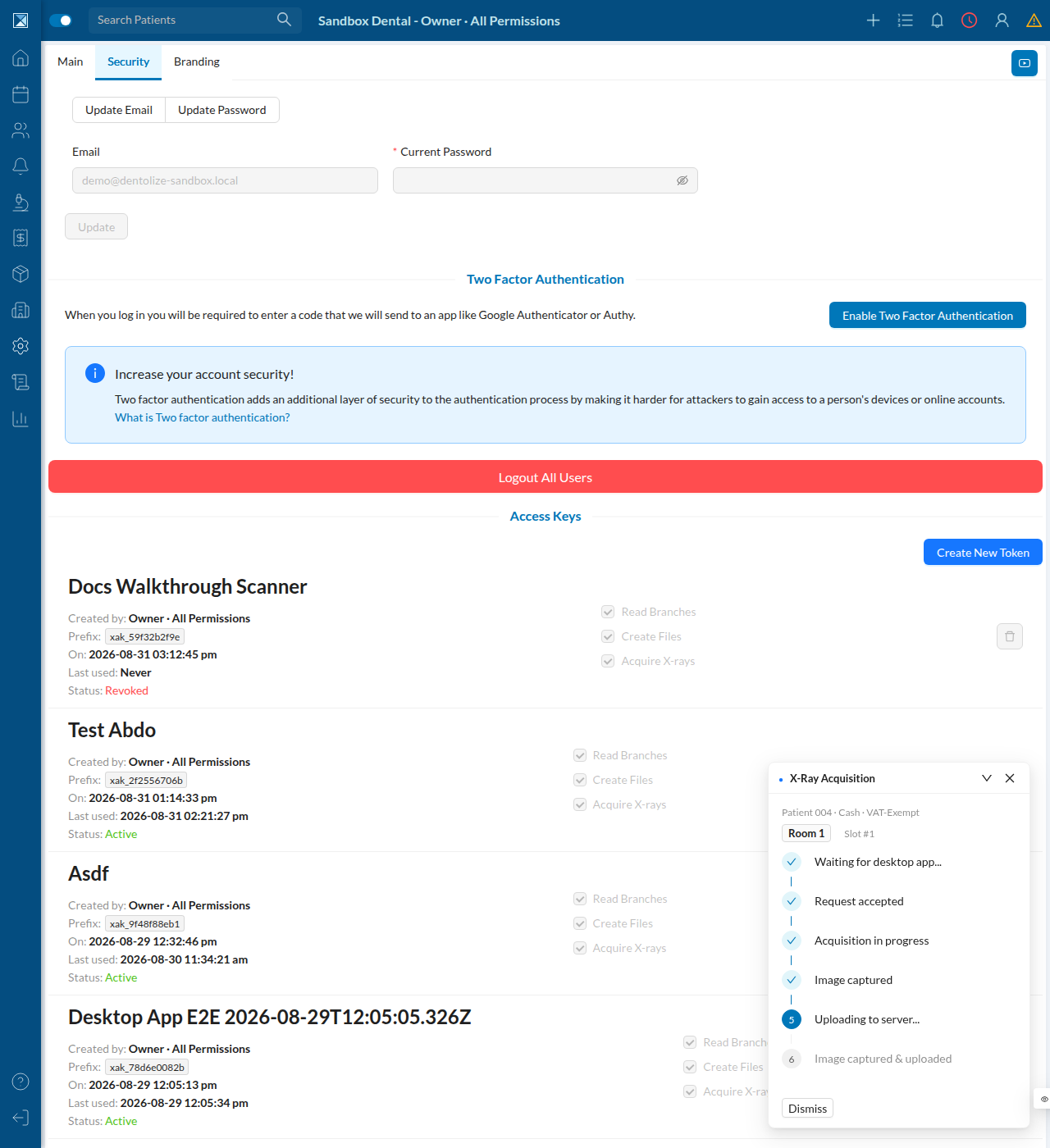
Revoking a key doesn't delete the row — it sets its status to Revoked and keeps it in the list (so the audit trail survives), and immediately disables the delete/revoke button for that row:
2. Request a capture from a patient's X-ray chart
On a patient's X-Rays tab, every empty slot has an Acquire button next to the usual upload dropzone. A live acquisition floating widget is visible in the corner — this one belongs to a real, currently-active desktop-app end-to-end test running against the shared sandbox, not a mock:
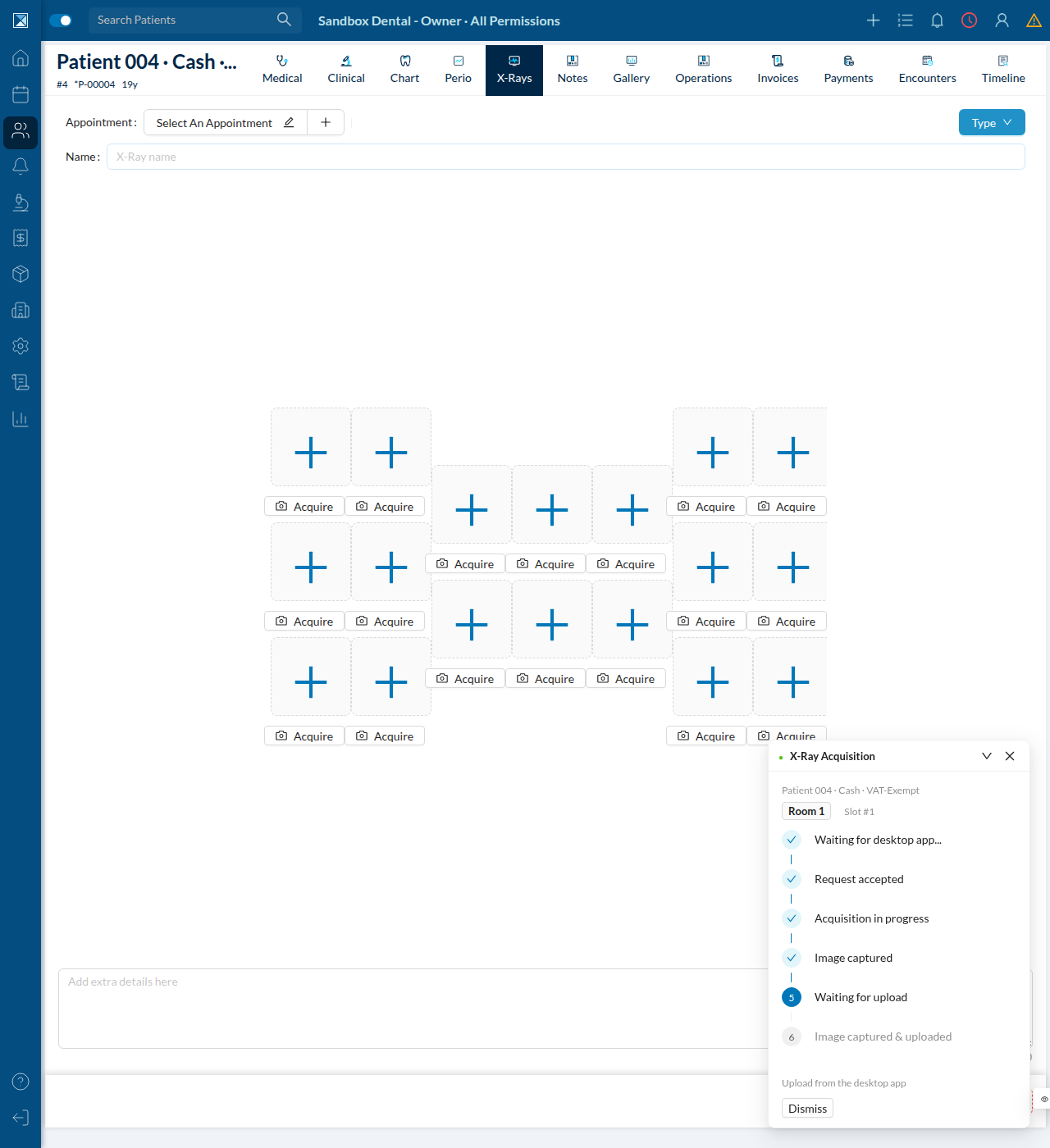
Clicking Acquire opens a small popover that lists desktop apps currently connected for the clinic's branch, grouped by "room". At the moment this was captured, no desktop app happened to be connected for this slot's branch/room, so the popover shows the empty state:
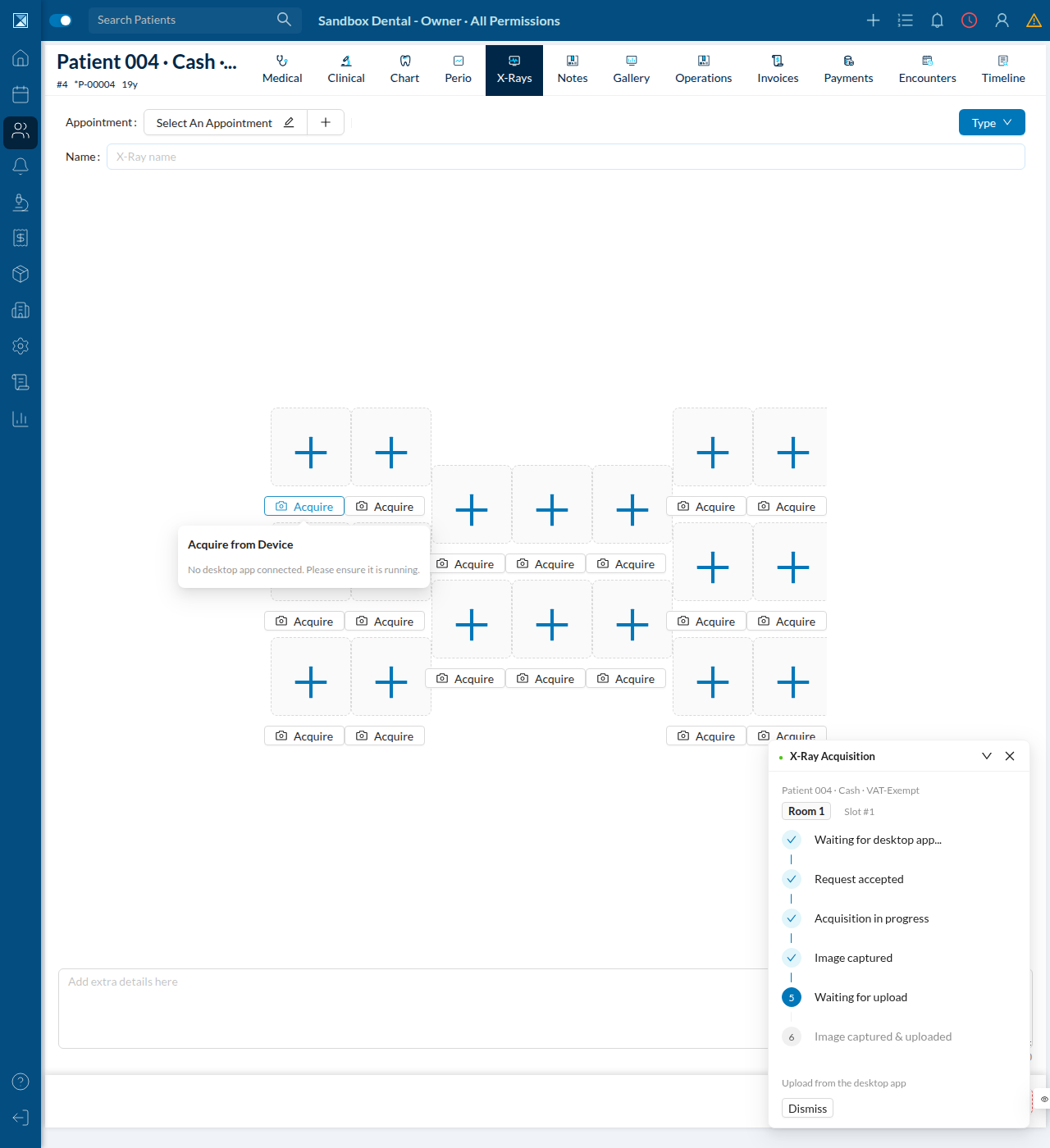
When a room is connected, the popover instead shows a dropdown of connected rooms and a Send Request button (see X-Ray Acquisition Workflow for what happens after that: a floating status widget tracks the request through Waiting → Accepted → In Progress → Captured → Waiting for upload → Uploading → Completed).
3. Track and audit captures from Logs
Every capture request — regardless of which patient or user it belongs to — is listed under Logs → X-Ray Acquisitions, filterable by branch, status, and date range. This sandbox has 52 real requests logged, most of them from automated desktop-app testing:
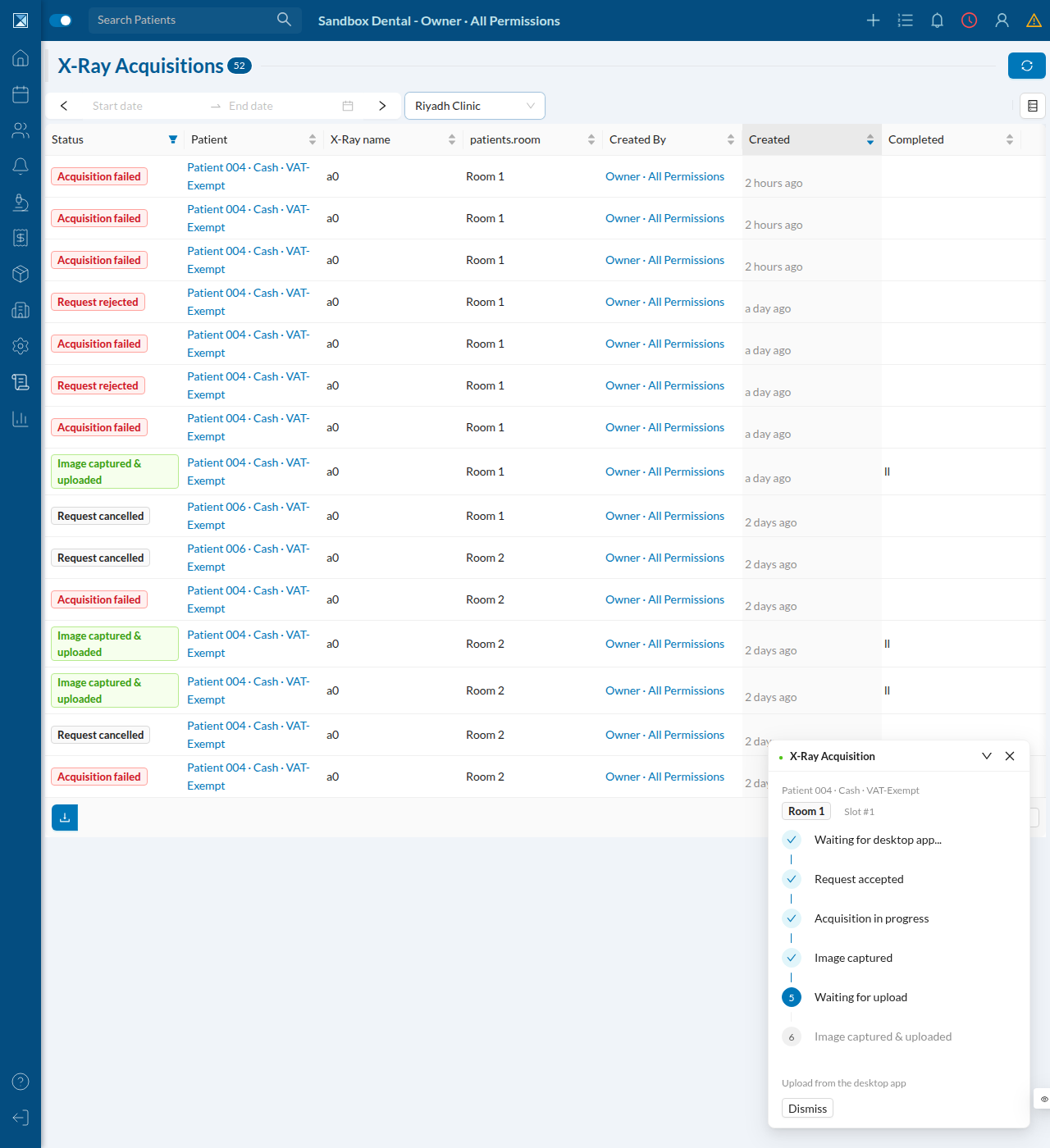
Note the "patients.room" column header in that screenshot — that's a raw, untranslated i18n key leaking into the UI instead of "Room". This was flagged in the earlier draft of this documentation and is still present in the current code — see For Quality for the underlying cause.